When you access the properties of a file or folder to encrypt it using the Encrypting File System (EFS), the option “Encrypt contents to secure data” may be greyed out.
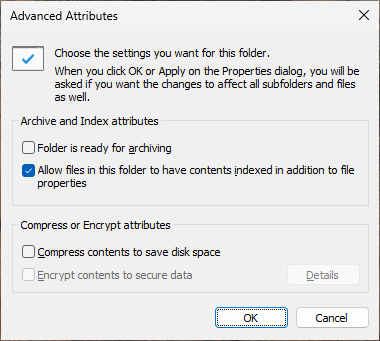
Cause
The Encrypting File System (EFS) is the built-in encryption tool in Windows that provides an additional level of security for files and directories. It’s important to note that the EFS feature is not available in Windows Home Edition.
If you’re using Pro or higher and find the option grayed out, it’s due to the “NtfsDisableEncryption” policy setting.
Resolution
To enable the “Encrypt contents to secure data” checkbox in Windows 10/11 Pro or higher, please use one of the following methods.
Option 1: Enable NTFS encryption using the Registry Editor.
- Open regedit.exe and go to the following branch:
HKEY_LOCAL_MACHINE\SYSTEM\CurrentControlSet\Policies
- In the right pane, right-click NtfsDisableEncryption and choose Delete.
- Exit the Registry Editor.
- Restart Windows for the change to take effect.
Option 2: Enable NTFS encryption using the Group Policy Editor.
If the NtfsDisableEncryption policy was enabled via group policy, please use the Local Group Policy Editor to set it to Not Configured.
- Launch the Local Group Policy Editor (gpedit.msc)
- Go to the location below in the Local Group Policy Editor.
Computer Configuration → Administrative Templates → System → Filesystem → NTFS
- Double-click “Do not allow encryption on all NTFS volumes” and set it to “Not Configured”.
- Click Apply, and click OK.
- Restart Windows for the change to take effect.
Additional settings
Set the EFS service to Manual start
Please also ensure that the Encrypting File System (EFS) service is set to Manual start.
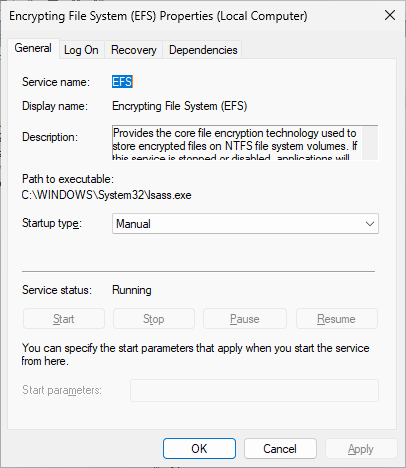
This service provides the core file encryption technology used to store encrypted files on NTFS file system volumes. If this service is stopped or disabled, applications will be unable to access encrypted files.
Enable NTFS encryption using FsUtil
You may also want to ensure that the NTFS encryption is not disabled using the fsutil command.
From Command Prompt (admin), run this command:
fsutil behavior query disableEncryption
If you see the following output, it means encryption is not disabled.
DisableEncryption = 0 (Disabled)
If the above fsutil command returns “1” as the output, run the following command to re-enable NTFS encryption:
fsutil behavior set disableEncryption 0
You’ll see the following output:
NOTE: Changes to this setting require a reboot to take effect.
DisableEncryption = 0  (Disabled)
Note: The above fsutil command modifies the “NtfsDisableEncryption” value in a different registry key. The key is mentioned below:
HKEY_LOCAL_MACHINE\System\CurrentControlSet\Control\FileSystem
As the output suggests, restart Windows for the changes to take effect.
One small request: If you liked this post, please share this?
One "tiny" share from you would seriously help a lot with the growth of this blog. Some great suggestions:- Pin it!
- Share it to your favorite blog + Facebook, Reddit
- Tweet it!
