RegJump is a super tool from Windows Sysinternals that exists for a very long time, launches the Registry Editor automatically and jumps to the specified registry path. The registry path needs to be mentioned as a command-line parameter for RegJump.Read more
Windows
You’re browsing the “Windows” parent category, which lists articles on every Windows Operating System.
Delete Confirmation Dialog – Show Detailed Info About the File or Folder You Delete
The delete confirmation dialog that appears when you attempt to delete a file or folder displays the file/folder name and date-created information by default. For files, it also shows the file type and the “date modified” info. Windows allows you to customize this dialog such that you can include additional metadata or property value in that dialog. For example, you can add the property value System.FileOwner so that the owner name of the file or folder you’re trying to delete is shown.Read more
Windows 10 Settings has only 24 Color Choices for Background
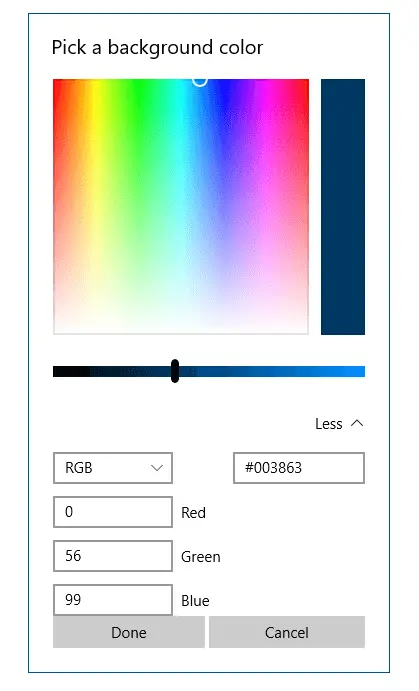
Update 2021: Information in this article is now obsolete because the recent versions of Windows 10 come with a nice-looking color picker dialog. It also lets you input the RGB values manually. If you prefer solid color desktop background instead of desktop wallpaper, note that the new Personalization settings page in Windows 10 displays only … Read more
Windows 10 Default Services Configuration and Permissions
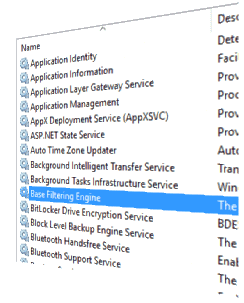
The Windows 10 Services configuration defaults are provided on this page. The settings below are gathered from a Windows 10 Pro PC (clean install, rather than upgrade).
Last updated on April 27, 2024 – Windows 10 Pro v22H2 is the current version as of this revision. The Service permission (SDDL strings) defaults are also included for each service.
How to Restore Windows Photo Viewer in Windows 10 and 11
Windows Photo Viewer is one of the things that gets removed or hidden from access after upgrading to Windows 10. The new Photos app takes charge as the default handler for image files in Windows 10 and Windows 11.
The good news is Windows Photo Viewer application still exists in the same location in Windows 10 and Windows 11. But what is removed is only its registration.

Windows Photo Viewer is a lightweight app similar to the Office Picture Manager and Windows Live Photo Gallery, both of which are discontinued by Microsoft. But, Windows Photo Viewer remains an integral part of Windows 10/11.
Windows Photo Viewer is powered by a single DLL file named photoviewer.dll located in the C:\Program Files\Windows Photo Viewer directory in Windows 11 and earlier OS.

For example, this command-line will open a file named D:\sample.png using Windows Photo Viewer:
rundll32.exe "%ProgramFiles%\Windows Photo Viewer\PhotoViewer.dll", ImageView_Fullscreen d:\sample.png
Now, all we need to do is add Windows Photo Viewer file association settings to the registry. If you’re not a fan of the new Photos app, you can restore the missing Windows Photo Viewer registration in Windows 10 and 11.
Read more
How to Get Back the Classic Tray Clock in Windows 10
The notification area clock (commonly known as the tray clock) user interface has changed in Windows 10, and old analog clock is gone. If you’re not very fond of the new clock and want the old analog version, you can revert back to the pre-Windows 10 style classic clock by employing a small registry edit.
File Association Fixes for Windows 10 (Defaults)
Here is the list of file association fixes (Windows defaults) for some of the common file types. These registry fixes are applicable for Windows® 10 only. AVI IMG TXT BAT INF URL BMP JPE/JPEG/JPG VBS CHM JS WMA CMD LNK WMV COM MP3 XML EXE PNG ZIP GIF REG Directory HTM/HTML SCR Drive ICO TIF/TIFF … Read more
Windows 10 Command Prompt Can Be Closed using ALT+F4 Hotkey
The much useful ALT+F4 key sequence closes any application, but not the Command Prompt window. Users had to type exit or click the Close button to close the window. This is the case in earlier versions of Windows (up to Windows 8.1), but have you noticed that the Windows 10 Command Prompt duly responds to ALT+F4 hotkey?
Not only that! You can even change the Windows 10 Command Prompt behavior as in earlier Windows versions. Probably the developers at Microsoft had legacy applications in mind. By the way, to make Command Prompt not respond to ALT+F4 key sequence, all you need to do is to edit a registry value.
Changing the Command Prompt ALT+F4 Behavior
What is the Two Blue Arrows Icon on Folders in Windows 10 and How to Remove it?
After installing Windows 10, you may notice that some of your files and folders show up with a double blue arrows icon at the top. This double blue arrows overlay icon is seen if the files and folders are compressed (NTFS compression), and there is nothing to worry about.
This post tells you how to hide or remove the double blue arrow icons on folders or files in Windows 10.Read more
How to Restart Explorer.exe Cleanly in Windows 10 or 11
Earlier, we learned how to exit and restart the explorer shell safely in earlier versions of Windows. Task Manager has the Restart Explorer option in Windows 8, Windows 10, and Windows 11 that lets you gracefully restart the explorer shell.Read more