After uninstalling Python/Anaconda on your Windows computer, Command Prompt may not open. When you run cmd.exe, it flashes on the screen and immediately quits. Also, running DISM and SFC (to repair corrupt system files), repairing Windows installation, and running a thorough malware scan may not fix the issue.
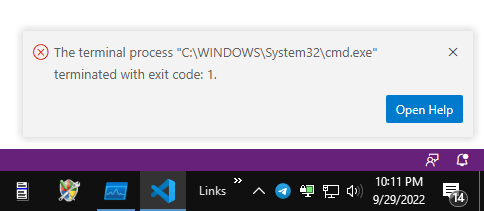
Also, when you open Command Prompt via the Terminal menu in Visual Studio Code, the following error (Error 1: “Incorrect function”) occurs:
The terminal process "C:\WINDOWS\System32\cmd.exe" terminated with exit code: 1.
If you had enabled conda init powershell and later uninstalled Anaconda, PowerShell might report the following error at every start:
The term 'C:\ProgramData\Anaconda3\Scripts\conda.exe' is not recognized as the name of a cmdlet, function, script
file, or operable program. Check the spelling of the name, or if a path was included, verify that the path is correct
and try again.
At C:\Users\Ramesh\Documents\WindowsPowerShell\profile.ps1:3 char:4
The profile.ps1 file would have the following code in it, which auto-starts (PowerShell hook) whenever you launch PowerShell:
#region conda initialize
# !! Contents within this block are managed by 'conda init' !!
(& "C:\ProgramData\Anaconda3\Scripts\conda.exe" "shell.powershell" "hook") | Out-String | Invoke-Expression
#endregion
Cause
This issue occurs due to an incorrect and leftover Autorun registry value after uninstalling Python.
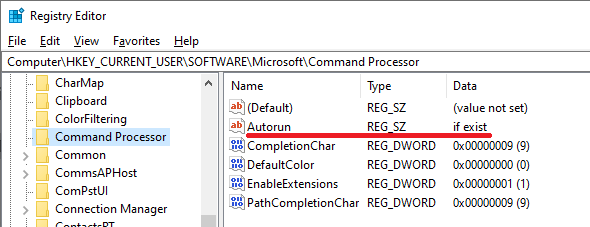
HKEY_CURRENT_USER\SOFTWARE\Microsoft\Command ProcessorAutorun REG_SZ "if exist"
The value data might read “if exist” which CMD.exe executes at launch and closes automatically. Your Python/Anaconda installation added the registry value. However, you should be able to launch Command Prompt correctly by running “cmd.exe /d“.
/D – Disable execution of AutoRun commands from the registry (see below)
- If
/Dwas NOT specified on the command line, then when CMD.EXE starts, it looks for the following REG_SZ/REG_EXPAND_SZ registry variables, and if either or both are present, they are executed first.HKEY_LOCAL_MACHINE\Software\Microsoft\Command Processor\AutoRun
and/or
HKEY_CURRENT_USER\Software\Microsoft\Command Processor\AutoRun
The PowerShell error (“‘conda.exe’ is not recognized”) is caused by the script file profile.ps1, which was generated by the “conda init powershell” command you ran earlier. The script file will be located at "%Userprofile%\Documents\WindowsPowerShell\profile.ps1".
Resolution
Command Prompt
To resolve the Command Prompt issue, delete the Autorun registry key. The Autorun value doesn’t exist by default in Windows and can be deleted.
- Open an admin Command Prompt window. To do so, type
cmd.exe /din Start/Run dialog, and press Ctrl + Shift + Enter. (Ref: Start Programs Elevated from Run Dialog) - In the admin Command Prompt, type the following commands:
reg.exe delete "HKCU\SOFTWARE\Microsoft\Command Processor" /v "Autorun" /f
and then:
reg.exe delete "HKLM\SOFTWARE\Microsoft\Command Processor" /v "Autorun" /f
In case you receive the following error, please ignore it:
ERROR: The system was unable to find the specified registry key or value.
- Exit the Command Prompt window.
You should be able to launch cmd.exe (with or without the /d parameter) now.
PowerShell or Terminal Error
To fix the “conda.exe is not recognized as the name of a cmdlet” error in PowerShell, delete the “profile.ps1” file located under your “\Documents\WindowsPowerShell\” directory.
One small request: If you liked this post, please share this?
One "tiny" share from you would seriously help a lot with the growth of this blog. Some great suggestions:- Pin it!
- Share it to your favorite blog + Facebook, Reddit
- Tweet it!

I want to thank you so much… It helped a lot to my issue.
i can’t guarantee this was the reason but shortly after following this advice my laptop stopped working completely so be cautious 🙂
@anna: The command-line in the article is harmless. No way that could have caused a problem with your laptop.
Very Helpful, Thanks !
Thank you so much. This is the only article that resolved my problem.
Absolutely fantastic fix, thank you so much! I was going crazy not being able to use cmd not as admin…
Thank you, this information helped a lot.
We also needed to delete “Autorun” in HKEY_USERS for the troubled user!
Great Article, directly solved my issue.
Thanks a lot.