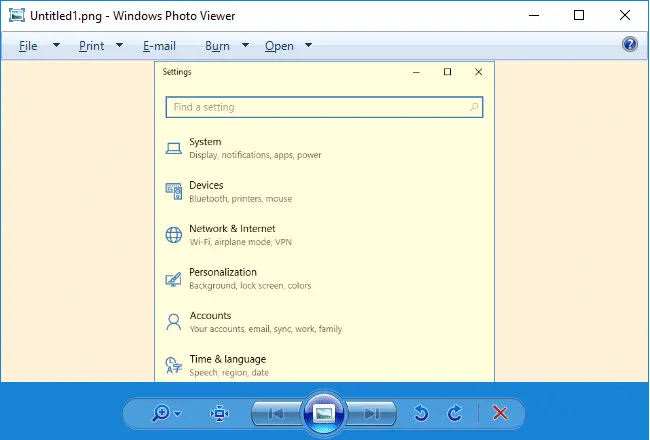
When previewing images using Windows Photo Viewer or Windows Photo Gallery (part of the Windows Essentials suite), the viewer background, as well as the image, may show up with a yellow tint and appear off-colored.
Solution
Option 1: Remove all color profiles
- Click Start, search for Color Management, and open it. Or run
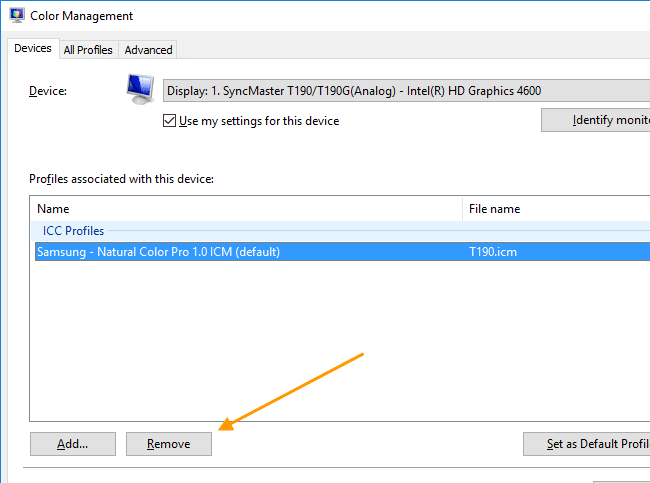
colorcpl.exevia Run dialog. - Select the monitor from the list of devices (For example, Display: SyncMaster SA300). It’s important that you select the monitor you are looking the photo into!
- Enable the “Use my settings for this device” check box.
- Under Profiles associated with this device, remove all the profiles listed, by selecting each profile and clicking the Remove button.
- Restart Windows.
If that doesn’t do the trick, then try the following:
Option 2: Add sRGB IEC61966-2.1 and set it as the default
- Select the correct monitor from the list
- Enable “Use my settings for this device”
- Remove the current color profile.
- Add a new profile and select
sRGB IEC61966-2.1under ICC Profiles. - Click Close.
- Restart Windows.
Note: If you don’t want to remove the existing color profile, you can add the new one and select it as the default profile (“Set as Default Profile”).
The same issue was widely reported by Windows users long back. Here are a couple of Microsoft Knowledgebase articles that address the issue
- How to remove the association between the display and a color profile when pictures are being displayed with bad color
- When you view an image in Windows Photo Gallery, the image is yellow
Instructions in this article apply to all versions of Windows, including Windows 10/11.
One small request: If you liked this post, please share this?
One "tiny" share from you would seriously help a lot with the growth of this blog. Some great suggestions:- Pin it!
- Share it to your favorite blog + Facebook, Reddit
- Tweet it!


Thanks! This changed mine from the ugly beige to a crisp blueish-white!
Thank you so much and the instructions were very easy to follow!