Every file or folder in an NTFS volume has an owner. Certain system files are owned by TrustedInstaller, some by SYSTEM account, and others by the “Administrators” group. If a user creates a file or folder, that user is usually the owner of the file or folder. The owner is the one who can assign permissions (Allow or Deny) to other users for that object.
If a user is not the owner of a file or folder or has no permissions to access the file, he gets the “access is denied” error when accessing the object. If that user is an administrator, he can take ownership of the object using the file or folder’s Properties – Security tab. Then he can assign himself the required permissions.
This post tells you how to take ownership of a file or folder, and assign required permissions for it using the command-line instead of GUI.
Contents
- Taking ownership of a file using takeown.exe
- Assign file permissions using icacls.exe
- Taking ownership of a folder using takeown.exe
- Assign folder permissions using icacls.exe
- Take Ownership & Assign Permissions via Right-click Menu [Script/Tweak]
Additional Info
Windows includes a command-line tool named Takeown.exe, which can be used from an admin Command Prompt to quickly change the ownership of a file or folder. Here is how to take ownership of a file or folder and then assign permissions for an account using the command-line.
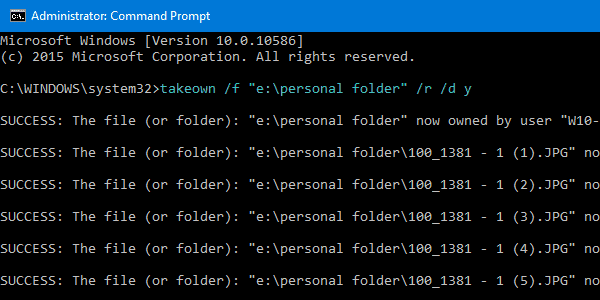
Taking ownership of a file
Open an elevated Command Prompt window. Use the following syntax to take ownership of a file:
takeown /f <filename>
Replace <filename> with the actual file name with the full path.
The currently logged on user is now the owner of the file.
To set Administrators group the owner of the file, use the /A switch in addition:
takeown /f <filename> /a
/AGives ownership to the Administrators group instead of the current user. If/Ais not specified, file ownership will be given to the currently logged-on user. This parameter is not case-sensitive.
If the operation was successful, you should see the following message:
“SUCCESS: The file (or folder): “filename” now owned by user “Computer Name\User name”.”
or
SUCCESS: The file (or folder): “filename” now owned by the administrators group.
Assign File Permissions
Then to grant Administrators Full Control permissions for the file, use ICACLS. Here is the syntax:
icacls <filename> /grant administrators:F
Run:
icacls <filename> /grant *S-1-5-32-544:F
The command works in English as well as non-English Windows OS.
Example 2: To assign Full Control permissions for the currently logged on user, use this command:
icacls <filename> /grant %username%:F
%username% represents the account name of the currently logged-on user. ICacls accepts this variable directly.
Example 3: To assign Full Control permissions for the user named John, use this command:
ICACLS <filename> /grant John:F
Taking ownership of a folder
Use the following syntax:
takeown /f <foldername>
(or)
takeown /f <foldername> /a
/aGives ownership to the Administrators group instead of the current user. If/ais not specified, ownership will be given to the currently logged-on user. This parameter is not case-sensitive.
You’ll see the following output:
SUCCESS: The file (or folder): “folder_name” now owned by by user “computername\username”
(or)
SUCCESS: The file (or folder): “folder_name” now owned by the administrators group.
Change ownership recursively:
To change the ownership of a folder, its subfolders, and files in each subfolder, use this syntax:
takeown /f <foldername> /r /d y
The currently logged on user is now the owner of the folder.
To set Administrators group the owner of the folder, its subfolders, and files recursively, use the /A switch in addition:
takeown /f <foldername> /a /r /d y
/RRecurse: instructs the tool to operate on files in the specified directory and all subdirectories./Dprompt Default answer used when the current user does not have the “list folder” permission on a directory. This occurs while operating recursively (/R) on sub-directories. Valid values “Y” to take ownership or “N” to skip.
Assign Folder Permissions
Then to assign the Administrators group Full Control Permissions for the folder, use this syntax:
icacls <foldername> /grant administrators:F /T
Run:
icacls <foldername> /grant *S-1-5-32-544:F /T
The command works in English as well as non-English Windows OS.
The /T parameter is added so that the operation is carried out through all the sub-directories and files within that folder.
Command-line help:
To know the complete usage information for Takeown.exe and ICacls.exe, run these commands from a Command Prompt window.
takeown /?
icacls /?
Easier Methods for Taking Ownership
Command Script
To further simplify the process of taking ownership, Tim Sneath of Microsoft provides a .CMD file (Windows Command Script) which takes ownership and assigns Full Control Permissions to Administrators for the directory. For more information, read Tim’s post, titled Secret #11: Deleting the Undeletable.
Add the “Take Ownership” command to the right-click menu
This again uses the special runas verb in Windows Vista and higher, which I’ve covered earlier (REF RunAs).
via WinMatrix.com
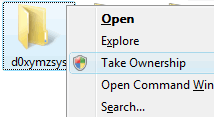 Download takeown_context.reg and save to Desktop. Right-click on the file and choose Merge. Click Yes when asked for confirmation. This adds an extended command named Take Ownership in the context menu for files and directories. To access the command, you need to press and hold the SHIFT key and then right-click on a file or folder.
(You can read more about the tweak in the article Take Ownership of File or Folder via Right-click Context Menu in Windows.)
Additional Information
The above section covers most of the stuff you need. Read below if you need more tips on this topic.
icacls.exe also can change ownership of a file or folder!
Takeown.exe and Icacls.exe are the two built-in console tools in Windows, that lets you change file or folder ownership and assign access control permissions, respectively. Takeown.exe sets the currently logged-in user account as the owner of an object (file or folder).
However, with Takeown.exe, you can’t make another account as the owner of an object.
Did you know that the icacls.exe tool can also be used to change ownership?
To change the ownership to a third-party account (i.e., the account that’s not currently logged in) or group, you may use icacls.exe with the /setowner command-line argument, instead of takeown.exe.
Change ownership of a file or folder using icacls.exe
We saw how to change the ownership using icacls.exe in the last part of the article Take Ownership of a File or Folder Using Command-Line in Windows. Here are some more examples:
The following is the command-line syntax to change the ownership of a file or folder using icacls.exe:
icacls "file_or_folder_name" /setowner "NT Service\TrustedInstaller"
Examples: Set #1: Change ownership of a single file or folder
icacls "D:\Annual Reports\2020\November" /setowner "John"
icacls "D:\Tax Audit\November.xlsx" /setowner "John"
icacls "D:\Tax Audit\November.xlsx" /setowner "Administrators"
If the operation was successful, you’ll see the following message:
processed file: file_or_folder_name
Successfully processed 1 files; Failed processing 0 files
Example #2: Change ownership for a folder (subfolder, and files) recursively
To change the ownership of a folder, its subfolders, and all the files in all subfolders recursively, use the /T switch (traverse) in addition:
icacls "folder_name" /setowner "Administrators" /T
/Tindicates that this operation is performed on all matching files/directories below the directories specified in the name.
The above command sets TrustedInstaller as the owner of the folder, its subfolders, and all the files in all the subfolders.
Revert the Ownership back to TrustedInstaller
Sometimes, to fix an issue, you may need to alter a data file such as XML or a registry key owned by TrustedInstaller. For that, you first need to take ownership of the file, folder, or registry key.
After modifying the files or settings, you need to revert the ownership back to TrustedInstaller, if TrustedInstaller was the previous or original owner. To set the ownership back to TrustedInstaller, use these steps:
The Windows Modules Installer service or TrustedInstaller enables the installation, modification, and removal of Windows updates and optional components. By default, TrustedInstaller is also the owner of many critical registry keys and system files.
- Right-click on a file or registry key, and click Permissions.
- Click Advanced to open the Advanced Security Settings dialog.
- Near “Owner:”, click Change.
- In the Select User or Group dialog, type “
NT SERVICE\TrustedInstaller” and press ENTER.
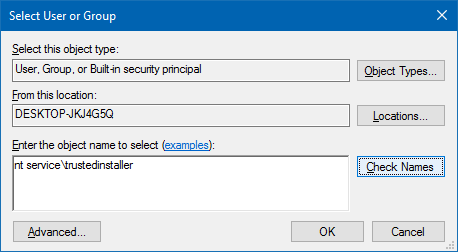
- Click Apply, OK.
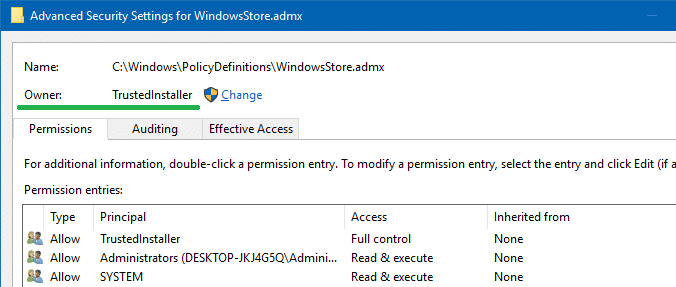
This changes the object’s ownership (file, folder, or registry key) to TrustedInstaller or Windows Modules Installer.
Using icacls.exe command to set TrustedInstaller as the owner of a file
From an admin Command Prompt window, use the following command-line syntax:
icacls "path\filename" /setowner "NT Service\TrustedInstaller"
Example:
icacls "C:\Windows\PolicyDefinitions\WindowsStore.admx" /setowner "NT Service\TrustedInstaller"
TrustedInstaller now owns the file WindowsStore.admx.
icacls /setowner access denied?
Sometimes, the icacls.exe /setowner command-line can encounter the following error:
filename: Access is denied.
Successfully processed 0 files; Failed processing 1 files
This can happen when it encounters an NTFS hard link. The error usually pops up when you attempt to change ownership of protected files in the Windows directory — e.g., C:\Windows\Notepad.exe. A hard link is the file system representation of a file by which more than one path references a single file in the same volume.
For example, the Notepad.exe files have two hard-linked files, which you can see using the following command:
fsutil.exe hardlink list C:\Windows\notepad.exe
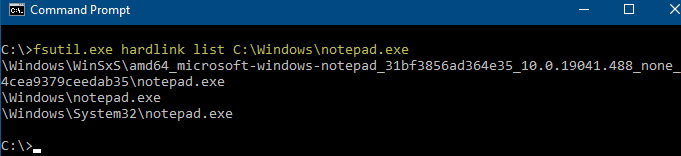
You can see that Notepad.exe is hard-linked to the following files:
C:\Windows\System32\Notepad.exe
C:\\Windows\WinSxS\amd64_microsoft-windows-notepad_31bf3856ad364e35_10.0.19041.488_none_4cea9379ceedab35\notepad.exe
The icacls.exe /setowner command encounters the ACCESS_DENIED error when processing these hard links.
Note that the icacls.exe documentation says, “This option does not force a change of ownership; use the takeown.exe utility for that purpose.”
If you encounter “Access is Denied” errors when setting ownership using Icacls, you may have to rely on Takeown.exe, SubInACL, or the third-party SetACL.exe (see next paragraph) command-line utility.
Using SetACL.exe to take ownership and assign permissions
SetACL.exe is a 3rd party command-line tool (from HelgeKlein.com) which we’ve covered before.
SetACL: Command-line arguments
Before proceeding, let’s see the command-line syntax for changing file/registry ownership and permissions using SetACL.
SetACL -on objectname -ot objecttype -actn action
-on: Specify the path to the object SetACL should operate on (e.g., file, registry key, network share, service, or printer).-ot: Specify the object type. To change ownership or permissions for a file or folder, use the object typefile. For registry keys, use the object typereg-actn: Specify the action as to what should SetACL do against the object specified. For taking ownership, set the action assetowner. To change permissions, set the action asace.-ownr: Specify Name or SID of a trustee (a user or group) in this format — e.g.,"n:Administrators"
(See SetACL documentation for the full list of objects, types, and supported actions.)
To change ownership and grant full control permission, here are some examples:
Examples: Change ownership of a single file or folder:
setacl.exe -on c:\windows\notepad.exe -ot file -actn setowner -ownr "n:NT Service\TrustedInstaller"
setacl.exe -on c:\windows\notepad.exe -ot file -actn setowner -ownr "n:Administrators"
setacl.exe -on c:\windows\notepad.exe -ot file -actn setowner -ownr "n:John"

setacl.exe -on "d:\test" -ot file -actn setowner -ownr "n:NT Service\TrustedInstaller"
setacl.exe -on "d:\test" -ot file -actn setowner -ownr "n:Administrators"
setacl.exe -on "d:\test" -ot file -actn setowner -ownr "n:John"
Examples: Change ownership recursively:
Option 1: To set ownership of a folder and its subfolders (not for files) recursively, use one of these examples:
setacl.exe -on d:\test -ot file -actn setowner -ownr "n:NT Service\TrustedInstaller" -rec cont
setacl.exe -on d:\test -ot file -actn setowner -ownr "n:Administrators" -rec cont
setacl.exe -on d:\test -ot file -actn setowner -ownr "n:Ramesh" -rec cont
-rec– recursion is enabled.cont– Recurse, and process directories only.
Option 2: To set ownership of files in a folder and its subfolders (not folders) recursively, use one of these examples:
setacl.exe -on d:\test -ot file -actn setowner -ownr "n:NT Service\TrustedInstaller" -rec obj
setacl.exe -on d:\test -ot file -actn setowner -ownr "n:Administrators" -rec obj
setacl.exe -on d:\test -ot file -actn setowner -ownr "n:Ramesh" -rec obj
-rec– recursion is enabled.obj– Recurse, and process files only.
Option 3: To set ownership of a folder, its subfolders, and the files recursively, use one of these examples:
setacl.exe -on d:\test -ot file -actn setowner -ownr "n:NT Service\TrustedInstaller" -rec cont_obj
setacl.exe -on d:\test -ot file -actn setowner -ownr "n:Administrators" -rec cont_obj
setacl.exe -on d:\test -ot file -actn setowner -ownr "n:Ramesh" -rec cont_obj
-rec– recursion is enabled.cont_obj– Recurse, and process directories and files.
Examples: Assign the required permissions for a file or folder:
Once you have the ownership, you can assign the required permissions for an object. Here are some examples:
To assign the permissions for a single file or folder, use one of these examples:
setacl.exe -on "d:\test\sample.xlsx" -ot file -actn ace -ace "n:Administrators;p:full"
setacl.exe -on "d:\test\sample.xlsx" -ot file -actn ace -ace "n:John;p:full"

setacl.exe -on "d:\test" -ot file -actn ace -ace "n:Administrators;p:full"
setacl.exe -on "d:\test" -ot file -actn ace -ace "n:John;p:full"
Examples: Assign the required permissions recursively:
Option 1: For a folder and subfolders (not files) recursively, use one of these examples:
setacl.exe -on "d:\test" -ot file -actn ace -ace "n:Administrators;p:full" -rec cont
setacl.exe -on "d:\test" -ot file -actn ace -ace "n:John;p:full" -rec cont
-rec– recursion is enabled.cont– Recurse, and process directories only.
Option 2: For files in a folder and subfolders (not folders) recursively, use one of these examples:
setacl.exe -on "d:\test" -ot file -actn ace -ace "n:Administrators;p:full" -rec obj
setacl.exe -on "d:\test" -ot file -actn ace -ace "n:John;p:full" -rec obj
-rec– recursion is enabled.obj– Recurse, and process files only.
Option 3: For a folder, its subfolders, and the files recursively, use one of these examples:
setacl.exe -on "d:\test" -ot file -actn ace -ace "n:Administrators;p:full" -rec cont_obj
setacl.exe -on "d:\test" -ot file -actn ace -ace "n:John;p:full" -rec cont_obj
-rec– recursion is enabled.cont_obj– Recurse, and process directories and files.
You may check out SetACL official documentation to know about its full capabilities. However, to set file and folder ownership & permissions, takeown.exe and icacls.exe would be more than sufficient for most users.
One small request: If you liked this post, please share this?
One "tiny" share from you would seriously help a lot with the growth of this blog. Some great suggestions:- Pin it!
- Share it to your favorite blog + Facebook, Reddit
- Tweet it!

Could you add in a right click take ownership option that uses the “trustedinstaller” as the default? That takeownership command works the best on my system, and that’d be a big help. if so, could you make its shortcut name appear as “TakeOwnership TI”
@Stephen: thanks for the idea. Shall put up a script that does this.
It’s not a German tool but all system tolls and some other applications as well expect an answer in what is called the country-specific default language. If you change Windows to English as the default language, it’ll expect y|Y, if the language is set to German, it’s j|J.
Only with programs that do their own key examination internally, are not affected by this.
2020/08/10 – This worked great but I still get access denied also
I believe J in German is for “yes” because the German “yes” is spelled Ja which is pronounced “YAH” That ‘s my guess.
2020/08/10 – what command did you add the /a to? I used the right-click-takeownership registry “hack” and it seemed to do just fine but still have no access to the files. Thanks.
2020/08/10 – same issue here – it appeared to work just fine but still “access denied”
@san: icacls /setowner can sometimes fail (especially when processing files in your Windows directory, and reparse points). Please try SetACL from HelgeKlein.com instead.
THANK YOU!!! Oof, stubborn folder. May name my next child icacls now.
SetACL still fails, Access is Denied, specifically:
SetACL finished with error(s):
SetACL error message: The call to GetNamedSecurityInfo () failed
Operating system error message: Access is denied.