When testing various display resolutions or after completing a remote desktop session, the desktop icons may go out of order. Another case is that when you accidentally use the Ctrl+ Scroll button (mouse) on your desktop, the Desktop icon size changes. But reverting to the original icon size may not restore the custom icon positions on your desktop. You can quickly undo the icon rearrangement by terminating explorer.exe forcefully, but that works only in certain circumstances.
In this article, we’ll see how to automatically save and restore desktop icons layout using different methods in Windows.
Save and Restore Desktop icon layout
Option 1: Using the “DesktopOK” App
DesktopOK is a portable program from www.softwareok.com that runs on Windows 7 through Windows 10/Windows 11. This program can save multiple configurations of your desktop icon layout and restore a specific setting when needed. There are separate downloads for 32-bit and 64-bit editions.
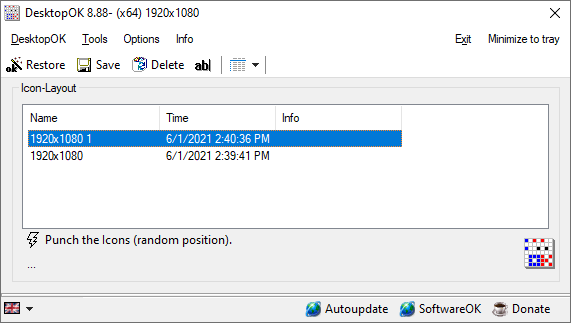
From the Options menu, you can enable these two settings:
- Save and restore icon spacing
- Save and restore icon size
Click the Save button. The current screen resolution will be the name of the stored setting, followed by the date/time stamp. You can change the naming style in Options if you want.
(There is also a button named “Punch the icons (random position)” that scatters your desktop icons at random. After scattering you can use the Restore button to rearrange them from an earlier backup if you want to test.)
By default, the saved desktop icon settings are stored in a file named DesktopOK.ini in the following location.
%AppData%\DesktopOK
Alternatively, you can also export the desktop icon configuration to a .dok file via the DesktopOK menu option.
There are additional settings available under the Options tab, like “auto-save” at pre-defined intervals and so on. Unlike other programs, DesktopOK is portable and doesn’t add a shell extension. DesktopOK may come in handy if Windows forgets your desktop icons position sometimes, or if explorer crashes and resets the desktop icons position to default.
DesktopOK Command-line Options:
Examples:

SAVE TO FILE:
DesktopOK.exe /save /silent c:\icon_lay.dok
(or)
DesktopOK.exe /save "c:\long path name\icon_lay.dok"

LOAD FROM FILE:
DesktopOK.exe /load /silent c:\icon_lay.dok

/silent = don't show error messages
/spacing = save icon spacing
/size = save icon size
/report = Displays a list of unresolved/found symbols in conjunction with /load
For example: DesktopOK.exe /load /report c:\icon_lay.dok

Info:
The file name must end with *.dok. The .dok file is a plain-text file.

Date, time and resolution
/save c:\save_dok\_date_time_res_.dok

or (Date and time)
/save c:\save_dok\_date_time_.dok
Src: DesktopOK command-line documentation: https://www.softwareok.com/?seite=faq-DesktopOK&faq=4
Automatically save desktop layout at every startup
To automatically save desktop icon layout at every startup:
- Create a shortcut with the following target:
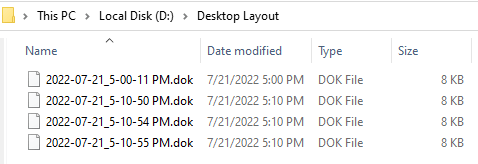
DesktopOK_x64.exe /spacing /size /save /silent "D:\Desktop Layout\_date_time_.dok"
- Open the Startup folder of your user profile. To do so, run the command
shell:startupvia the Run dialog. - Move the DesktopOK shortcut you created to the Startup folder.
That’s it. The program should save the desktop layout at every startup.
Method 2: Using a VBScript
The following VBScript backs up the desktop layout registry settings to a .reg file:
The above script, when run, exports the following registry branch to a registry file. The name of the exported file will have the date and timestamp added to it.
HKEY_CURRENT_USER\SOFTWARE\Microsoft\Windows\Shell\Bags\1\Desktop
Instructions
- Download the above script and save it to a permanent folder — e.g.,
D:\Scripts - Create a shortcut to the script.
- Place the shortcut in your Startup folder.
(Tip: To open your user profile’s Startup folder, run the command shell:startup via the Run dialog)
The script will save the desktop icon layout to a registry file at every startup.
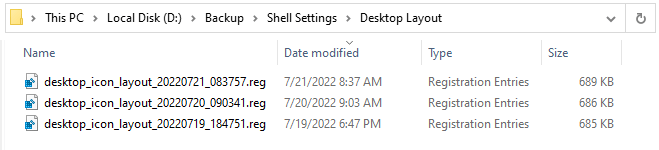
Note: During every run, the script will delete the desktop icon layout registry backups (in the specified folder) older than 3 days.
Customization
You can edit the script using Notepad and modify it as per your requirement:
#1: To store the last 5 days’ backup, set the nMaxFileAge variable (in Line #16) to 5.
'Backups older than this (in days) will be deleted
nMaxFileAge = 3
#2: To change the save directory, modify the following line in the script accordingly:
sSaveDir = "D:\Backup\Shell Settings\Desktop Layout\"
Restoring desktop layout from an earlier .REG file
Restoring the desktop layout (from an earlier registry backup) has to be done only after terminating all instances of explorer.exe using Task Manager. From the Registry Editor (regedit.exe)’s File menu, click Import… and select the registry file you want to apply.
Once done, start a fresh instance of explorer.exe using Task Manager.
Method 3: Using Layout.DLL (Windows 7 and Earlier)
Microsoft’s layout.dll shell extension (from the Microsoft Windows NT Resource Kit tools) can save and restore desktop icons’ position on Windows 32-bit computers. The Layout.dll was originally written for Windows NT/2000. It doesn’t work on Windows 64-bit versions.
This extension works well under Windows 2000, and Windows XP through Windows 7 32-bit. I haven’t tested this on Windows 10 32-bit.
Installing the Layout.dll shell extension
- To add the shell extension, download layout.zip and save it to a folder.
- Unzip the archive and extract the files to your Desktop.
- Move
LAYOUT.DLLto theWindows\System32folder. - Right-click
LAYOUT.REGand choose Merge. - Click Yes when asked for confirmation.
Note: Store the file layout.zip in a safe location if you need to uninstall the shell extension at a later time. You may use the file uninstall.reg (included in layout.zip) to remove the entries from right-click menu.
Saving and Restoring desktop icon layout
After installing the shell extension, you’ll see two context-menu options, namely Save Desktop Icon Layout and Restore Desktop Icon Layout, when you right-click on an empty area on the Desktop.
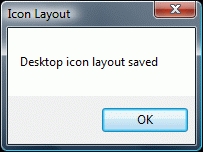
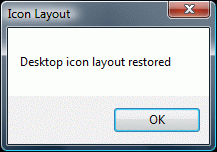
When you click Save Desktop Icon Layout, the Desktop icon positions are saved to a binary registry value, and you see the following message box:
Uninstalling the Layout.dll shell extension
To uninstall the layout.dll shell extension, right-click the file uninstall.reg (available in layout.zip) and choose Merge. Then manually delete the file LAYOUT.DLL from your Windows\System32 folder.
One small request: If you liked this post, please share this?
One "tiny" share from you would seriously help a lot with the growth of this blog. Some great suggestions:- Pin it!
- Share it to your favorite blog + Facebook, Reddit
- Tweet it!

Under Windows 10 you can use the standard tools from Microsoft:
Save Icons (e.g. in DESKGET.BAT):
reg export HKCU\SOFTWARE\Microsoft\Windows\Shell\Bags\1\Desktop ICONS.REG
Restore Icons (e.g. in DESKPUT.BAT, start as administrator):
reg import ICONS.REG
taskkill /F /IM explorer.exe
start explorer.exe
Excellent, Stefan, I was thinking the same thing but you saved me the time of having to hack it out for myself! Thanks!