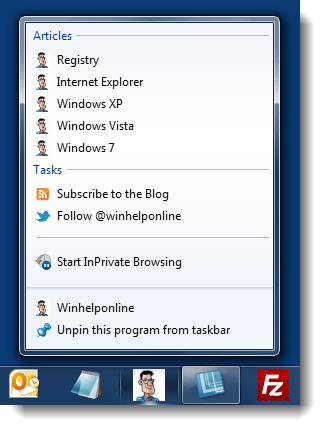
With the Pinned Sites feature introduced in Internet Explorer 9, you can add your favorite websites to the Taskbar and/or the Start menu. We’ve seen that in article IE9 Lets You Pin Website Shortcuts to the Windows 7 Taskbar. Clicking the Pinned site shortcut opens the website using Internet Explorer, regardless of which browser you’ve chosen as the default. In this post, we introduce a registry hack that lets you open Pinned site shortcuts in your default web browser 1.
Registry Edit
Download pinned-site-browser.zip, unzip and run the enclosed REG file. Contents of the REG file are as follows:
Windows Registry Editor Version 5.00
;Registry edit to open .Website files with whatever is your default browser
;Ramesh Srinivasan, the Winhelponline Blog
;Created on May 23, 1011
;Modifed on Feb 17, 2016
;Works in Windows 7, 8 and 10

[HKEY_CURRENT_USER\Software\Classes\Microsoft.Website\shellex\ContextMenuHandlers\{FBF23B40-E3F0-101B-8488-00AA003E56F8}]

[-HKEY_CURRENT_USER\Software\Microsoft\Windows\CurrentVersion\Explorer\FileExts\.website\UserChoice]

;The following line added so as to make this tweak work in 10

[-HKEY_CURRENT_USER\SOFTWARE\Microsoft\Windows\Roaming\OpenWith\FileExts\.website\UserChoice]
By applying this, Microsoft.Website file type (Pinned shortcuts) inherits the settings of Internet Shortcut (.URL) file type, and works the same way as .URL files when double-clicked, while retaining its Pinnable feature.
1 Additional Information
The Pinned Sites shortcuts are although similar to normal internet shortcuts (.URL file), the former can also include additional meta information such as the navigation button color, window size, Jumplist Tasks/Categories etc. These additional meta data are ignored when you use a third-party browser to open the Pinned site shortcuts, after employing the registry hack mentioned in this article.
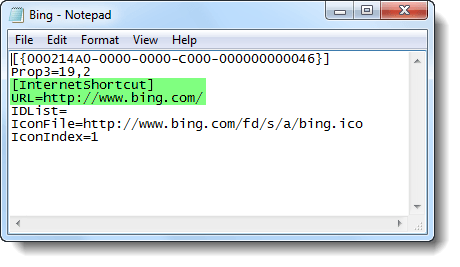
Fig 1: Contents of a normal internet shortcut (.URL file)
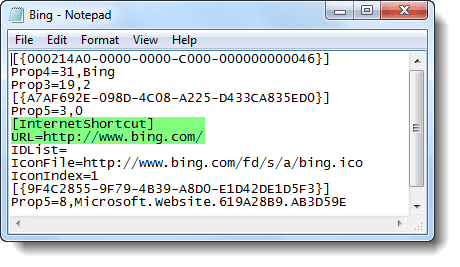
Fig 2: Contents of a Pinned site shortcut (.Website)
To learn more about the meta elements supported by Pinned site shortcut, see article Pinned Sites: Windows 7 Desktop Integration with Internet Explorer 9 at the MSDN website.
One small request: If you liked this post, please share this?
One "tiny" share from you would seriously help a lot with the growth of this blog. Some great suggestions:- Pin it!
- Share it to your favorite blog + Facebook, Reddit
- Tweet it!


So, basically you are suggesting a hack that causes .website files to be treated as .url files; equal to converting the former to the latter.
But what is the use of it if we can’t take advantage of additional features? We might as well stick with the old .url files and don’t make .website files at all.
Or perhaps I could study .website files and create a launcher program for them… Hmmm… That’d be neater…
@John: The use is, you can *still* Pin sites to taskbar (although via IE9 only), and launch it using your default browser. Using the old .URL format, you can’t do that… in which case you may create a QL toolbar, place your URL shortcuts in there.
it’s nice but not as efficient as what i can get when I use IE9, twitter will always open on the homepage no matter what option u clicked on.
thanks for sharing this trick
You can change the icon of the pinned site in a similar way. Either open it in Notepad, or change the extension to .url, so you get the “Change icon” in its Properties GUI and then change it back to .website. Wish there was a shell property sheet extension to change the .website icon directly.
hi to all at http://www.winhelponline.com i thought i had sent this newyears eve but it didnt send so i have sent it again all the best for new year to all of you
– matt-gent