When you open Devices and Printers applet, it may show up as an empty folder although the devices are correctly connected and their drivers are intact. This can be due to several reasons, and the possible causes (with appropriate fixes) are discussed in this post.
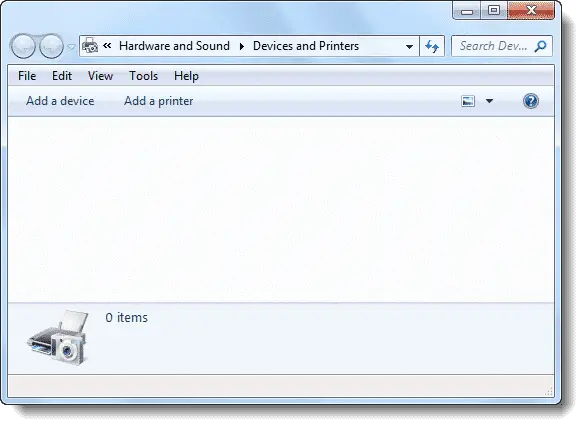
We’ve observed that Devices and Printers folder can appear blank if one of these is true:
- Print Spooler Service is not running
- Bluetooth Support Service is not running
- Missing DLL registrations.
Use these steps to resolve the problem.
Step 1: Enable the Print Spooler and Bluetooth Support Service
- Click Start, type
services.mscand press ENTER - Double-click Print Spooler and set its start type to Automatic
- Click Start to start the service, and click OK.
- Double-click Bluetooth Support Service and set its start type to Manual
- Click Start to start the service, and click OK.
- Exit the Services MMC.
Did you get any error messages when enabling the above services? Post it in the Comments section of this article.
Open Devices and Printers page to check if the problem persists. You may even try restarting Windows and checking it again.
If the issue continues to occur, proceed to the next step.
Step 2: Registering the DLLs
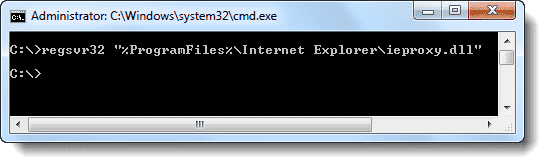
Click Start, click All Programs, click Accessories, right-click Command Prompt, and then click Run as administrator.
Type the following command and press ENTER
regsvr32 "%ProgramFiles%\Internet Explorer\ieproxy.dll"
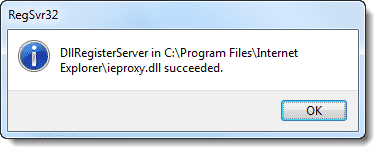
You should see this message now.
Step 3: Fixing the XML Registration
Download msxml6.zip, unzip the archive and run the enclosed REG file. This should restore the missing MSXML6 DLL registration entries.
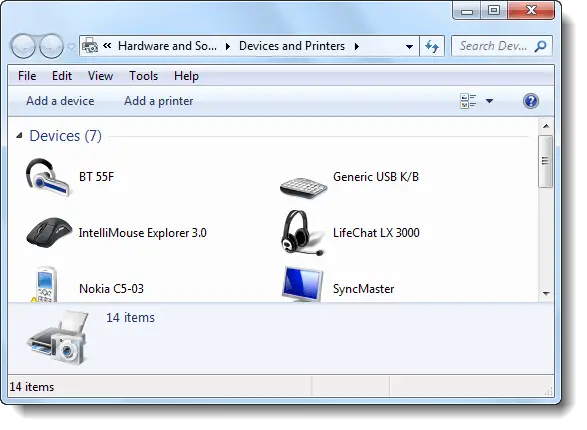
Restart Windows and check if Devices and Printers opens correctly.
One small request: If you liked this post, please share this?
One "tiny" share from you would seriously help a lot with the growth of this blog. Some great suggestions:- Pin it!
- Share it to your favorite blog + Facebook, Reddit
- Tweet it!

I know of the Bluetooth Service fix, but none of the above fixed it for me. This is how I fixed my issue with an empty ‘Devices and Printers’ Window, also when I clicked the ‘Safe Removal’ icon, no drive letters were shown for removable devices.
What I did:
* I used ‘ProcessMonitor’ by Sysinternals to monitor the activity of Explorer.exe during the opening of ‘Devices and Printers’, after lots of sifting up and down through 1000’s of lines of data I found the entries ‘ACCESS DENIED’ in the result column. So I ‘included’ only this result, and behold I found 2 files that were showing as ACCESS DENIED. They were C:\windows\System32\ieframe.dll and C:\Program Files\Internet Explorer\ieproxy.dll (as above)
* Fix: I opened an elevated command prompt in C:\windows\System32, I ran icacls.exe against ieframe.dll and it it said only BUILTIN\Administrators and SYSTEM had permission to the file. The same for all ie*.dll files in System32 and in ‘Internet Explorer’ so I ran ICACLS.exe ie*.dll /grant users:rx under System32 and ‘Internet Explorer’, I then opened Devices and Printers and boom there were all my devices and printers again. I hope this helps other.
Hi Guys, tried everything but It did not work. I know where my problem came from though. The Laptop was faulty and because of that the profile that I logged in with went corrupt. I gave the profile a new name and used another laptop. Problem solved immediately. This will online work for a Roaming Profiles environment I believe.
New Lenovo X250 has the Bluetooth Support Service disabled. Once enabled, all the printers displayed normally.
Step 1 and 2 did the job.
I tried the first step and it solved the problem
Thank you
Your step 1 only works until you reboot the machine. After a reboot Bluetooth support service returns to “Disabled”
Didn’t work for me. Even tried Graham Ansell’s fix. Losing access to systems32 has happened to me before. Sick of Windows. Going Linux. Used Unix during college so shouldnt be a big jump.
Thank you for the guidance..
What a terrific solution, many people tried to help me,without any result!
Keep on going doing this salvation job.
You make people very happy and give them a relief concerning the build up stress the past time 😉
Thanks
Rob
Thank you! Your hints on Internet Explorer solved my problem. I had recently uninstalled Internet Explorer from my Windows 7 machine. I then noticed that the “Internet Explorer” folders where still there in “C:\Programs Files” and “Program Files (x86)”, so I manually removed those.
It turns out Internet Explorer is needed for the Devices and Printers folder to work!!! When I put back those Internet Explorer folders (luckily I had just renamed them rather than deleting them), Devices and Printers started working again!
@Geo: Good to know this. Thanks for your excellent feedback!