When you relocate a special folder: Music, Pictures, Videos, Downloads, or Documents to a different drive using the Location tab in the Property sheet, make sure you mention the complete target path where you want to relocate the folder.
For example, to move the Videos folder of your user profile to the D:\ drive, type D:\Videos, instead of just D:\. This is because Windows does not automatically append the folder name. In case you don’t mention the complete path, the shell folder will be moved to the root of the drive.
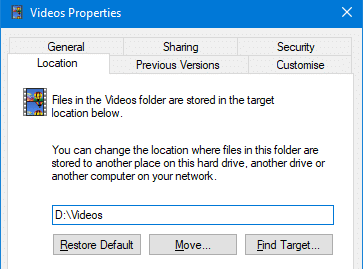
Although this doesn’t affect the functionality of the shell folder, a problem occurs when you restore the folder to its default location (with files). When you use the Restore Default button in the properties sheet of the special folder and choose to automatically transfer the files, Windows tries to move all the files, folders, and sub-folders from D:\ recursively to your user profile (%userprofile%).
And, the move files operation will abruptly fail in the middle when it tries to open and enumerate the System Volume Information, Config.msi, or the $Recycle.Bin folder in D:\.
This ends up in the following errors:
Access is Denied

The folder can't be moved here.

Can't redirect a parent into a child. The specified path is invalid.
Fix: Accidentally Moved a Shell folder to the drive’s root
If you’ve inadvertently moved a special folder — e.g., Videos to the D:\ drive root and want to restore back to the original location, follow one of these options:
Option 1: Reset Videos folder path using the Location tab
- Open This PC, right-click on the
Videosfolder and click Properties - In the Location tab, click the Restore Default button if you want to restore the folder to the default location. To move it to a different folder — e.g.,
D:\Videos, typeD:\Videosand click Move.
- Click OK
- Click Yes when you’re prompted to create the folder in the new (destination) path.
- [**Important Step**] Choose No when you see the “Do you want to move all the files from the old location” prompt.
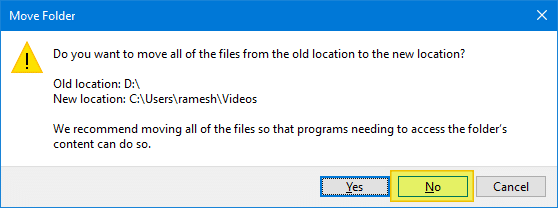
- Move your video files (if any) manually from the old location
D:\to the new one.
Note **: If you accidentally choose “Yes” at Step 5, Windows will try to move the entire D:\ drive contents along with folders/subfolders to the original Videos folder. During the process, it will encounter the following error:
The folder can't be moved here

Failed to build the list of regular sub-directories under 'D:\System Volume Information'

Access is denied.
-or-
Can't redirect a parent into a child. The specified path is invalid.
Option 2: Edit the registry and fix the Videos Folder path.
The second option would be to edit the registry and fix the shell folder path manually.
- Start
regedit.exeand go to the following branch:HKEY_CURRENT_USER\Software\Microsoft\Windows\CurrentVersion\Explorer\User Shell Folders
- Double-click My Video and update the path accordingly — e.g.,
C:\Users\YOUR_USER_NAME\Videos - Quit the Registry Editor
- Log off and login back into your account.
- Move your videos files (if any) manually from the old location
D:\to the new.
For more information, see the following articles:
- Windows 10/11 User Shell Folders Restore Default Paths
- [Fix] Accidentally Merged Music, Pictures, Videos, or Downloads
The above methods can be adopted for any special folder — e,g., Documents, Music, Downloads, Pictures, etc.
One small request: If you liked this post, please share this?
One "tiny" share from you would seriously help a lot with the growth of this blog. Some great suggestions:- Pin it!
- Share it to your favorite blog + Facebook, Reddit
- Tweet it!


Thanks so much. I thought I was dead when I moved my Picture folder to E:
You’re solution worked perfectly. Thanks again.
You’re a livesaver, thanks.