The ProgramData folder is hidden by default. Some users may inadvertently unhide the folder using Explorer, but are unable to hide it again.
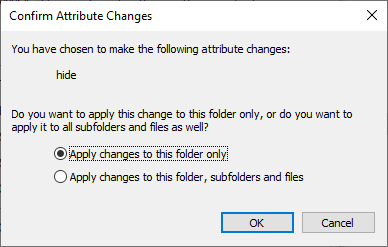
Reenabling the Hidden checkbox in the folder’s properties, selecting “Apply changes to this folder only” in the “Confirm Attribute Changes” dialog, and clicking OK may not work.
Cause
Your antivirus driver or a file system filter driver may be blocking attribute changes to folders, such as ProgramData and the Users folders.
Hide the ProgramData folder again
The best way to temporarily disable third-party filter drivers is to boot into Safe mode.
RELATED: How to Start Windows 10 or 11 in Safe Mode
Please boot into Safe mode and enable the hidden attribute via the folder properties.
Or, while in Safe mode, open a Command Prompt (admin) window and run the following command to enable the Hidden attributes for the ProgramData folder.
attrib +h "C:\ProgramData"
(There may not be any output unless the command encounters and access denied error.)
To check if the hidden attribute is applied, run:
attrib "C:\ProgramData"
That should resolve the issue!
One small request: If you liked this post, please share this?
One "tiny" share from you would seriously help a lot with the growth of this blog. Some great suggestions:- Pin it!
- Share it to your favorite blog + Facebook, Reddit
- Tweet it!
