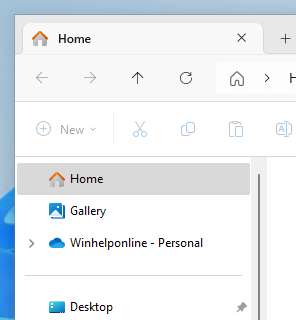
In File Explorer’s upper left navigation pane, there are links to Home, Gallery, and OneDrive. We’ve seen how to remove OneDrive from File Explorer. In this article, let’s see how to remove Gallery from the Explorer navigation pane.
Resolution
How to remove Gallery from Explorer
To remove Gallery from File Explorer, open admin Command Prompt and run:
reg delete "HKLM\SOFTWARE\Microsoft\Windows\CurrentVersion\Explorer\Desktop\NameSpace\{e88865ea-0e1c-4e20-9aa6-edcd0212c87c}" /f
If you have an older build, run the following command instead:
reg delete "HKLM\SOFTWARE\Microsoft\Windows\CurrentVersion\Explorer\Desktop\NameSpace_41040327\{e88865ea-0e1c-4e20-9aa6-edcd0212c87c}" /f
Once done, log off and log back in (or restart the Explorer shell) for the changes to take effect.
How to add Gallery again?
To add Gallery to Explorer, run the following command:
reg add "HKLM\SOFTWARE\Microsoft\Windows\CurrentVersion\Explorer\Desktop\NameSpace\{e88865ea-0e1c-4e20-9aa6-edcd0212c87c}" /ve /d "{e88865ea-0e1c-4e20-9aa6-edcd0212c87c}" /f
If you have an older build, run the following command instead:
reg add "HKLM\SOFTWARE\Microsoft\Windows\CurrentVersion\Explorer\Desktop\NameSpace_41040327\{e88865ea-0e1c-4e20-9aa6-edcd0212c87c}" /ve /d "{e88865ea-0e1c-4e20-9aa6-edcd0212c87c}" /f
Once done, log off and log back in (or restart the Explorer shell) for the changes to take effect.
You should see the output “The operation completed successfully” for each of the above commands.
(Last tested in Windows 11 23H2 OS Build 22631.3737.)
One small request: If you liked this post, please share this?
One "tiny" share from you would seriously help a lot with the growth of this blog. Some great suggestions:- Pin it!
- Share it to your favorite blog + Facebook, Reddit
- Tweet it!
