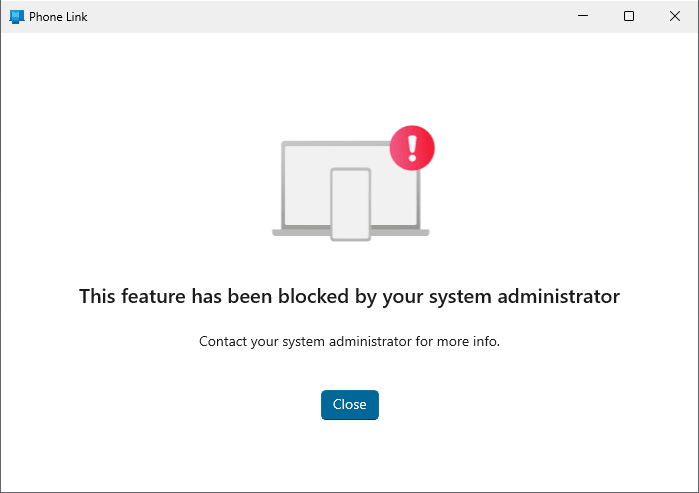
When you start the Phone Link app, you may be informed that the feature has been blocked by your administrator.
The feature has been blocked by your system administrator.

Contact your system administrator for more info.
Cause
The above message appears when the “Phone-PC linking on this device” policy blocks the Phone Link app.
This policy allows IT admins to turn off the ability to Link a Phone with a PC to continue reading, emailing and other tasks that requires linking between Phone and PC.
If you enable this policy setting, the Windows device will be able to enroll in Phone-PC linking functionality and participate in Continue on PC experiences.
If you disable this policy setting, the Windows device is not allowed to be linked to Phones, will remove itself from the device list of any linked Phones, and cannot participate in Continue on PC experiences.
If you do not configure this policy setting, the default behavior depends on the Windows edition. Changes to this policy take effect on reboot.
- Policy: Phone-PC linking on this device
- Location: Computer Configuration\System\Group Policy
- Registry Key: HKLM\Software\Policies\Microsoft\Windows\System
- Registry Value: EnableMmx
- ADMX File Name: GroupPolicy.admx
Resolution
To unblock the Phone Link app, please do the following:
Option 1: Remove Phone Link registry policies
- Run regedit.exe. This launches the Registry Editor.
- In the Registry Editor, go to the following key:
HKEY_LOCAL_MACHINE\SOFTWARE\Policies\Microsoft\Windows\System
- In the right pane, right-click EnableMmx and choose Delete.
- Exit the Registry Editor.
- Restart Windows.
Option 2: Remove Phone Link policy using Group Policy Editor
This method is for Windows Pro editions and higher.
- Run gpedit.msc. This launches the Local Group Policy Editor.
- Go to the following branch:
Computer Configuration → System → Group Policy
- Double-click “Phone-PC linking on this device.”
- Set it to Enabled, and click Apply.
- Set it to Not configured, and click Apply.
- Exit the Group Policy Editor.
You should now be able to launch Phone Link.
One small request: If you liked this post, please share this?
One "tiny" share from you would seriously help a lot with the growth of this blog. Some great suggestions:- Pin it!
- Share it to your favorite blog + Facebook, Reddit
- Tweet it!
