Most Store apps require a runtime package to work correctly. For example, the Microsoft Store app requires the Microsoft.UI.Xaml.2.8 and Microsoft.VCLibs.140 runtimes. This post tells you how to list all Store apps that use a particular runtime.
List All Store Apps that Use a Specific Runtime
For example, you may have the following runtimes installed on your computer.
Microsoft.WindowsAppRuntime.1.1_1005.616.1651.0_x64__8wekyb3d8bbwe
Microsoft.WindowsAppRuntime.1.1_1005.616.1651.0_x86__8wekyb3d8bbwe
Microsoft.WindowsAppRuntime.1.2_2000.802.31.0_x64__8wekyb3d8bbwe
Microsoft.WindowsAppRuntime.1.2_2000.802.31.0_x86__8wekyb3d8bbwe
Microsoft.WindowsAppRuntime.1.3_3000.934.1904.0_x64__8wekyb3d8bbwe
Microsoft.WindowsAppRuntime.1.3_3000.934.1904.0_x86__8wekyb3d8bbwe
Microsoft.WindowsAppRuntime.1.4_4000.1049.117.0_x64__8wekyb3d8bbwe
Microsoft.WindowsAppRuntime.1.4_4000.1082.2259.0_x64__8wekyb3d8bbwe
Microsoft.WindowsAppRuntime.1.4_4000.1136.2333.0_x64__8wekyb3d8bbwe
Microsoft.WindowsAppRuntime.1.4_4000.1309.2056.0_x64__8wekyb3d8bbwe
Microsoft.WindowsAppRuntime.1.4_4000.1309.2056.0_x86__8wekyb3d8bbwe
Microsoft.WindowsAppRuntime.1.5_5001.159.55.0_x64__8wekyb3d8bbwe
Microsoft.WindowsAppRuntime.1.5_5001.178.1908.0_x64__8wekyb3d8bbwe
Microsoft.WindowsAppRuntime.1.5_5001.214.1843.0_x64__8wekyb3d8bbwe
Microsoft.WindowsAppRuntime.1.5_5001.275.500.0_x64__8wekyb3d8bbwe
Microsoft.WindowsAppRuntime.1.5_5001.311.2039.0_x64__8wekyb3d8bbwe
Microsoft.WindowsAppRuntime.1.5_5001.373.1736.0_x64__8wekyb3d8bbwe
Microsoft.WindowsAppRuntime.1.5_5001.373.1736.0_x86__8wekyb3d8bbwe
Microsoft.WindowsAppRuntime.1.6_6000.373.1641.0_x64__8wekyb3d8bbwe
Microsoft.WindowsAppRuntime.1.6_6000.401.2352.0_x64__8wekyb3d8bbwe
Microsoft.WindowsAppRuntime.1.6_6000.424.1611.0_x64__8wekyb3d8bbwe
Microsoft.WindowsAppRuntime.1.6_6000.457.2140.0_x64__8wekyb3d8bbwe
Microsoft.WindowsAppRuntime.1.6_6000.486.517.0_x64__8wekyb3d8bbwe
Microsoft.WindowsAppRuntime.1.6_6000.519.329.0_x64__8wekyb3d8bbwe
Microsoft.WindowsAppRuntime.1.6_6000.519.329.0_x86__8wekyb3d8bbwe
Microsoft.WindowsAppRuntime.1.7_7000.522.1444.0_x64__8wekyb3d8bbwe
Microsoft.WindowsAppRuntime.1.7_7000.617.2103.0_x64__8wekyb3d8bbwe
Microsoft.WindowsAppRuntime.1.7_7000.652.1806.0_x64__8wekyb3d8bbwe
Microsoft.WindowsAppRuntime.1.7_7000.676.1651.0_x64__8wekyb3d8bbwe
Microsoft.WindowsAppRuntime.1.7_7000.744.1258.0_x64__8wekyb3d8bbwe
Microsoft.WindowsAppRuntime.1.7_7000.770.750.0_x64__8wekyb3d8bbwe
Microsoft.WindowsAppRuntime.1.7_7000.785.2325.0_x64__8wekyb3d8bbwe
Microsoft.WindowsAppRuntime.1.7_7000.785.2325.0_x86__8wekyb3d8bbwe
Microsoft.WindowsAppRuntime.1.8_8000.675.1142.0_x64__8wekyb3d8bbwe
Microsoft.WindowsAppRuntime.1.8_8000.731.1532.0_x64__8wekyb3d8bbwe
Microsoft.WindowsAppRuntime.1.8_8000.770.947.0_x64__8wekyb3d8bbwe
Microsoft.WindowsAppRuntime.1.8_8000.806.2252.0_x64__8wekyb3d8bbwe
Microsoft.WindowsAppRuntime.1.8_8000.806.2252.0_x86__8wekyb3d8bbwe
You wonder which apps use the Microsoft.WindowsAppRuntime.1.7_7000.785.2325.0_x64__8wekyb3d8bbwe runtime package. Here’s how to find that out.
Open PowerShell (admin) and run this command:
Get-AppxPackage -allusers | Where-Object { $_.Dependencies -match "Microsoft.WindowsAppRuntime.1.7_7000.785.2325.0_x64__8wekyb3d8bbwe" } | Select Name
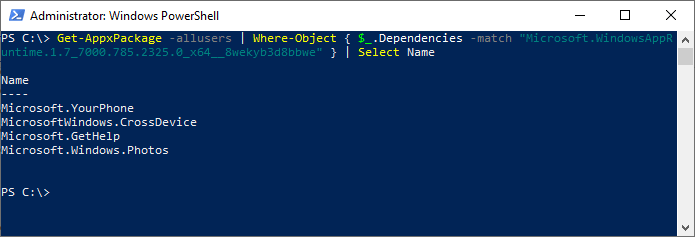
You’ll see an output that looks like the following:
Name
----
Microsoft.YourPhone
MicrosoftWindows.CrossDevice
Microsoft.GetHelp
Microsoft.Windows.Photos
In the above example, currently, four apps are using the common runtime package Microsoft.WindowsAppRuntime.1.7_7000.785.2325.0_x64__8wekyb3d8bbwe. Uninstalling all four packages above will also automatically uninstall the runtime.
Removing Unused Runtime Packages
On my system, the following runtimes were not used by any app.
Microsoft.WindowsAppRuntime.1.1_1005.616.1651.0_x64__8wekyb3d8bbwe
Microsoft.WindowsAppRuntime.1.1_1005.616.1651.0_x86__8wekyb3d8bbwe
Microsoft.WindowsAppRuntime.1.2_2000.802.31.0_x64__8wekyb3d8bbwe
Microsoft.WindowsAppRuntime.1.2_2000.802.31.0_x86__8wekyb3d8bbwe
Microsoft.WindowsAppRuntime.1.3_3000.934.1904.0_x64__8wekyb3d8bbwe
Microsoft.WindowsAppRuntime.1.3_3000.934.1904.0_x86__8wekyb3d8bbwe
Microsoft.WindowsAppRuntime.1.4_4000.1049.117.0_x64__8wekyb3d8bbwe
Microsoft.WindowsAppRuntime.1.4_4000.1082.2259.0_x64__8wekyb3d8bbwe
Microsoft.WindowsAppRuntime.1.4_4000.1136.2333.0_x64__8wekyb3d8bbwe
Microsoft.WindowsAppRuntime.1.4_4000.1309.2056.0_x64__8wekyb3d8bbwe
Microsoft.WindowsAppRuntime.1.4_4000.1309.2056.0_x86__8wekyb3d8bbwe
I uninstalled the above unused WindowsAppRuntime versions using the following commands from PowerShell (admin)
get-appxpackage -allusers *Microsoft.WindowsAppRuntime.1.1* | remove-appxpackage -allusers

get-appxpackage -allusers *Microsoft.WindowsAppRuntime.1.2* | remove-appxpackage -allusers

get-appxpackage -allusers *Microsoft.WindowsAppRuntime.1.3* | remove-appxpackage -allusers

get-appxpackage -allusers *Microsoft.WindowsAppRuntime.1.4* | remove-appxpackage -allusers
The -allusers parameter ensures that the entire package folder is removed. Of course, it impacts all user accounts on the system.
Note: If you try to uninstall a dependency that is required by an existing app, you may receive error 0x80073CF3.
One small request: If you liked this post, please share this?
One "tiny" share from you would seriously help a lot with the growth of this blog. Some great suggestions:- Pin it!
- Share it to your favorite blog + Facebook, Reddit
- Tweet it!
