Sometimes, you may encounter errors such as 0x80244007, 0x8024a105 or other errors when installing updates via the Windows Update channel. Here are some sample error messages:
There were problems downloading some updates, but we'll try again later. If you keep seeing this, try searching the web or contacting support for help. This error code might help: (0x8024a105)
Note: Especially for error 0x8024a105, restart Windows and attempt to install updates. Also, try a different internet service provider, just in case this is a DNS issue or a problem reaching Microsoft Update’s CDN in your region.
Some other error codes may occur when attempting to install updates.
0x8024a223
0x80244007
0x80080005
0x80070422
0x80248007
0x8024001e
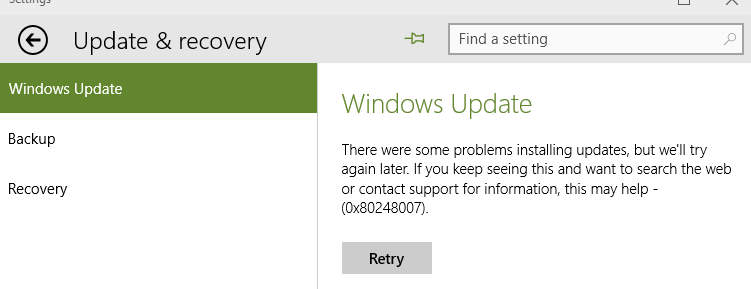
This article provides troubleshooting steps to fix most Windows Update errors in Windows 10 and 11.
Resolution
1) Run Windows Update Troubleshooter
Please run the Windows Update Troubleshooter, which is based on the new “Get Help” platform.
- Select Start > Settings > System.
- Select Troubleshoot and choose Other troubleshooters.
- Locate Windows Update and select Run.
- Follow the on-screen instructions to complete the process.
Alternatively, you can run the following command from the Run dialog to start the Windows Update troubleshooter.
ms-contact-support://smc-to-emerald/WindowsUpdateTroubleshooter
RELATED: Troubleshoot problems updating Windows – Microsoft Support
2) Check your Services configuration
Launch the Services MMC (services.msc) and make sure that the following services are configured correctly:
| Service | Startup Type |
| Background Intelligent Transfer Service | Manual |
| Delivery Optimization | Automatic |
| Update Orchestrator Service | Automatic (Delayed Start) |
| Windows Modules Installer | Manual |
| Windows Update Medic Service | Manual |
| Windows Update | Manual |
Also, make sure that each of the above services can start. Click the Start button in the service’s properties to see if it starts correctly.
If any of the above services are missing, scan the system for malware, then restore them. See:
References
3) Reset the Windows Update Cache
Option 1: Reset WU using a script
Reset Windows Update using this batch file:
https://gist.github.com/winhelponline/af9296c106448a664a6229d8146a85fd
- Download the zip file and extract the batch file to the desktop.
- Right-click the batch file, click Properties, click “Unblock” (if present), then click OK.
- Double-click the batch file to run it.
- After it completes execution, don’t close it yet.
- Right-click on that Command Prompt window, click “Edit”, and click “Select all.”
- Right-click on that Command Prompt window, click “Edit”, and click “Copy”. This copies the output to the clipboard.
- Analyze the output and see if all the commands ran correctly.
Option 2: Reset WU manually
Open an elevated Command Prompt window. Type the following commands one by one and press Enter after each line:
net stop bits
net stop wuauserv
net stop appidsvc
net stop cryptsvc
This temporarily stops Windows Update, Application Identity, and Cryptographic Services.
Then, type the following commands:
rd /s /q %systemroot%\softwaredistribution.bak
rd /s /q %systemroot%\system32\catroot2.bak
ren %systemroot%\softwaredistribution softwaredistribution.bak
ren %systemroot%\system32\catroot2 catroot2.bak
net start bits
net start wuauserv
net start appidsvc
net start cryptsvc
4) Remove Windows Update Policies
From the admin Command Prompt, run the following commands to remove all the Windows Update registry-based policies:
reg.exe delete "HKCU\SOFTWARE\Policies\Microsoft\Windows\WindowsUpdate" /f
reg.exe delete "HKCU\SOFTWARE\Microsoft\Windows\CurrentVersion\Policies\WindowsUpdate" /f
reg.exe delete "HKLM\SOFTWARE\Policies\Microsoft\Windows\WindowsUpdate" /f
reg.exe delete "HKLM\SOFTWARE\Microsoft\Windows\CurrentVersion\Policies\WindowsUpdate" /f
reg.exe delete "HKLM\SOFTWARE\Microsoft\Windows\CurrentVersion\Policies\Servicing" /v "RepairContentServerSource" /f
reg.exe delete "HKLM\SOFTWARE\Microsoft\Windows\CurrentVersion\Policies\Servicing" /v "LocalSourcePath" /f
reg.exe delete "HKLM\SOFTWARE\Microsoft\Windows\CurrentVersion\Policies\Servicing" /v "UseWindowsUpdate" /f
net stop wuauserv
net start wuauserv
See if you can install updates via Windows Update now.
Workaround: Download the Standalone Update from the MU Catalog and install it
If the error occurs only for a particular update, you can download the standalone version of the update (.msu or .cab) directly from the Microsoft Update Catalog and install it rather than via Windows Update.
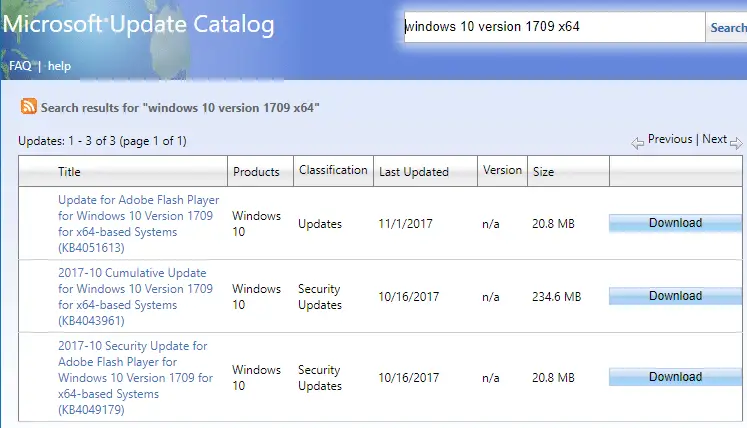
I hope one of the above fixes helps you resolve Windows Update errors.
One small request: If you liked this post, please share this?
One "tiny" share from you would seriously help a lot with the growth of this blog. Some great suggestions:- Pin it!
- Share it to your favorite blog + Facebook, Reddit
- Tweet it!
