This app tells you how to determine which apps on your computer require .NET Framework to work correctly. This can be determined on a per-app basis.
Find Which Installed Apps Require .NET Framework
First, please run the respective apps. Then use one of the following methods to determine whether those apps require the .NET Framework to function correctly.
Option 1: Use PowerShell
For example, if the app name is AcronisVSSDoctor.exe, to verify whether it requires the .NET Framework, do the following:
Launch the app. With the app running, open PowerShell (admin) and run this command:
(Get-Process -Name "AcronisVSSDoctor").Modules.Filename
In the output, you’ll see the list of modules loaded by AcronisVSSDoctor.exe. You should be able to determine the names of the .NET modules from the output.
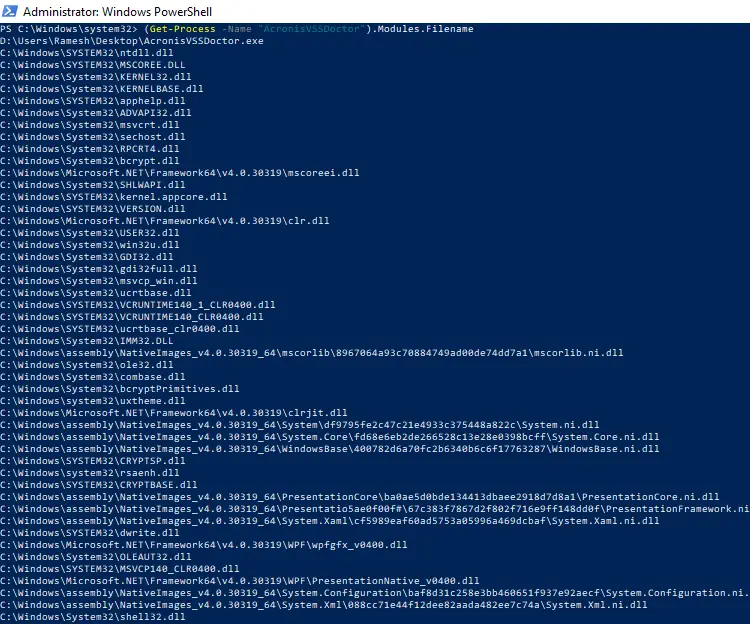
For instance, if the following module appears in the output, it means the app uses .NET Framework 4.x runtime.
Option 2: Use Process Explorer
- Launch the program (e.g., AcronisVSSDoctor.exe)
- Download Process Explorer from Microsoft.
- Run Process Explorer as administrator.
- In Process Explorer, double-click the process named AcronisVSSDoctor.exe.
- In the process properties dialog, click on the .NET Assemblies tab if it’s available.
Note: If the .NET Assemblies tab doesn’t exist for a process, that means that the app doesn’t use the .NET Framework.
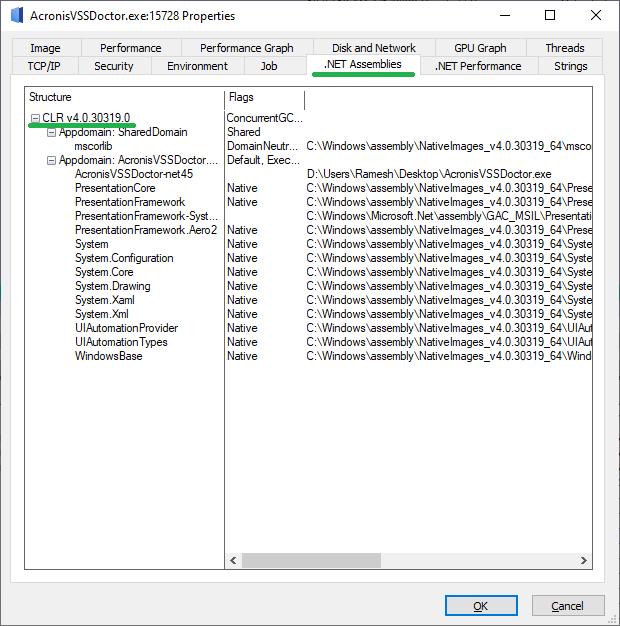
You can check the CLR version in that tab. v4.0.30319.0 indicates that the app uses the .NET Framework 4.x.
Here’s another example. A legacy app named PreviewConfig uses an older version of .NET Framework, as seen in the following image: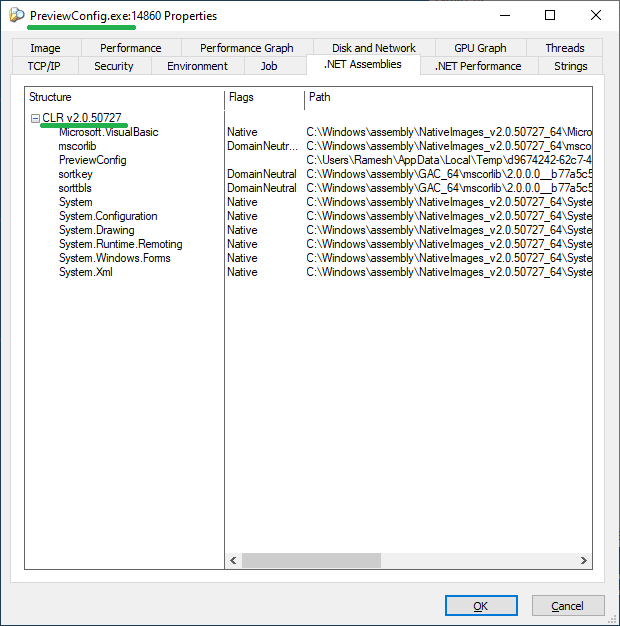
In the above example, the CLR version is v2.0.50727, which corresponds to the .NET Framework version 2.0.
Reference: Determine which .NET Framework versions are installed – .NET Framework | Microsoft Learn
Additional note
If an app requires a specific version of .NET Framework and it’s not installed on the computer, you’ll see the on-demand installation screen, as below:
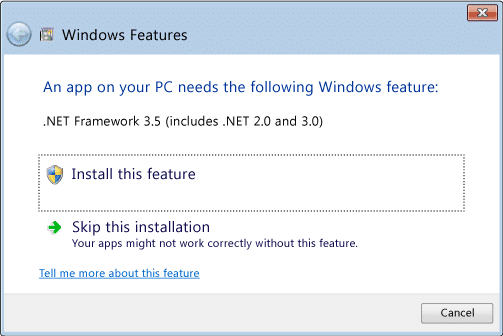
Note that .NET Framework version 3.5 includes .NET 2.0 and 3.0.
One small request: If you liked this post, please share this?
One "tiny" share from you would seriously help a lot with the growth of this blog. Some great suggestions:- Pin it!
- Share it to your favorite blog + Facebook, Reddit
- Tweet it!
