When you upgrade to Windows 10 from Windows 7 or 8, the setup may fail with the following error:
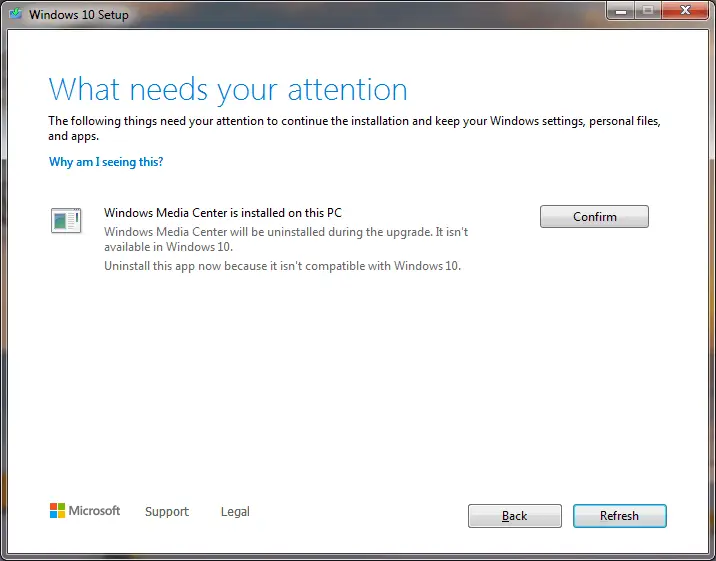
What needs your attention

The following things need your attention to continue the installation and keep your Windows settings, personal files, and apps.

Windows Media Center is installed on this PC

Windows Media Center will be uninstalled during the upgrade. It isn't available in Windows 10.

Uninstall this app now because it isn't compatible with Windows 10.
We recommend you do not proceed with this update as your device may have some music or video content that is protected by an older rights management technology, which is not supported. If you install this update, you may no longer be able to play these music or video files. Close this dialog box to cancel, or you can choose to confirm to install the update. For more info, go to https://support.microsoft.com/windows10wmdrm
SetupDiag may report the following:
Error: SetupDiag reports abrupt down-level failure.
Last Operation: Finalize
Error: 0xC1900101 - 0x50016
LogEntry: [Timestamp], Error
MOUPG  CDlpActionFinalize::ExecuteSetupPlatformFinalize(1077):
Result = 0xC1900101[gle=0x000000b7]
Refer to "https://docs.microsoft.com/en-us/windows/desktop/Debug/system-error-codes" for error information.

You must manually uninstall "Windows Media Center is installed on this PC" before continuing with the installation/update, or change the command line parameters to ignore warnings if you are using the "/quiet" parameter.
Resolution
Step 1: Uninstall Windows Media Center
To uninstall Windows Media Center in Windows 7 or 8, you must turn it off via the Windows Features control panel. Open the Control Panel, go to Programs, select Turn Windows features on or off, expand Media Features, uncheck Windows Media Center, and restart your computer when prompted to finalize changes.
Step 2: Remove Windows Media Center registry entries
If uninstalling Windows Media Center doesn’t help, you need to remove its registry entries manually.
- Launch the Registry Editor by running regedit.exe.
- Go to the following location in the Registry Editor.
HKEY_LOCAL_MACHINE\Software\Microsoft\Windows\CurrentVersion\Media Center
- From the File menu, click Export, then save the key as a REG file.
- Right-click on the Media Center registry key and choose Delete.
- Re-run the Windows 10 setup.
Hint: Check the HumanReadable*.xml files in the C:\$WINDOWS.~BT\Sources\Panther folder to see if there are file names or registry entries regarding “Windows Media Center” mentioned.
RELATED: 0xC1900209: This PC can’t be upgraded to this version of Windows.
One small request: If you liked this post, please share this?
One "tiny" share from you would seriously help a lot with the growth of this blog. Some great suggestions:- Pin it!
- Share it to your favorite blog + Facebook, Reddit
- Tweet it!
