Reader’s Query: I have a 160GB Western Digital Hard Drive partitioned into a 40GB Operating System partition and the other 120GB for my files. However, when I run Disk Cleanup utility from within Vista Ultimate, it shows multiple 131GB options for me to clean up. After I clicked OK to clean up the selected entries, it erased everything on the 40GB partition. I then had to reinstall Windows Vista, but the problem seems to be recurring.
(Information in this post applies to Windows Vista, 7 & Windows 8 systems.)
Windows Error Reporting Disk Cleanup handler
Having received three more such questions, I decided to work on this issue. Here is the screenshot of what Disk Cleanup displayed:
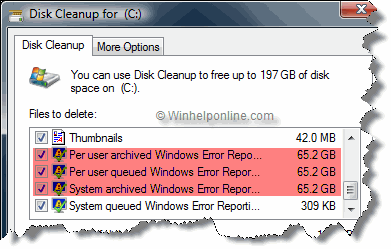
Fig 1: Disk Cleanup showing the list of files to delete.
According to the above Disk Cleanup graphic, the Windows Error Reporting files constituted to 196 GB, which is impossible in this case. I asked for the registry export of this key from the affected system:
HKEY_LOCAL_MACHINE\SOFTWARE\Microsoft\Windows\CurrentVersion\Explorer\VolumeCaches
The above registry location contains the list of Disk Cleanup handlers and their registration information. When comparing the settings with my system, I noticed that a really important value named Folder was missing in each of the following subkeys under the VolumeCaches branch:
|_ Windows Error Reporting Archive Files
|_ Windows Error Reporting Queue Files
|_ Windows Error Reporting System Archive Files
|_ Windows Error Reporting System Queue Files
This paragraph from the MSDN documentation provides the description for the Folder registry value:
A specific folder or folders to search for items matching entries in the FileList value. You can specify wildcards using the ? or * characters. If the value is of type REG_SZ, multiple folder names are separated using the | character, without spaces on either side of it. If a CSIDL value is present, only one folder can be specified in this value. The location indicated by the CSIDL value is prepended to that folder path to compose a search path. For example, see the CSIDL value description. If this value is absent, the root folder of the current volume is used. The DDEVCF_DOSUBDIRS flag is needed in that case to search the entire drive.
Note the last line which states that the Disk Cleanup will recursively search the entire volume for the list of files mentioned in the FileList registry value (*.* wildcard used in this case) and include everything on the volume for deletion if the DDEVCF_DOSUBDIRS flag is enabled (which is enabled by default).
Fixing the Disk Cleanup WER Handlers
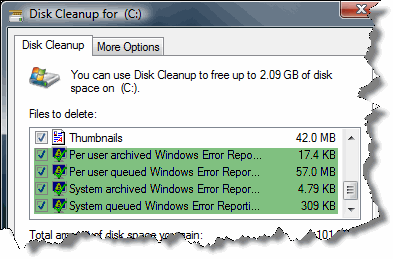
Available below are the REG files to fix the Folder registry values in each of the above registry keys, which resolved the issue indeed. This is what Disk Cleanup showed after running the fix:
Downloads
- cleanmgrfix.zip for Windows Vista or 7
- cleanmgrfix-w8-1.zip for Windows 8
RELATED: Disk Cleanup Bug : 3.99 TB Used by Windows Updates
Content Index Cleaner Disk Cleanup handler
Here is a similar case, but this time it’s the Content Index Cleaner Disk Cleanup handler.
One of our readers asked: I have used a registry cleaner in my PC and I have exactly the same problem as mentioned in the blog post Serious Disk Cleanup problem caused by broken registration. The Disk Cleanup program cleaned up everything including my Windows installation. Is there a fix?
After comparing the VolumeCaches branch which was sent to me by the asker, I narrowed down the issue to the following key:
HKEY_LOCAL_MACHINE\SOFTWARE\Microsoft\Windows\CurrentVersion\Explorer\VolumeCaches\Content Indexer Cleaner
In the above key, the value named Folder was missing. The Folder value should be present and have the following data:
?:\Catalog.wci
As a result of the missing value, when you select the entry Catalog files for the Content Indexer in Disk Cleanup, files in the current partition is erased when Disk Cleanup is run as administrator.
Fixing the Disk Cleanup Content Index Cleaner handler
Here is a registry fix which reinstates the missing entry.
Windows Registry Editor Version 5.00

[HKEY_LOCAL_MACHINE\SOFTWARE\Microsoft\Windows\CurrentVersion\Explorer\VolumeCaches\Content Indexer Cleaner]
@="{A9B48EAC-3ED8-11d2-8216-00C04FB687DA}"
"PropertyBag"="{24400D16-5754-11d2-8218-00C04FB687DA}"
"FileList"="*.*"
"Folder"="?:\\Catalog.wci"
"Flags"=dword:00000141
"Priority"=dword:0000012c
Copy the above lines to Notepad, and save it with a .reg extension. Right-click on the file and choose Merge. Click Yes when asked for confirmation.
The above registry setting applies to all versions of Windows, including Windows 10 (tested up to version 1809.)
Closing Words
Although I could identify where the problem was, but had no clue on how the Folders value vanished in the first place. This may have been a result of running a registry cleaner. Always have an eye over the disk space showed near Total amount of the disk space you gain: in the Disk Cleanup window.
But there is another complication; the user will never know what’s being deleted when running Disk Cleanup non-interactively — by automating Disk Cleanup or when Windows runs Disk Cleanup automatically via Task Scheduler, using the /verylowdisk switch.
I hope this post helped you avert a major problem in your system. Readers who’re using registry cleaners and experiencing this issue, feel free to comment on this article.
One small request: If you liked this post, please share this?
One "tiny" share from you would seriously help a lot with the growth of this blog. Some great suggestions:- Pin it!
- Share it to your favorite blog + Facebook, Reddit
- Tweet it!

Registry edit added for Windows 8.
Wow! I ran into the same problem.
On a 120gb SSD for Win7 computer, Disk Cleanup was showing 149gb in “System queued Windows Error Reporting”.
The issue was so strange, that I thought best to research first. I am *very* glad that I did so, before clicking “OK” to delete. I keep good backups, but I’ll be damned to have to re-install everything.
I ran the cleanmgrfix.reg file, re-booted, the error persisted. I manually deleted all of the files in C:\ProgramData\Microsoft\Windows\WER. This worked.
I have been using 360 Total Security and it does a very good job on the options Speedup, Cleanup, and System Backup Cleaner. I will never use Windows Disk Cleanup again.
@Barry: Glad you averted a serious crisis. Have you checked if the disk cleanup handers for WER is still missing the “Folder” value?
@Ramesh: thanks for following up. I did not check it before hand, guess I should have. Yes, ‘folder’ is is showing on those 4 registry entries.
@Barry: If the Folder value exists (with correct value type) and pointing to the correct folder the problem should not occur. Perhaps you can send me the registry exports of those keys so that I can do a reg compare.