 Windows 7 doesn’t include an option wherein you can disable auto arrange in folders (icons view). Sometime back I created a magical registry hack (FFlags DWORD 43000001) that disabled the "Full Row Select" functionality in folders in Windows 7. I also posted some interesting observations in article How to Disable Full Row Select in Explorer in Windows 7 about the registry hack, which demonstrates that applying the hack also brings back the missing "Auto arrange" menu option in the View menu of folders when in Icons view.
Automate Using Script
Update: I just converted the registry edits to a Script file that does all the work. Works in Windows 7, 8, 8.1 and Windows 10.
Check out my recent post How to Disable Full Row Select and Auto Arrange in Folders in Windows 10?
To do this Manually
I hereby bring you a slightly tweaked version (sets FFlags to 43000000) of the same registry hack and provide some screenshots in this article. After applying this edit you can enable or disable auto arrange feature on a per-folder basis. Of course, an "Undo" REG file is provided in case you want to revert back to the factory default setting.
Disable Auto Arrange (Icons view) in Folders in Windows 7
1. Reset the saved folder views (Ref: Reset the Folder Views in Windows 7/Vista) and restart the shell as specified in the linked article.
2. Download disable-auto-arrange.zip, unzip and extract the two REG files to your desktop.
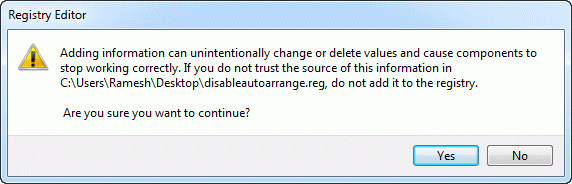

3. Open My Computer and then close it.
4. Logoff and login back. (Alternately, you could terminate the shell cleanly and restart it. REF: Terminate and Restart Explorer.exe Process Cleanly in Windows 7 & Windows Vista).
This should disable auto-arrange and "full row select" features in Explorer.
For a background info about this registry edit, see our detailed article How to Disable Full Row Select Feature in Explorer in Windows 7?
Screenshots
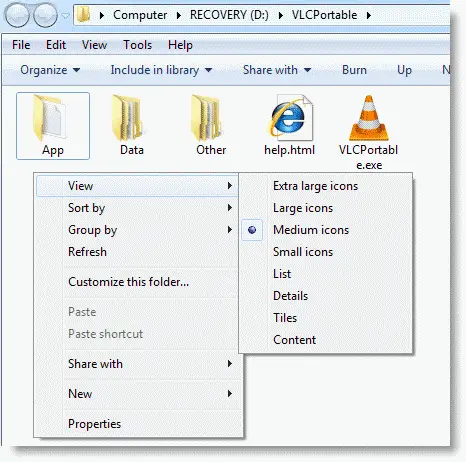
The following is the default setting, no "Auto arrange" option in the View menu. Icons are auto-arranged always, by default.
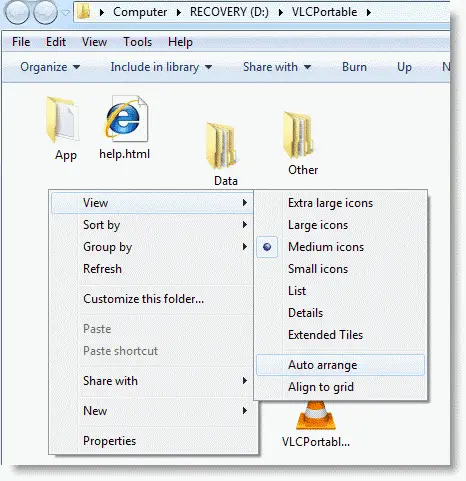
After apply the registry edit (and user logoff/logon cycle), Auto-arrange option is disabled as you can obviously see in the screenshot where the files are arranged in random fashion, and the "Auto arrange" and "Align to grid" menu options magically appear. Alas! You can disable or enable Auto-arrange setting per-folder.
One small request: If you liked this post, please share this?
One "tiny" share from you would seriously help a lot with the growth of this blog. Some great suggestions:- Pin it!
- Share it to your favorite blog + Facebook, Reddit
- Tweet it!

Had to get Windows 7 but dreaded not being able to have Align to Grid. Found your site and, well it’s a miracle, it works perfectly. Thank you so much, not only from me but many others who are so frustrated with Windows 7 ridiculous Auto Arrange. Thanks again.
Thank you so much, Ramesh.
When I follow your instructions, autoarrange is indeed disabled. I can select multiple items in Windows Explorer, sort by another column, and the file selection is kept. That is very important for many users like me (and I do not understand why Microsoft removed that).
However, the dark theme no longer works well in Windows Explorer, at least in my Windows 10 installation (Windows Update updated as of today in November 2020). Many file names are black over a very dark backgound, which is not readable. Dark theme is almost as important to me as it is to be able to keep multiple file selection after resorting.
My questions:
a) Does it also happen to you people?
b) If so, Ramesh, would it be asking for too much if you could find a solution?
Thank you in advance!!
Please, how can I delete the tool and revert to the default setting
@mohamed: Resetting the folder views is all you need, to revert to the default setting. See How to Reset the Folder View Settings in Windows