Clean Up the Right-Click Menu in Internet Explorer 8

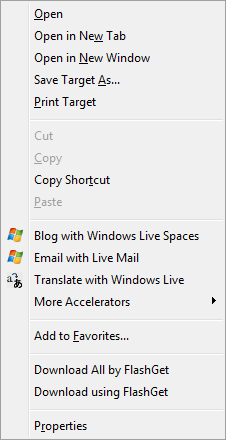
The right-click menu in Internet Explorer may get cluttered up when you install download managers, Toolbars and other browser companion utilities. The items that you use seldom (or never) can be removed so that the right-click menu in Internet Explorer looks clean.

The context menu in Internet Explorer includes the following type of Add-ons:

  • Accelerators (Internet Explorer 8 only)
  • Menu extensions (All versions of Internet Explorer)

Accelerators

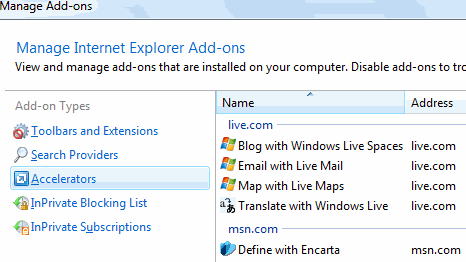
Accelerators let you act on data in a Web page. For example, you can select a few lines of text and send it to a blog or email it with a click. Internet Explorer 8 (currently in Beta 2) comes with the following Accelerators out of the box:

  • Blog with Windows Live Spaces
  • Email with Live Mail
  • Map with Live Maps
  • Translate with Windows Live
  • Define with Encarta

Note that "Accelerators" is a new feature introduced in Internet Explorer 8.

To disable unused Accelerators, use these steps:

1. Open Internet Explorer

2. Click Tools, select Manage Add-ons.

3. Select Accelerators

4. Right-click the appropriate entry and click Disable

5. Click Close.
Menu Extensions

Menu extensions are supported in all versions of Internet Explorer, and information in this section applies to all versions of Internet Explorer. Menu extensions are stored in the registry, and each extension is linked to a HTML/Script file that actually powers the menu item.

Examples

  • "Export to Microsoft Excel" extension exports Web page selection to a Excel Spreadsheet
  • "Download using FlashGet" downloads the hyperlinked file using FlashGet

The Menu extensions are loaded from the following registry key:

HKEY_CURRENT_USER \ Software \ Microsoft \ Internet Explorer \ MenuExt

Each Menu extension has a subkey underneath the MenuExt branch. The (default) value in the right pane denotes the HTML/Script file used by the extension.
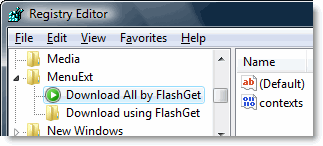
To remove a Menu extension, run Regedit.exe to start the Registry Editor. Navigate to the above location. Backup the branch first. Right-click on the corresponding subkey and choose Delete. Exit the Registry Editor.
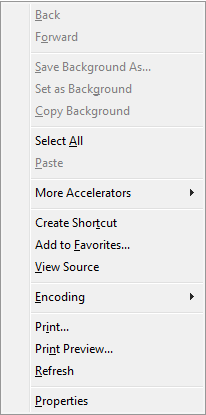
If you don’t want to mess with the registry, you can automate the task using the free ToolbarCop utility. ToolbarCop is a browser extensions manager which can enable, disable or remove Internet Explorer Add-ons. It creates a backup (.REG file) every time you delete an Add-on.

Note: If you’re using Windows Vista, you need to run ToolbarCop under elevated (Right-click and choose Run as Administrator) privileges.


(Right-click menu, after cleanup)

Related Posts


Email SubscriptionPrefer an E-mail subscription?

Enter your email address:

Delivered by FeedBurner

3 Comments

  1. Rick Rahnenfuhrer
    said this on Friday, October 3rd 2008 7:40 am

    Wow does that mean I spend too much time reading WinHelp Blog that I jumped ahead of the article…LOL :D
    Naa that can’t be, it’s the best computer resource there is.
    Also just a personal note, I really like IE8 and think it will be a hit when it all comes together. Just some more web sites still need to adjust yet. I only run it on one of my notebooks right now because I like the bigger one to play on Pogo and they have a big problem with it. They got the screens and pictures to all line up now, but when you go into a game room and then try to exit, you get a big RED error message and you have to use the “Task Mang.” to close out IE8 altogether. I’m sure everyone should get it right soon I hope. Till then we have WinHelp Blog to correct it.
    Thanks again everyone.

    Rick

  2. said this on Thursday, October 2nd 2008 10:29 am

    @Rick. What a coincidence :) The fix for the IE8 bookmarks issue is in queue and slated to release/publish tomorrow or in the coming week.

  3. Richard Rahnenfuhrer
    said this on Thursday, October 2nd 2008 9:36 am

    Hi,
    First off I just want to say how much I enjoy and look forward to everyday this WinHelp Blog. I am still trying to work my way through all the past articles reading and learning, but not even 1/2 way through yet..LOL
    Anyway my question is, have you covered yet the problem with IE7 not being able to read your exported to file IE8 Favorites? I was running IE8-Beta2 and exported my favorites list to my documents like you usually do. Then I do a factory restore, like I do every few months just to clean out my computer fully from all the new programs I try that I don’t like, and while running IE7 I try to import my favorites list from IE8 to IE7 it says “Not a valid bookmark file” but when you compare the 2 types of files they are both HTML Documents. You might have covered this already, I have not fully gone through all your articles yet.
    Thank You
    Rick

Leave a Reply