The amazing NirCmd utility now has a new “speak” command that allows you to easily cause your computer to speak the text that you wish. In this command, NirCmd uses the Speech library (SAPI) that is installed in Windows. Here is a fun tip on how to add the Speak command to the context menu for Text Documents (.txt).
- Download NirCmd utility and unzip the file.
- Move NirCmd.exe to the C:\Windows directory.
- Download speak.zip, unzip, and run the file speak.reg
- Right-Click on a Text Document and click Speak.
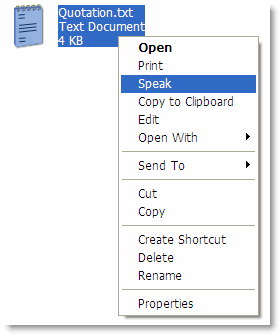
The system reads out the entire contents of the text file for you!
The REG file adds the following registry key:
HKEY_CLASSES_ROOT\txtfile\shell\Speak\Command
And sets the (default) value data to:
nircmd.exe speak file "%1"
To dictate the entire contents of a text file manually, use this command line:
nircmd.exe speak file "<path:\filename>"
One small request: If you liked this post, please share this?
One "tiny" share from you would seriously help a lot with the growth of this blog. Some great suggestions:- Pin it!
- Share it to your favorite blog + Facebook, Reddit
- Tweet it!

