Windows Vista and higher already include the useful Copy as Path option in the context menu, which helps you quickly copy the complete path of the selected file(s) or folder(s) to the Clipboard. Here is how to add “Copy of Path” feature in Windows XP.
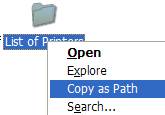
There are two methods discussed, both of them require the Clip.exe file from Microsoft. Clip.exe redirects command-line output to the Windows Clipboard. For example, typing the command dir | clip in a Command Prompt window places a copy of the current directory listing into the Windows clipboard.
Note: When using the Copy as Path command after following the steps in Method 1, you’ll see a Command Prompt window opening and closing briefly. Method 2 uses a VBScript which launches the Command Prompt window in invisible mode.
Download Clip.exe from the Microsoft FTP site here and save the file to your Windows directory.
(To open the Windows directory in your system, click Start → Run, type %systemroot%, and press Enter.)
Then, follow one of the methods below.
Add “Copy as Path” to Right Click Menu
- Download copypath.reg and save it to the Desktop.
- Right-click on the file and choose Merge.
- Click Yes when asked for confirmation.
This adds the following registry key:
HKEY_CLASSES_ROOT\Allfilesystemobjects\shell\CopyPath\command
and sets the (default) value to:
%comspec% /c <nul (set/p anyvariable="%1")|clip.exe
You’ll see the “Copy as Path” option when you right-click a file or folder.
Note: Previously it was %comspec% /c echo “%1″|clip.exe, but since that adds a line feed, I had to change the command-line as above. Thanks to Eric.
Using a Script
To automate the above task of adding or removing the Copy as Path menu option, you can use this script as an alternative.
- Download copypath.zip extract the script file copypath.vbs file to your Windows directory.
- Double-click copypath.vbs to run it.
- Click Ok when you see the following prompt:
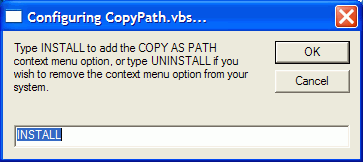
(To remove the Copy as Path context menu option, double-click the copypath.vbs file, type UNINSTALL and click Ok. Then delete the file copypath.vbs manually from your Windows directory.)
After following one of the methods above, “Copy as Path” option will be added to the context menu. To copy a file or folder path to Clipboard, press and hold the Shift key, right-click on the file or folder and click “Copy as Path”.
Additional Tip: If you want to make the Copy as Path command always available (without needing to use the SHIFT key), simply delete the value named Extended in the registry location below, using the Registry Editor:
HKEY_CLASSES_ROOT\Allfilesystemobjects\shell\CopyPath
See also: How to Add “Open File Location” Right-Click Option in Windows XP
One small request: If you liked this post, please share this?
One "tiny" share from you would seriously help a lot with the growth of this blog. Some great suggestions:- Pin it!
- Share it to your favorite blog + Facebook, Reddit
- Tweet it!

Followed this to the letter. It copied the object as a named object and all the contents within the file. I just wanted the file name.
@Neil: Tried both the methods on a Windows 10 computer. It works perfectly here. Can’t repro the issue you’re facing. Can you try this (if using Windows 10)? https://www.winhelponline.com/blog/copy-as-path-always-show-right-click-windows-10/
Hello,
Is there a way (some additional switches in presented command) to suppress appearance of the CMD window?
Also – why is the command encoded into some hex string? Can’t this be added into registry (and thus written within .reg file) in more user understandable form?
@Epic: Since it’s an expandable string value (%comspec%), it has to be REG_EXPAND_SZ value type instead of REG_SZ. So, it’s showing as hex string in the text file.
Note that you can also use cmd.exe (REG_SZ value should be fine) instead of %comspec%.