Right-clicking Start, or pressing the Win+X key combination opens the power-user menu as in the following image:
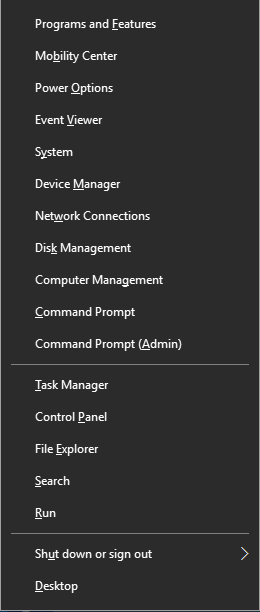
If this menu doesn’t open or nothing happens when you use the Win+X key combination, it could be possible that the IsShortcut registry value has been removed for shortcuts (.lnk) file association. Follow both these steps to resolve the problem.
Create the IsShortcut registry value
Press WinKey + R to launch the Run dialog.
Type regedit.exe and click OK.
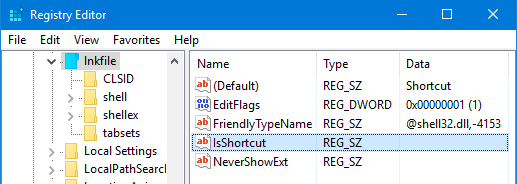
Go to the following branch:
HKEY_CLASSES_ROOT\lnkfile
In the right pane, create a REG_SZ (String value) named IsShortcut
Exit the Registry Editor.
REG File: Alternately, you can apply the .lnk registry fix at File Association Fixes Page: Windows 10 | Windows 8
(Note: If you had removed the IsShortcut value earlier to hide the shortcut overlay icon, note that there is a better and safer method to hide the overlay icon for shortcuts. Use Method 2 in the article How To Remove Or Modify The Shortcut Overlay In Windows, which applies to all versions of Windows.)
Copy Win+X Group Folders from Default Profile
Open File Explorer and explore this folder:
C:\Users\%username%\AppData\Local\Microsoft\Windows\WinX
Rename these three folders by adding -old suffix.
- Group1
- Group2
- Group3
Then, open this folder:
C:\Users\Default\AppData\Local\Microsoft\Windows\WinX
Copy the 3 folders to location #1 above.
Log off and login back for the changes to take effect.
Related
There is a similar problem where 3rd party shell extension interferes with the Win+X menu. Check out Win+X Menu Shortcuts Not Working – Caused by 3rd Shell Extension and Win+X Command Prompt Admin File Association Error, and Run As Administrator Option Missing.
One small request: If you liked this post, please share this?
One "tiny" share from you would seriously help a lot with the growth of this blog. Some great suggestions:- Pin it!
- Share it to your favorite blog + Facebook, Reddit
- Tweet it!
