MSDT stands for Microsoft Support Diagnostic Tool. This tool was previously used by Microsoft technical support to analyze diagnostic data for troubleshooting remotely. MSDT.exe can also run built-in troubleshooters, such as the Audio troubleshooter and the Windows Update troubleshooter.
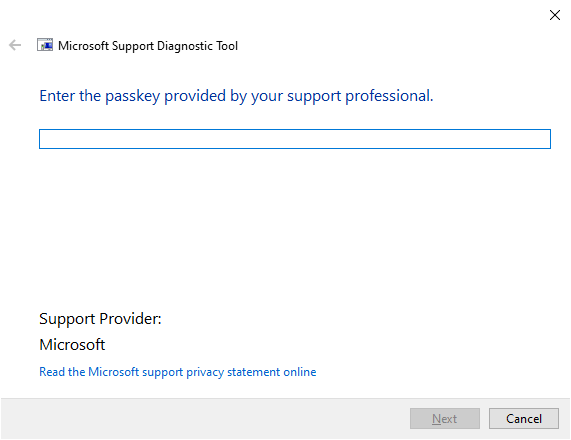
Why does msdt.exe ask for a Passkey?
When you run msdt.exe without any command-line arguments, it asks for a passkey. If you’ve been asked by Microsoft support to run msdt.exe (i.e., without any command-line arguments), they must give you the passkey.
Instead, if you want to run a troubleshooter, you need to run msdt.exe with the appropriate arguments. Or run the troubleshooter via Settings. Go to Settings > System > Troubleshoot > Other troubleshooters to run diagnostics without a passkey.
MSDT is now deprecated
Due to a security vulnerability (CVE-2022-30190), the MSDT tool and the legacy troubleshooters are now deprecated. The inbox troubleshooters have now been moved to the “Get Help” platform.
You can read more about it in this article → Deprecation of Microsoft Support Diagnostic Tool (MSDT) and MSDT Troubleshooters.
How to run the inbox troubleshooter?
Option 1: Using Settings
You can access the Get Help troubleshooters from Windows Settings:
Click Start → Settings → System → Troubleshoot → Other Troubleshooters. Select the correct troubleshooter for your issue.
Option 2: Using the command-line
You can access the troubleshooters directly. Here are some commands that can be run from the Run dialog (Win + R).
(Audio)
ms-contact-support://smc-to-emerald/AudioTroubleshooter

(BITS)
ms-contact-support://smc-to-emerald/BITSTroubleshooter

(Bluetooth)
ms-contact-support://smc-to-emerald/BluetoothTroubleshooter

(Camera)
ms-contact-support://smc-to-emerald/CameraTroubleshooter

(Network and Internet)
ms-contact-support://smc-to-emerald/NetworkAndInternetTroubleshooter

(Printer)
ms-contact-support://smc-to-emerald/PrinterTroubleshooter

(Program Compatibility)
ms-contact-support://smc-to-emerald/ProgramCompatTroubleshooter

(Video playback)
ms-contact-support://smc-to-emerald/VideoPlaybackTroubleshooter

(Windows Media Player)
ms-contact-support://smc-to-emerald/WMPTroubleshooter

(Windows Update)
ms-contact-support://smc-to-emerald/WindowsUpdateTroubleshooter
ms-contact-support://Settings/SettingsPageTroubleshootWindowsUpdate
Alternatively, to run a troubleshooter in the Get Help platform, you can use this method.
Press Win + R to open the Run dialog. Type ms-contact-support:// and click OK. This opens the Get Help window.
In the text box provided, Type “Troubleshoot” and pick one of the troubleshooters appearing in the dropdown.
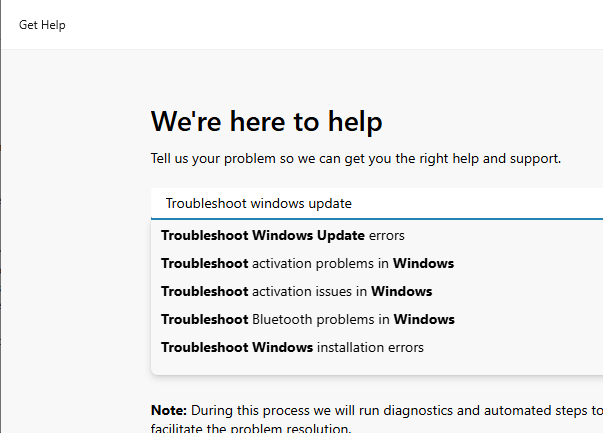
(To run the Windows Update Troubleshooter, type Troubleshoot windows update and pick the appropriate entry in the dropdown.)
Editor’s note:
If the ms-contact-support: protocol commands mentioned above throws the error This file does not have an app associated with it, you need to install the Get Help app from the Microsoft Store.
For more information, please see the article Other Troubleshooters: This file does not have an app associated with it.
One small request: If you liked this post, please share this?
One "tiny" share from you would seriously help a lot with the growth of this blog. Some great suggestions:- Pin it!
- Share it to your favorite blog + Facebook, Reddit
- Tweet it!
