When importing photos from your camera or SD card via AutoPlay dialog using the Photos app, many sub-folders (month and year-wise) are created in the destination folder, which may not be what you wanted. Here is a step-by-step guide that explains how to move all files recursively from multiple subfolders to a single folder of your choice.
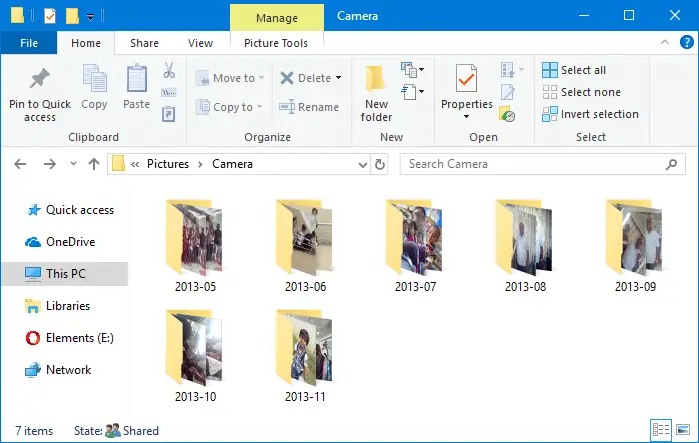
For example, here is how it gets imported when using the Photos app.
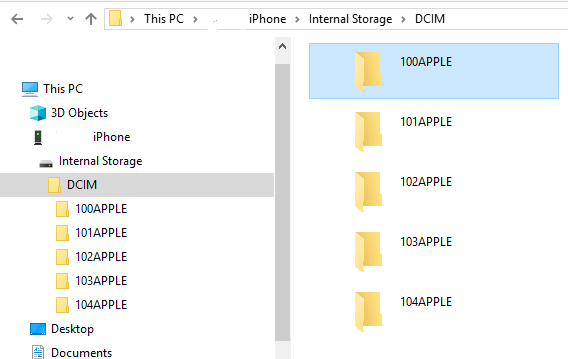
The mobile phones and cameras also may store your photos in many subfolders under the DCIM folder.
For instance, in Apple iPhone, your photos and videos are stored in the 100APPLE folder under DCIM. The 100APPLE folder contains IMG_0001.JPG to IMG_0999.JPG. If you have more images or videos, then they’re stored in 101APPLE , 102APPLE directory, and so forth. If you’re using iCloud to store photos and videos, you’ll also see the folders namely, 100CLOUD, 101CLOUD, and so on.
Copying the files from each subfolder to a single folder on your hard disk manually can be a tiresome task, especially if you have a large number of folders. However, you don’t need to dig into every folder to do that, as there are several ways to quickly copy or move files from all the subfolders to a single folder — i.e., flatten a directory structure.Read more