When you open Settings → Accounts → Sign-in Options, the Sign-in Options page may be completely empty. As a result, you cannot modify the PIN, dynamic lock, or other sign-in settings.
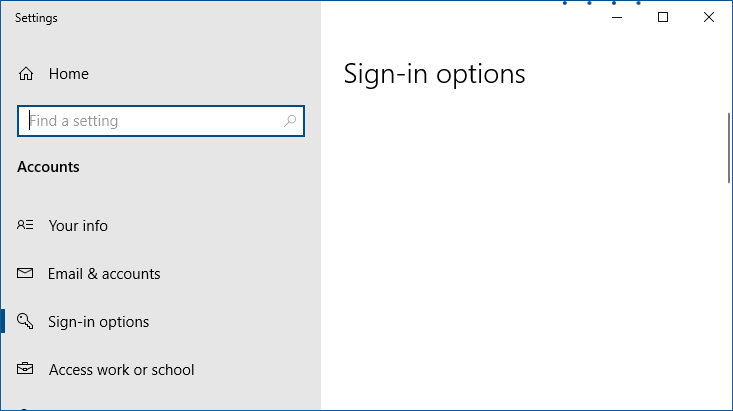
Resolution
Sign-in options may be blank due to an incorrect services configuration. To resolve the issue, follow these steps:
- Launch
services.msc. This opens the Services console. - Double-click “User Manager” (
UserManager) and set it to “Automatic” - Double-click “Web account manager” (
TokenBroker) and set it to “Manual” - Double-click “Credential Manager” (
VaultSvc) and set it to “Manual” - Double-click “Windows Biometric Service” (
WbioSrvc) and set it to “Manual” - Double-click “Microsoft Account Sign-in Assistant” (
wlidsvc) and set it to “Manual.” - Exit the Services console.
- Restart Windows.
See if the above steps have fixed the Sign-in options page.
(To see the default services configuration for all Windows services, see Windows 10 Default Services Configuration and Windows 11 Default Services Configuration.)
One small request: If you liked this post, please share this?
One "tiny" share from you would seriously help a lot with the growth of this blog. Some great suggestions:- Pin it!
- Share it to your favorite blog + Facebook, Reddit
- Tweet it!

Unfortunately this did not resolve the issue