WordPad is deprecated and has been removed in Windows 11 24H2. This article tells you how to restore WordPad to Windows 11 24H2 and higher.
Here’s the official announcement from Microsoft.
| WordPad is no longer being updated and will be removed in a future release of Windows. We recommend Microsoft Word for rich text documents like .doc and .rtf and Windows Notepad for plain text documents like .txt.
[Update – March 2024]: WordPad will be removed from all editions of Windows starting in Windows 11, version 24H2 and Windows Server 2025. If you’re a developer and need information about the affected binaries, see Resources for deprecated features. WordPad: WordPad is removed from all editions of Windows starting in Windows 11, version 24H2 and Windows Server 2025. References: |
Restore WordPad to Windows 11 24H2
Option 1: Extract the WordPad binaries from the ISO
You can get the WordPad binaries from the 23H2 ISO. After getting the 23H2 ISO, see how to extract files from the Windows ISO using 7-Zip or DISM.
Extract all the files from the “\Program Files\Accessories\Windows NT” folder from the Install.wim or Install.esd inside the ISO.
│   wordpad.exe
│   WordpadFilter.dll
│
├───en-GB
│       wordpad.exe.mui
│
└───en-US
        wordpad.exe.mui
After extracting the files from the ISO, copy them to C:\Program Files\Windows NT\Accessories.
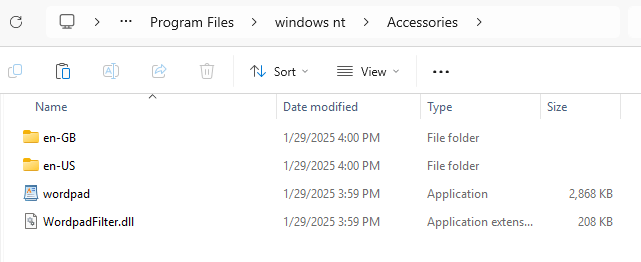
Note: en-GB and en-US for English versions of Windows 11. For other language OS, you’ll see the respective subfolder (e.g., zh-CN for the Chinese language and ja-JP for Japanese.)
If necessary, create a shortcut to WordPad in your Start menu or Pin it to the Start menu or Taskbar.
Launch WordPad.

Option 2: Download the WordPad files
Download WordPad.zip, which contains WordPad.exe, WordpadFilter.dll, and the respective .mui file for en-US and en-GB.
Unzip and extract the contents to your desktop.
Copy all files to C:\Program Files\Windows NT\Accessories.
Click Yes when prompted for the UAC confirmation.
If necessary, create a shortcut to WordPad in your Start menu or Pin it to the Start menu or Taskbar.
Launch WordPad.
Option 3: Download the WordPad installer from Win7Games
You can download the WordPad installer here.
https://win7games.com/#wordpad
(VirusTotal analysis.)
Related Posts
How to Get Windows 10 Classic Paint in Windows 11
How to Restore Old Classic Notepad in Windows 11
Get Old Classic Calculator in Windows 10 or 11
One small request: If you liked this post, please share this?
One "tiny" share from you would seriously help a lot with the growth of this blog. Some great suggestions:- Pin it!
- Share it to your favorite blog + Facebook, Reddit
- Tweet it!

Want to install Word Pad, but the process is too complex. It asks for options I am unaware of (like click/tap) Moreover, some of the requested steps (like Download) do not respond to the cursor.
I need help – but what I’m getting is confusion
Good heads-up that WordPad is officially deprecated and removed in Windows 11 24H2. I’ve been caught off guard after upgrading, so your recommendation to switch to Word for .doc/.rtf and Notepad for .txt is exactly the practical workaround people need now.