When you open Power Options (powercfg.cpl) in the Control Panel, the power plans may be grayed out, and the following message appears in that applet:
Some settings are managed by your system administrator.
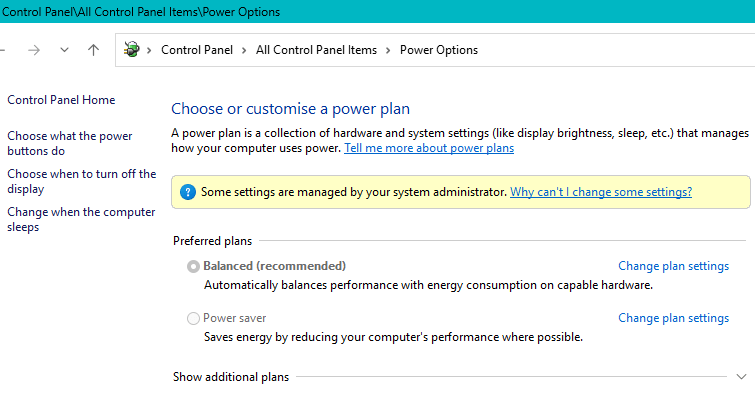
When you use the modern Settings app to configure power options, you see the following message:
Some of these settings are hidden or managed by your organization
The above happens if some group policies are enabled on the computer.
(If the system is connected to a school or work network, policies may have been applied via Azure AD. In that case, your best option is to contact the network administrator to resolve the issue, or disconnect from the work or school network.)
Resolution
If the power options settings are grayed out on standalone PCs, follow the instructions below to fix the problem.
Open Command Prompt (admin) and run the following command:
reg delete HKLM\SOFTWARE\Policies\Microsoft\Power /f
Press Enter. The command removes all the power-related policies configured in the registry.
Note:
If the power options policies were configured using the Local Group Policy Editor (gpedit.msc) in Windows 10 or 11 Pro or higher editions, you need to remove the policies using the Local Group Policy Editor.
- Open the Local Group Policy Editor (gpedit.msc)
- Expand the following branch:
Computer Configuration → Administrative Templates → System → Power Management.
- In the right pane, set the following policies to “Not configured”, and click OK.
Select an active power plan

Specify a custom active power plan
- Exit the Local Group Policy Editor.
See if you can configure Power Options via the Control Panel or Settings.
One small request: If you liked this post, please share this?
One "tiny" share from you would seriously help a lot with the growth of this blog. Some great suggestions:- Pin it!
- Share it to your favorite blog + Facebook, Reddit
- Tweet it!
