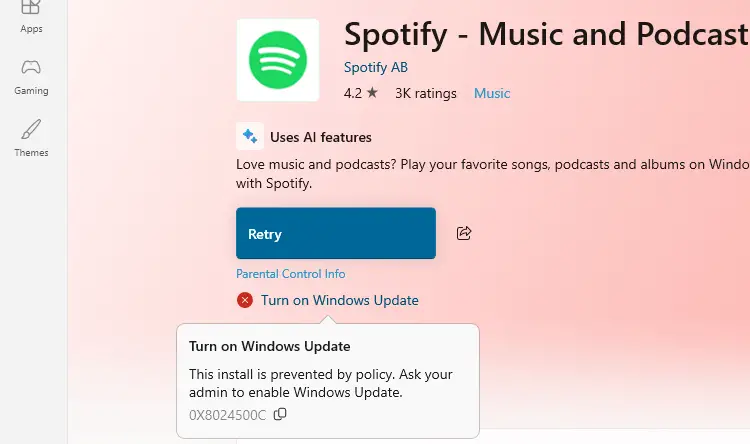
When you try to install or update an app in the Microsoft Store, the error code 0x8024500c may occur. Here’s the full error message verbatim:
Turn on Windows Update

This install is prevented by policy. Ask your admin to enable Windows Update.

Code: 0x8024500C
Cause
Error code 0x8024500c occurs when Windows Update policies prevent access to the Microsoft Store servers. It’s typically caused by the “Do not connect to any Windows Update Internet locations” and “Specify intranet Microsoft update service location” group policies that block Windows Update access.
If you open Settings and click Windows Update, you’ll see the notification “Some settings are managed by your organization”.
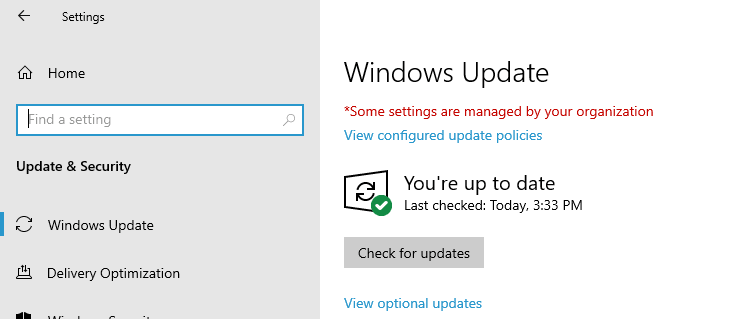
Selecting “View configured update policies” shows the list of update policies configured on the computer:
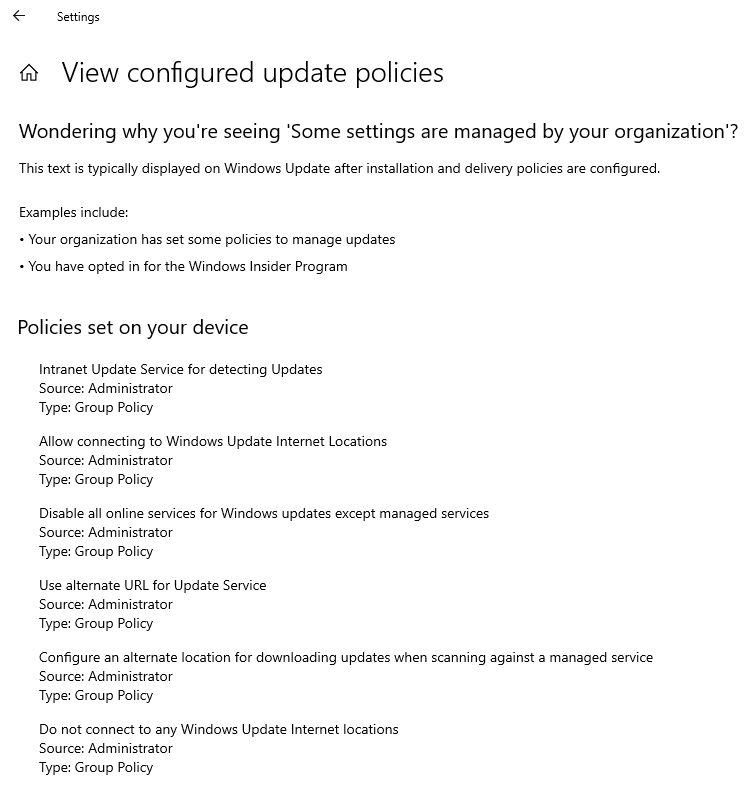
- Intranet Update Service for detecting Updates
- Allow connecting to Windows Update Internet Locations
- Disable all online services for Windows Updates except managed services
- Use alternate URL for Update Service
- Configure an alternate location for downloading updates when scanning against a managed service
- Do not connect to any Windows Update Internet locations
Resolution
For standalone Windows 10 or 11 PCs, follow the steps below to remove the Windows Update policies.
For Windows 10 or 11 Professional and higher editions
- Launch the local group policy editor by running gpedit.msc.
- Go to the following branch:
Computer Configuration → Administrative Templates → Windows Components → Windows Update
- Double-click Specify intranet Microsoft update service location
- Click Disabled, and click Apply.
- Click Not configured, and click Apply.
- Double-click Do not connect to any Windows Update Internet locations.
- Click Disabled, and click Apply.
- Click Not configured, and click Apply.
- Close the local group policy editor.
- Restart Windows.
For Windows 10 or 11 Home Edition
Launch PowerShell (admin), and run the commands below to remove all Windows Update registry-based policies:
reg delete "HKCU\SOFTWARE\Policies\Microsoft\Windows\WindowsUpdate" /f

reg delete "HKCU\SOFTWARE\Microsoft\Windows\CurrentVersion\Policies\WindowsUpdate" /f

reg delete "HKLM\SOFTWARE\Policies\Microsoft\Windows\WindowsUpdate" /f

reg delete "HKLM\SOFTWARE\Microsoft\Windows\CurrentVersion\Policies\WindowsUpdate" /f

Restart-Service wuauserv
Additional note
You can also reset the Windows Update policies and the Windows Update cache using the batch file below.
Reset Windows Update in Windows 10 and 11 · GitHub
That should resolve the Microsoft Store error 0x8024500c. See if you can now access Microsoft Store or install Windows updates.
One small request: If you liked this post, please share this?
One "tiny" share from you would seriously help a lot with the growth of this blog. Some great suggestions:- Pin it!
- Share it to your favorite blog + Facebook, Reddit
- Tweet it!
