The Farbar Recovery Scan Tool (FRST) is an advanced tool for a detailed system inspection, fixing misconfiguration, and removing active malware. The FRST Tutorial is available on BleepingComputer.com.
Here’s how to run a scan using FRST
Method 1: Download and run a scan manually
Note: When you scan using FRST, it doesn’t modify or fix anything on your system. Instead, the tool gathers various settings and outputs the results to two log files, FRST.txt and Addition.txt. These logs may not be user-friendly, but they contain helpful information for troubleshooting. An expert will analyze the logs and prescribe the fix (i.e., a “fixlist.txt” script) for that system.
- Download Farbar Recovery Scan Tool 64-bit (FRST64.exe) from BleepingComputer.com.
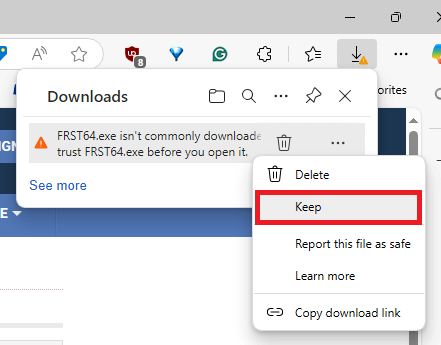
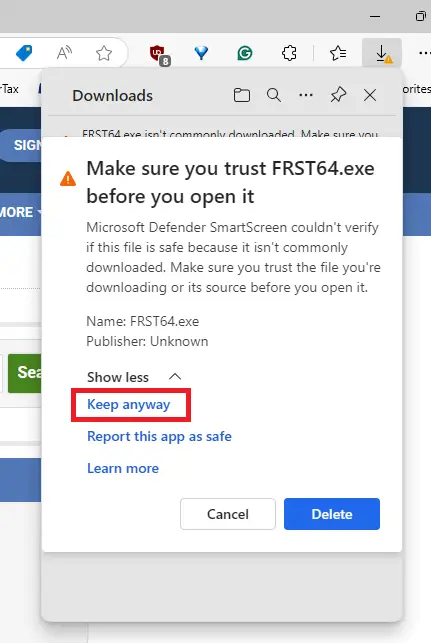
Note:If Microsoft Edge or Chrome mislabels the Farbar Scanner executable as PUA/malware, choose to keep it by tapping … in the bottom bar, choosing Keep, and then choosing Keep anyway in the dialog that appears.
You may see the message “Make sure you trust FRST64.exe before you open it.” Expand “Show more” in that flyout menu and click “Keep anyway.”
(It’s a safe tool used in most antimalware forums, including the Malwarebytes support forums. The author updates the tool regularly.)
- If the OS language is non-English, rename FRST64.exe to FRST64English.exe.
- Run the program. The program updates itself and relaunches automatically.
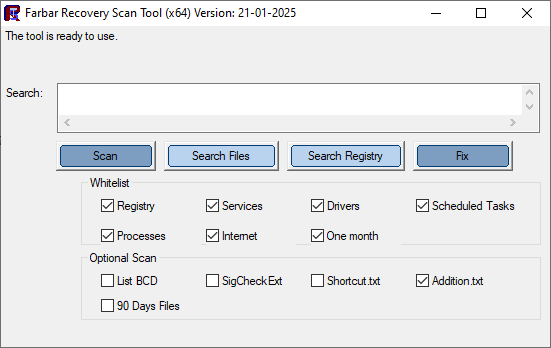
- Don’t check or uncheck any options unless you are instructed to do so. Click “Scan“.
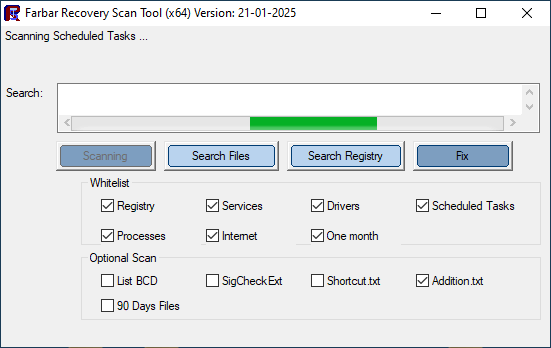
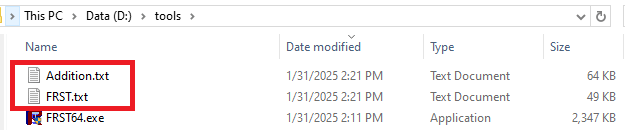
- It outputs the two logs, FRST.txt and Addition.txt to the same folder where FRST64.exe is. Zip the two logs and upload them to your OneDrive or a free file-sharing service like wetransfer.com. Then, share the link with the support personnel.
Method 2: Download and run a scan using command-line
Using PowerShell, you can automate the above process: i.e., download of the Farbar Scanner, run the scan, and zip the logs to your desktop.
Open admin PowerShell and run these commands one by one:
md C:\Tools

IWR https://downloads.malwarebytes.com/file/mbst-frst64 -OutFile C:\Tools\FRST64English.exe

C:\Tools\FRST64English.exe -scan | Out-Null

Compress-Archive 'C:\Tools\*.txt' -f (join-path ([environment]::GetFolderPath('Desktop')) \FRST.zip)
The above commands download the Farbar Scanner from the Malwarebytes server to the “C:\Tools” directory. It then runs a scan, saves the logs, and adds the log files to a zip folder (FRST.zip) on your desktop.
(The third command runs the scan. It can take a few minutes to complete. Once it’s completed, run the last command.)
Share the .zip file to the expert via OneDrive or wetransfer.com and send them the link.
Sharing the files on OneDrive
To share the files on OneDrive, please see → How-To: Share OneDrive files and folders – Microsoft Support.

In the OneDrive share options, choose “Anyone” and “Can view” options, and click Apply. It generates a download URL for the shared file.
One small request: If you liked this post, please share this?
One "tiny" share from you would seriously help a lot with the growth of this blog. Some great suggestions:- Pin it!
- Share it to your favorite blog + Facebook, Reddit
- Tweet it!
