When you launch Office apps such as Word, Excel, or PowerPoint, the “Bad Image” error appears with the error code 0xc000012f.
Here’s the full error message.
WINWORD.EXE - Bad Image

C:\Program Files\Microsoft Office\root\Office16\AppVIsvSubsystems64.dll is either not designed to run on Windows or it contains an error. Try installing the program again using the original installation media or contact your system administrator or the software vendor for support. Error status 0xc000012f.
EXCEL.EXE - Bad Image

C:\Program Files\Microsoft Office\root\Office16\AppVIsvSubsystems64.dll is either not designed to run on Windows or it contains an error. Try installing the program again using the original installation media or contact your system administrator or the software vendor for support. Error status 0xc000012f.

You may find the following error if the target DLL is missing.
WINWORD.EXE - System Error

The code execution cannot proceed because AppVIsvSubsystems64.dll was not found. Reinstalling the program may fix this problem.
Cause
The error code 0xc000012f (“STATUS_INVALID_IMAGE_NOT_MZ”) denotes, “The specified image file did not have the correct format. it did not have an initial MZ.”
AppVIsvSubsystems64.dll (for Office 64-bit) and AppVIsvSubsystems32.dll (for Office 32-bit) are Office modules. The following path is a symbolic link:
C:\Program Files\Microsoft Office\root\Office16\AppVIsvSubsystems64.dll
which points to the following file:
C:\Program Files\Common Files\Microsoft Shared\ClickToRun\AppvIsvSubsystems64.dll
Resolution
Option 1: Copy the DLL from another computer
If you have another Windows computer running the same version of Office, you can copy the above DLL from that system.
Download AppvIsvSubsystems64.dll (zipped)
File info
| File name | AppvIsvSubsystems64.dll |
| Verified | Signed |
| Signing date | 9:29 PM 3/10/2025 |
| Publisher | Microsoft Corporation |
| Company | Microsoft Corporation |
| Description | Client Virtualization Subsystems |
| Product | Microsoft Office |
| Prod version | 16.0.19725.20014 |
| File version | 16.0.19725.20014 |
| MachineType | 64-bit |
| Binary Version | 16.0.19725.20014 |
| Original Name | AppVISVSubsystems64.dll |
| Internal Name | AppVISVSubsystems64 |
| SHA256 | E0F8D74A0A2FAEFD48BEE85D31B83CEAE2F4DECE7C1B598657D7ADE2A1D4B038 |
| VT detection | 0/76 |
| VT link | VirusTotal Results |
Option 2: Repair Office
Perform an online repair of your Office installation to resolve the issue.
Launch the Control Panel.
Choose Uninstall a program.
Find Microsoft Office on your program list and click on it. For example, it may be “Microsoft 365 en-us”.
Choose Change from the toolbar at the top of the program list.
Select “Online repair“.
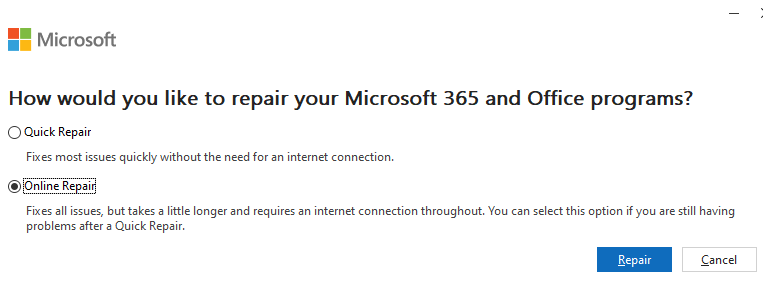
Click Repair.
Option 3: Uninstall and reinstall Office
If the repair doesn’t fix the issue, uninstall Office using the tool below:
https://aka.ms/SaRA-officeUninstallFromPC
Once done, reinstall Office.
Download, install, or reinstall Microsoft 365, Office 2024, or Office 2021
Download and install or reinstall Office 2019, Office 2016, or Office 2013.
One small request: If you liked this post, please share this?
One "tiny" share from you would seriously help a lot with the growth of this blog. Some great suggestions:- Pin it!
- Share it to your favorite blog + Facebook, Reddit
- Tweet it!

AMAZING! THANK YOU! I searched for THREE days after a stupid Windows Update – I could not open my apps and I could not get the 365 to uninstall – until I found you! THANK YOU!