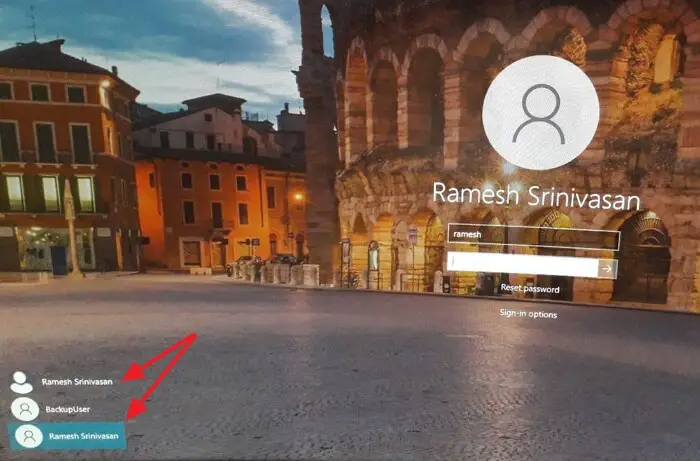
When you start your Windows 10 or 11 computer, the error “The user name or password is incorrect” appears. Also, duplicate user accounts may appear on the login screen.
The user name or password is incorrect. Try again.
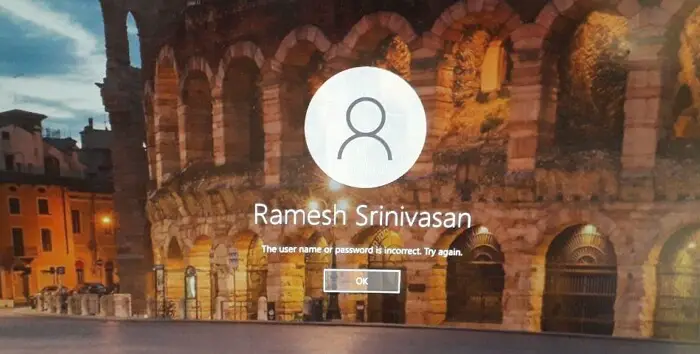
After you click the OK button, you’re prompted to enter the correct password. Also, you’ll notice that a duplicate user account of the same name appears in the lower-left corner.
Cause
This issue is seen in computers that have automatic login enabled. On the computers where auto-login credentials are stored, the error The user name or password is incorrect. Try again and the duplicate user account may appear on the login screen due to one of the following reasons:
- You have changed the computer name recently. (or)
- You have changed the user account password recently.
When you enable automatic login by saving your credentials (via netplwiz.exe), Windows stores the user name, password, and the computer (domain) name in the Winlogon registry key below:
HKEY_LOCAL_MACHINE\SOFTWARE\Microsoft\Windows NT\CurrentVersion\Winlogon
DESKTOP-JKJ4G5Q TO OPTIPLEX-9020, the DefaultDomainName (which represents the local computer name for standalone computers) registry value under the Winlogon registry key still refers to the old computer name.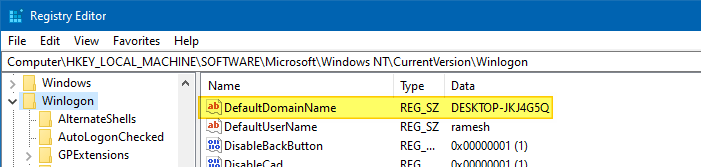
Likewise, the user account password for automatic login is stored under the following registry key which is highly protected and encrypted:
HKEY_LOCAL_MACHINE\SECURITY\Policy\Secrets\DefaultPassword
So, if you’ve changed the account password or the computer name after configuring automatic login, the system fails to auto-login to your account and shows a duplicate user account icon.
Resolution
To prevent the duplicate user account and the error “The user name or password is incorrect” at startup, clear the automatic login credentials and then reconfigure it.
Option 1: Using Netplwiz
- Right-click Start, and click Run.
- Type
netplwiz.exeorcontrol userpasswords2and click OK. This opens the User Accounts dialog.
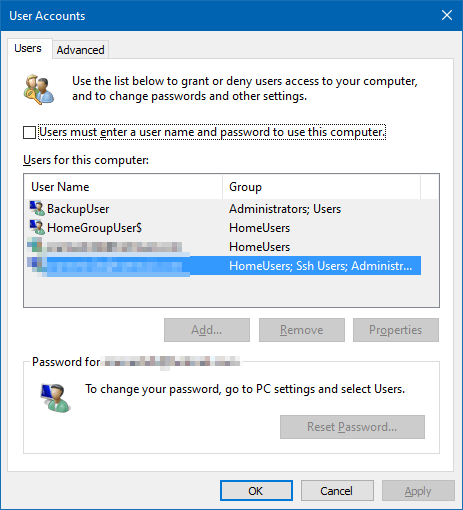
- Enable the User must enter a user name and password to use this computer checkbox.
- Click Apply.
- Uncheck the User must enter a user name and password to use this computer checkbox.
- Click Apply.
- Now, type in the username and password to save the credentials for automatic login.
"rundll32 netplwiz.dll, ClearAutoLogon" from admin Command Prompt. And then reopen netplwiz.exe and re-configure automatic login.
Option 2: Using Autologon from Microsoft Sysinternals
You can also use Windows Sysinternals Autologon tool to reconfigure the automatic login credentials.
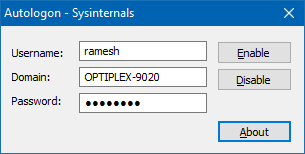
The current user name and the domain (computer name) is filled up automatically. Type in the password, and click on the Enable button.
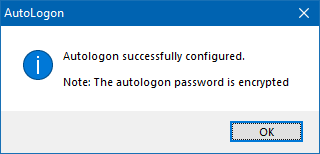
Restart Windows to check if the issue is resolved now.
Option 3: Using the Registry Editor
If you recently changed the computer name (and not the account password), you can fix this duplicate user accounts issue using the Registry Editor.
In the Registry Editor, go to the following branch:
HKEY_LOCAL_MACHINE\SOFTWARE\Microsoft\Windows NT\CurrentVersion\Winlogon
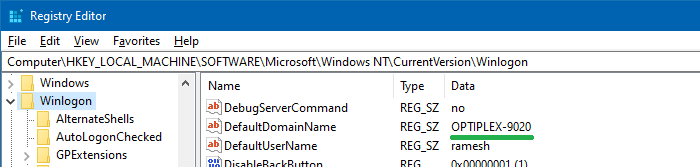
Change the DefaultDomainName registry value, mentioning the new computer name.
One small request: If you liked this post, please share this?
One "tiny" share from you would seriously help a lot with the growth of this blog. Some great suggestions:- Pin it!
- Share it to your favorite blog + Facebook, Reddit
- Tweet it!

Thank you! This problem was driving me crazy and I could not figure it out. Your explanation and “fixes” were clear, concise, and easy to follow.
Really helpfull! Thanks a bunch 🙂
Another alternate Solution since nothing out there worked for us but this
Log into your computer using one of the duplicate accounts your wish to remove.
Open Windows Registry Editor (Start > Run > regedit.exe). (Run as admin)
In the left pane, navigate to the following key: HKEY_LOCAL_MACHINE\SOFTWARE\Microsoft\Windows\CurrentVersion\Authentication
Right-click and export the whole key and save it in a safe location. You’ll need this file to restore the registry if something goes wrong in the below steps.
Now, navigate to the following key: HKEY_LOCAL_MACHINE\SOFTWARE\Microsoft\Windows\CurrentVersion\Authentication\LogonUI
Make a note of the long string value associated with LastLoggedOnProvider. It should should like {01A30791-40AE-4653-AB2E-FD210019AE88}.
Now navigate to the following key: HKEY_LOCAL_MACHINE\SOFTWARE\Microsoft\Windows\CurrentVersion\Authentication\CredentialProviders
Find the CredentialProvider that has the same string value noted in Step 6.
Right click on this item and create a new DWORD value named Disabled and give it a value of 1.
Close Regedit, logout, or restart and your problem should have disappeared.
Did I do it wrong by being in the main hotmail account? I did what you wrote and 2 accounts still appear at logon…
At last, it did the job while other solutions didn’t.