When you open the classic Shutdown dialog (Alt+F4) or click on the Start menu power button, the default option is “Shut Down”. This post explains how to change the default option in the classic Shutdown Dialog (the Alt + F4 dialog) as well as the Start menu Power button action.
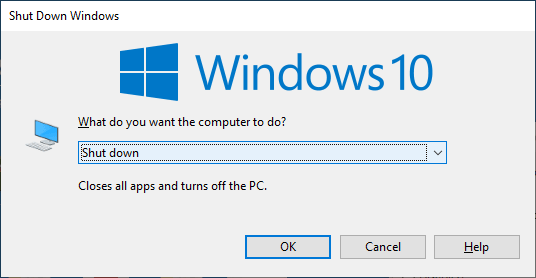
Change the Default Option in the Shut Down Windows dialog
Instructions for Windows 10 or 11 Pro and higher
- Launch the Local Group Policy Editor (gpedit.msc)
- Expand the following section:
User Configuration → Administrative Templates → Start Menu and Taskbar
- Double-click “Change Start Menu power button policy”.
- Set the policy to “Enabled”.
- Choose one of the following actions:
Shut Down
Sleep
Log off
Lock
Restart
Switch user
Hibernate
- Click OK and restart Windows.
More information about the above GPO
It sets the default action of the power button on the Start menu and the classic Shutdown dialog.
- If you enable this setting, the Start Menu will set the power button to the chosen action, and not let the user change this action.
- If you set the button to either Sleep or Hibernate, and that state is not supported on a computer, then the button will fall back to Shut Down.
- If you disable or do not configure this setting, the Start Menu power button will be set to Shut Down by default, and the user can change this setting to another action.
Instructions for Windows 10 or 11 Home Edition
- Launch the Registry Editor (regedit.exe)
- Go to the following registry key. If the key doesn’t exist by default, create it manually.
HKEY_CURRENT_USER\SOFTWARE\Policies\Microsoft\Windows\Explorer
- Create a new REG_DWORD (32-bit) value named PowerButtonAction
- Double-click PowerButtonAction and set its value accordingly, as per the table below:
Value Data (DWORD) Description 2 (0x00000002) Shut Down 10 (0x00000016) Sleep 1 (0x00000001) Log off 200 (0x00000512) Lock 4 (0x00000004) Restart 100 (0x00000256) Switch user 40 (0x00000064) Hibernate - Exit the Registry Editor and restart Windows.
That’s it.
One small request: If you liked this post, please share this?
One "tiny" share from you would seriously help a lot with the growth of this blog. Some great suggestions:- Pin it!
- Share it to your favorite blog + Facebook, Reddit
- Tweet it!
