After installing the February 2026 or March 2026 Cumulative Update, the C: drive may become inaccessible on some Samsung devices. Microsoft has acknowledged this issue. Please see the Windows Known Issues page: Windows 11, version 25H2 known issues and notifications | Microsoft Learn
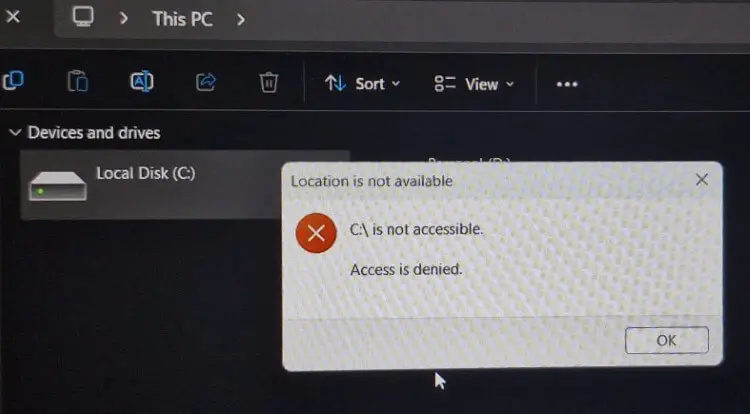
Also, you’re unable to run Task Manager (taskmgr.exe). You receive the error “Windows cannot access C:\Windows\System32\taskmgr.exe“. Command Prompt (admin) and other tools don’t work.
The affected Samsung models are NP750XGJ, NP750XGL, NP754XGJ, NP754XFG, NP754XGK, DM500SGA, DM500TDA, DM500TGA, and DM501SGA.
Here’s what it says:
Microsoft received reports of loss of access to the C: drive and app failures
Microsoft has received reports of an issue in which some Samsung device models lose access to the C: drive after installing the February 2026 security update (KB5077181) and subsequent updates. Users might encounter the error, “C:\ is not accessible – Access denied”, which prevents access to files and blocks the launch of some applications including Outlook, Office apps, web browsers, system utilities and Quick Assist.
Microsoft and Samsung investigated these reports and concluded that the symptoms were caused by an issue in the Samsung Galaxy Connect app. While the reports coincided with recent March Patch Tuesday timing, investigation confirmed the issue is not caused by current or previous Windows monthly updates. The issue has been observed on Samsung Galaxy Book 4 and Samsung Desktop models running Windows 11, versions 24H2 and 25H2, including NP750XGJ, NP750XGL, NP754XGJ, NP754XFG, NP754XGK, DM500SGA, DM500TDA, DM500TGA, and DM501SGA.
Affected devices encounter the issue when users execute common actions, such as accessing files, launching applications, or performing administrative tasks, and do not require any specific user action beyond routine operations. In some cases, users are also unable to elevate privileges, uninstall updates, or collect logs due to permission failures.
Resolution: This issue can be resolved on affected devices by following the guidance documented in the Microsoft KB article Recovery steps: Samsung Galaxy Connect or Samsung Continuity Service might cause loss of access to the C: drive.
Microsoft and Samsung collaborated to validate these steps, which restore standard Windows permissions.
For device-specific assistance, please contact Samsung’s support channels.
Note: Mitigations to prevent additional devices from encountering this issue were implemented starting March 14, 2026 (Pacific Time). As part of these mitigations, the affected Samsung Galaxy Connect application was temporarily removed from the Microsoft Store, and Samsung republished a stable previous version of the application to prevent recurrence.
Affected platforms:
Client: Windows 11, version 25H2; Windows 11, version 24H2
Server: None
Resolution
If Samsung Galaxy Connect or Samsung Continuity Service is installed and your Samsung device is experiencing an issue where you lose access to the C: drive and encounter app failures, please follow these steps:
Before you start
- Plan for 10–15 minutes to complete these steps.
- You must sign in to Windows using an Administrator account.
- If you are uncomfortable doing this, contact Samsung Support and ask them to perform the “C: drive permissions restore” steps.
Step 1: Start the affected system
- Turn on (start) the affected device.
- Sign in to Windows.
Step 2: Remove the Samsung app
- Select Start > Settings.
- Select Apps > Installed apps.
- Find Samsung Galaxy Connect (or Samsung Continuity Service)
- Select the app and choose Uninstall.
- Restart your device.
Step 3: Temporarily allow Windows to repair drive permissions
- Open File Explorer.
- Select This PC.
- Right-click Local Disk (C:), and then select Properties.
- Select the Security tab, and then select Advanced.
- Next to Owner, select Change.
- Type the following, and then select OK:
Everyone
- Select Yes if prompted.
Step 4: Add a temporary permission
- In Properties, select Security > Edit.
- Select Add.
- Type the following, and then select OK:
Everyone
- Select OK, and then Yes if prompted.
- If multiple security alerts appear, press Alt + C to continue.
Step 5: Restore Windows default permissions
Create the repair file
- Open Notepad.
- Copy and paste the following text:
icacls c:\ /grant BUILTIN\Administrators:(OI)(CI)(F)

icacls c:\ /grant "NT AUTHORITY\SYSTEM:(OI)(CI)(F)"

icacls c:\ /grant BUILTIN\Users:(OI)(CI)(RX)

icacls c:\ /grant "NT AUTHORITY\Authenticated Users:(OI)(CI)(IO)(M)"

icacls c:\ /grant "NT AUTHORITY\Authenticated Users:(AD)"

icacls c:\ /setowner "NT Service\TrustedInstaller"

icacls c:\ /remove everyone

pause
- Select File > Save as.
- Set Save as type to All Files.
- Name the file RestoreAccess.bat.
- Save it to your Desktop.
Run the repair
- On your Desktop, right-click RestoreAccess.bat.
- Select Run as administrator.
- Select Yes if prompted.
- Wait until the process completes.
- Restart your device.
After restarting your device
The following should be true:
- Local Disk (C:) opens normally.
- Windows system behavior returns to normal.
- Drive ownership is restored to Windows (TrustedInstaller).
This process restores Windows default, secure permissions on the system drive and does not access or modify personal files.
If you still cannot access the C: drive after completing all steps, contact Samsung Support and reference: “C: drive access issue caused by Galaxy Connect app permissions.”
Src: Microsoft
One small request: If you liked this post, please share this?
One "tiny" share from you would seriously help a lot with the growth of this blog. Some great suggestions:- Pin it!
- Share it to your favorite blog + Facebook, Reddit
- Tweet it!
