Windows already includes the Eject command in the context menu for optical drives. If you want to add the Close Tray option in the context menu for optical drives, then this article is for you.Read more
 Ramesh
Prevent Internet Explorer Toolbar Layout from being Reset
Every once in a while, Internet Explorer resets the toolbar layout and I need to customize them the way I want, every time this happens. I have Google Toolbar and the default Links toolbar enabled, which I have docked to the extreme right, showing only the chevron.
Occasionally Internet Explorer (or probably one of the browser add-ons) resets the toolbar positions, pushing the Links toolbar to a separate line and thus occupying additional screen real estate. This happens even though the toolbars are in a locked state.Read more
Fix: Accidentally Moved Videos or other Shell folders to D:\ root
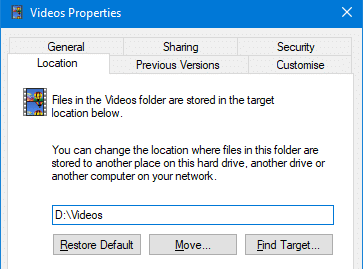
When you relocate a special folder: Music, Pictures, Videos, Downloads, or Documents to a different drive using the Location tab in the Property sheet, make sure you mention the complete target path where you want to relocate the folder.
For example, to move the Videos folder of your user profile to the D:\ drive, type D:\Videos, instead of just D:\. This is because Windows does not automatically append the folder name. In case you don’t mention the complete path, the shell folder will be moved to the root of the drive.
How to Create System Restore Points using Script or Command-Line
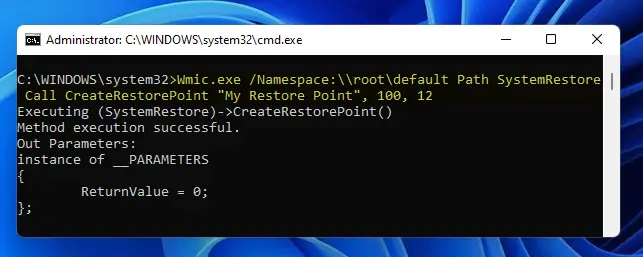
System Restore is a valuable feature in Windows that helps you easily recover the system in the event of any misconfiguration. If you’ve been using the System Restore feature regularly, then you need to know how to create System Restore Points with a single click using the command-line. You can also do this by scripting it using WMI or PowerShell.
This article discusses some methods to quickly create a System Restore point in a single click in Windows 11, Windows 10, and earlier Operating Systems.Read more
Add Copy To and Move To to the right-click menu in Windows
The Copy To Folder and Move To Folder options found in Explorer menu bar or ribbon helps you move or copy a file or folder easily to a different location. This functionality can also be added to the right-click menu.Read more
Mapped drives not seen from elevated Command Prompt and Task Scheduler
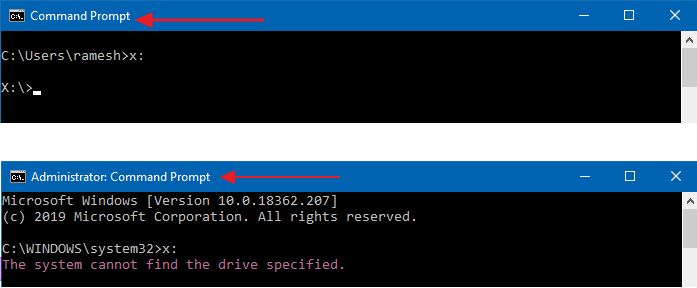
When you attempt to access a mapped network drive from an elevated or admin Command Prompt or Task Scheduler (with the highest privileges), the mapped drive won’t be available. Attempting to use the mapped network drives causes the error The system cannot find the path specified (Error code: 0x80070003).
Here are the screenshots from a computer running Windows 10.
However, the mapped network drive is accessible from File Explorer and regular (non-elevated) Command Prompt.Read more
How to Add “Copy as Path” to Right Click Menu in Windows XP
Windows Vista and higher already include the useful Copy as Path option in the context menu, which helps you quickly copy the complete path of the selected file(s) or folder(s) to the Clipboard. Here is how to add “Copy of Path” feature in Windows XP.Read more
How to Recover Deleted Files Using Previous versions (Shadow Copy) in Windows
If you accidentally delete a file or folder, you can restore a shadow copy of that file or folder using the Previous Versions feature in Windows Vista and higher. Shadow Copy, a useful innovation included first in Windows Vista, automatically creates point-in-time copies of files as you work, so you can quickly and easily retrieve versions of a document you may have accidentally deleted.Read more
How to Add “Open File Location” Right-Click Option in Windows XP
Windows Vista and Windows 7 include the Open file location context menu item for Shortcuts, which helps you quickly open the target folder of a shortcut. In Windows XP, it takes four mouse clicks to accomplish the task.
To open the target folder of a shortcut in Windows XP, you need to right-click on the shortcut file, click Properties and click the Find Target button to open the parent folder of the target file or folder. And an additional mouse click is needed to close the Shortcut Properties dialog.Read more
Copy Title and URL Extension for Internet Explorer
Here is a nice Internet Explorer extension which copies the current webpage title and address to the Windows clipboard.Read more