Recently, I came across a brilliant tip on how to run programs elevated without getting the User Account Control (UAC) prompt. This can be done without turning off the UAC and hence it does not compromise system security.
How to Run Programs elevated without UAC Prompt
You can run apps elevated (as administrator) without getting the UAC elevation prompt when logged in to an administrator account. The trick to bypass UAC is to create a scheduled task (with highest privileges) for each program that you want to run, and then invoke the scheduled task item manually using schtasks.exe. The following instructions apply to all versions of Windows, including Windows 10.
Step 1: Creating a Scheduled Task
- Launch Task Scheduler (
taskschd.msc) - Right-click Task Scheduler Library category in the left, and choose New Folder
- Name the folder as MyApps
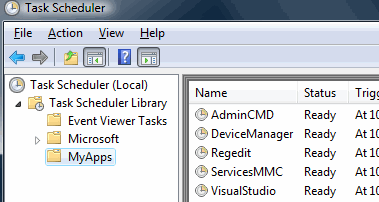
- Select the MyApps folder
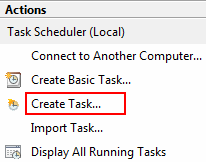
- In the Actions pane on the right, click Create Task…
- Type a name for the task that you want to create.
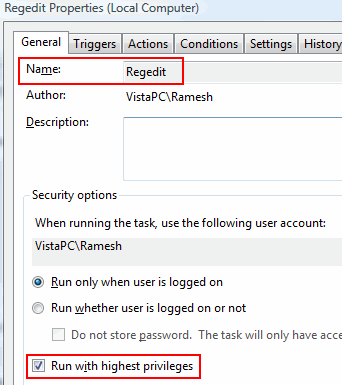
- Enable the option Run with highest privileges. This is the most important step.
- In the Action tab, click New
- Click Browse… to select the program (Example: Regedit.exe) you want to run and mention the parameters required if any, for the application. For example, to execute a .reg file, select
regedit.exeand mention the parameter as/s filename.regwith the full path.To run Services MMC applet, browse and select MMC.EXE and type services.msc in the Add arguments (optional) field.Some of the programs that I use frequently are:
Application Command-line used Services MMC mmc.exe services.msc Device Manager mmc.exe devmgmt.msc Registry Editor c:\windows\regedit.exe Admin Command Prompt c:\windows\system32\cmd.exe
Step 2: Launching a Scheduled Task item manually
To run a scheduled task item manually, use the schtasks.exe command-line tool that comes with Windows. For example, to launch the Services console task that you already created, use the following command:
SCHTASKS.EXE /RUN /TN \MyApps\SERVICESMMC
Note: Where SERVICESMMC is the Taskname (see Fig 1). You’ll need to enclose the task name within double-quotes if the task name contains blank spaces in between. (Example: SCHTASKS.EXE /RUN /TN "Name of the Task")
To launch the Registry Editor task, run the following command:
SCHTASKS.EXE /RUN /TN \MyApps\REGEDIT
(If the folder name \MyApps\ is not mentioned, you’ll see the error message ERROR: The system cannot find the file specified when attempting to run the task.)
If you’ve created the Tasks in the Task Scheduler library (without creating a separate folder in Tasks Scheduler), you can simply mention the task name like below:
SCHTASKS.EXE /RUN /TN task_name
Creating desktop shortcuts to run each Task
You can create a desktop shortcut for each scheduled task item you’ve created earlier. Right-click on the Desktop and choose New, Shortcut. Type the command-line (e.g., SCHTASKS.EXE /RUN /TN \MyApps\REGEDIT). Mention a name for the shortcut and click Finish.
Run the task minimized
As Schtasks.exe is a console utility, you’ll see the Command Prompt window opening and closing quickly whenever you run the shortcut. So, you may configure the shortcut to run in a minimized window state, in the shortcut properties.
- Right-click on the shortcut and click Properties.
- In the Run drop-down options, choose Minimized
- Click OK.
Note: In the shortcut properties, you may want to click Change Icon and assign an appropriate icon for the shortcut. The icons should be present inside the executable itself, in most cases. For Regedit.exe, browse to Regedit.exe and choose an icon. You may also browse the shell32.dll and imageres.dll files for additional icons.
Here are the shortcuts that I created to launch frequently used programs in my system, and I’ve moved them to the Taskbar Toolbar for easy access. Note that you can also Pin the shortcuts to the Start menu if you wish.
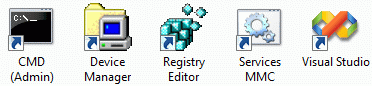
This way you can launch your frequently used programs elevated without getting the User Account Control prompt and without relaxing the security settings of your computer. Note that the above UAC bypass method works only if you’re logged in as administrator and there is no question of privilege escalation issues here.
One small request: If you liked this post, please share this?
One "tiny" share from you would seriously help a lot with the growth of this blog. Some great suggestions:- Pin it!
- Share it to your favorite blog + Facebook, Reddit
- Tweet it!

Thanks Gui,
I ran into exactly the same thing, well done!
Gui Talarico:
Shortcut path NEEDS to include folder:
[will not work]
SCHTASKS.EXE /RUN /TN Cmd
[will work]
SCHTASKS.EXE /RUN /TN \MyApps\Cmd
@Mike, The article has been updated. Thanks!
It was initially written during Vista-era.
I created a shortcut to start the CMD prompt using this method:
C:\Windows\System32\schtasks.exe /RUN /TN \MyApps\CMD_AsAdmin
where CMD_AsAdmin is the elevated task created as indicated in this article.
When I run it, I can see what I think is the CMD window opening and closing very quickly. How can I open the command window so that it stays open?
@Rick: Just tested it works fine. Are you logged on to an administrator account?
Can you upload the task xml?
Hey,
I have a question. What if I want to open a files assigned to open with this program bypassing UAC?
Let’s say, every .rar file will open WinRAR as an administrator without a UAC prompt.
Thank you
I have a special case where I want to run QuickBooks in a User account with admin privileges. I’ve followed instructions from another site similar to this. When I run the task I see in Task Manager that the qbw32pro.exe process runs but doesn’t do anything. The Memory usage stated in Task Manager slowly drops down. I run it again and another process runs the same, no visual on the QB program, even though only run one process was selected.
But anyway, I think my issue is that QB does not like running that way since the process is executing. I think I need to find another method of executing QB as admin in a User account.
Great fix.
Mind that in the Task properties on the Conditions-tab the “Start the task only if the computer is on AC power” is not ticked.
If this box is ticked, the application will not start on battery power even if you invoke it manually with the shortcut (or command line) and you will not get an error message that directs you into the right direction.
Thanks! This allows me to run my custom Autohotkey script at logon without five extra clicks.
This is incredible. Have been all over the internet and all the “official” forums claim it is a malfunction, error during installation, recommends reinstall and all the blah-blah-blah that technicians always come up with when they don’t know s___.
This is SO amazing – it works like a charm! Thank you SO much!
Note that while the “Program/script” field in the Action tab may require quotation marks around the executable pathname, the “Start in (optional)” folder field NEVER uses quotes. It does not have a “Browse…” button so you have to fill the folder in yourself; omit quote marks when you do.
Also, if you widen the Task Scheduler window, you will see columns for Last Run Time and Result. If your task does not seem to run, look at this column. (You may need to hit F5 to refresh the display.) This will usually tell you what you need to fix.
Also, if you left click on a task and look at the “Actions” pane to the right, there is a line saying “Enable All Tasks History.” Click that to collect even more information, at a slight performance cost. This enables a History tab on the task’s Properties window. It is annoyingly not resizable and take a minute to load, but you can see exactly what’s going wrong.
@Tom: Thanks for the additional tips, Tom.
I have a batch file to flushdns and registerdns. when invoke the batch, its poping up the UAC popup to with [OK] button and [Cancel] button. i have to click [OK} and proceed.
Here i want to bypass the UAC prompt.
File name – text.bat
Code:
@echo offipconfig /flushdns
ipconfig /registerdns
pl append the UAC prompt hide or auto elevate code with above code.
@KSK: Batch files don’t auto-elevate by default. What’s the default option when you right-click on a Batch file?
Most awesome. Why doesn’t MS use this workaround? Thanks again.
Great idea. Many thanks ??