When you create sub-folders in the Quick Launch folder to better organize the shortcuts, the folders will appear in the Quick Launch toolbar correctly, but clicking them would launch Windows Explorer. Some people would like to view the contents of the folder (cascaded as a list) rather than opening the folder when clicked. Here is how to make folders in the Quick Launch toolbar cascade as menu when clicked.
Method 1: Use the CTRL key
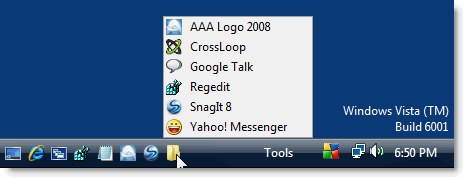
Hold the CTRL key down and then click on the folder in your Quick Launch toolbar. This lists the folder contents as a menu.
Method 2: Apply a Registry Edit
1. Launch Registry Editor (Regedit.exe) and go to the following branch:
2. Create a new REG_DWORD value named CascadeFolderBands
3. Double-click CascadeFolderBands and set its value data to 1 (dword:00000001)
4. Exit the Registry Editor.
5. Logoff and login back for the change to take effect.
Now, click on the free space next to the folder icon (see where the mouse pointer is, in the image). This opens the menu listing the folder contents.
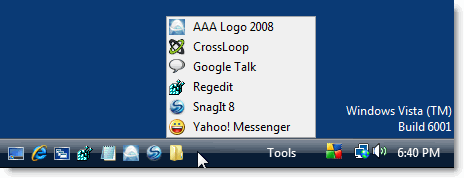
CTRL + Click (on the folder) would work as well!
Thanks to David.C for this hack, which should work in all versions of Windows (Windows 7/Vista/XP/2000).
Registry Fix
To automate the above, download ql-folder-cascade.zip and save to Desktop. Unzip and run ql-folder-cascade.reg. Logoff/login back. To undo the setting, run the file undo.reg attached with the zip file.
Bookmark this Page!
BlinkList | del.icio.us | Digg it | Furl | reddit | Spurl | StumbleUpon |
Related Posts
- Show Internet Explorer 8 Favorites Bar as Cascading Menu to Gain More Screen Space
- Prevent Internet Explorer Toolbar Layout From Being Reset
- How to Restore the Quick Launch Toolbar, Show Desktop and the Flip 3D Icons in Windows 7
- Fix: Cannot Unpin Pinned Folders From Windows 7 Start Menu
- How to Clear IE Temporary Internet Files Cache for a Particular Domain
- Copy Title and URL Menu Extension for Internet Explorer
- Add Quick Launch (Create Shortcut) Option to the Send to Menu in Windows XP/Vista
- Add “Explore” To the Desktop Context Menu in Windows Vista
- Add CCleaner Button to Internet Explorer Toolbar
- Accidentally Deleted a Special Folder in Vista
If you enjoyed this post, make sure you subscribe to our RSS feed! We feature Tips, Troubleshooting information, Scripts and Utilities for Microsoft Windows Operating Systems!
Prefer an E-mail subscription?

› 
I should also point out that the cascading menu does work on Windows XP themes, but you have to click just to the right of the folder icon to activate the invisible drop-down arrow. Clicking the icon directly opens the folder in Windows Explorer.
The registry entry does work on XP, but I believe that people think it doesn’t work due to the following:
1. It places a drop-down arrow next to the folder icon, so that if you click the folder directly, it will open the folder. However, if you click just to the right of the folder, it will pop up the cascading menu.
2. The default XP theme causes (1) to happen, but if you change the Windows Classic theme, you will see the drop-down arrow.
I should create folder just in QuickLauch folder (c:\Documents and Settings\%username%\Application Data\Microsoft\Internet Explorer\Quick Launch\), but not drag the folder drom anywhere, cause it create only shortcut, when dragging.
Thanks! It works :)
@Tom: Did you reboot or logoff-login back, after applying the REG?
Tried the reg file on Win XP 32 bit sp3 and it did not work.
@Sha: The edit works fine in XP SP3 and in Vista (after a logoff-logon routine). Haven’t tested it in Win 7.
Did the registry tweak using your .reg file above. Did not work in XPsp3. And does not work in Win 7.
This is great if it works. Thanks!
Thanks.
You could just add the file as a new toolbar
Works in XP and Vista