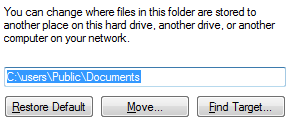
 When you right-click one of the Public folders, click Properties and select the Location tab, the buttons Restore Default, Move, and Find Target may be missing. As a result, you’re unable to move Public folders such as Public Desktop, Public Documents, Public Music, Public Pictures and Public Videos.
Microsoft article KB933127 provides a workaround for this problem. It suggests that you disable User Account Control (UAC) temporarily, restart Windows and then relocate the Public folder(s). Once done, re-enable UAC and restart Windows.
Another option is to log in as Administrator or equivalent in Safe mode and move the Public folders.
This sounds somewhat tedious, requiring to restart Windows twice. Here is a quick method that I found to relocate the Public folders, without turning off the UAC. No reboot required.
Note: The Method described in this article does not work in Windows 8 and higher.
Moving Public folders in Windows Vista
- Close all folder windows.
- Open an elevated Command Prompt window.
- Terminate Explorer.exe process using the hidden Exit Explorer option. (Don’t start a new explorer.exe instance yet.)
- Switch to the admin Command Prompt window
- In the Command Prompt, type explorer.exe and press ENTER. This starts the Shell under elevated privileges.
- Right-click on the Public folder that you want to relocate, and click Properties. The Location tab should now show the buttons namely Restore Default, Move, and Find Target.
- Once you finish relocating the Public folder(s), log off and login back. (This is very important. Read the security note below.)
Important: When Explorer.exe is running under elevated privileges, the shell extensions and the child process of Explorer.exe will run elevated as well. This is a huge security risk. Aaron Margosis of Microsoft points out that “If you shut down Explorer again, any child processes that were launched will continue to run elevated, including browsers, IM clients, etc., with all the risk that incurs.“
One small request: If you liked this post, please share this?
One "tiny" share from you would seriously help a lot with the growth of this blog. Some great suggestions:- Pin it!
- Share it to your favorite blog + Facebook, Reddit
- Tweet it!


I tried this solution with Windows 8 but had no success. I really hosed up somehow with my Public\Music folder, and can’t change the location to the correct, default location. I get none of the buttons in folder properties (move, find target, restore) when using the solution above, for any of the folders in users\Public.
I do get the options when under my own user directory, and I am an administrator on the system. Any ideas to help?
On Windows 7 and Windows 8, MS put a DCOM restriction on Explorer so it can’t be opened as admin. Therefore, you must use a third party file manager which can open as admin to access the Properties of the public folders, or a shell extension which can open Properties elevated.
The first option worked for me on Windows 7 Professional….thank you!