I’d like to share the extensions I made for Internet Explorer, to open current web page in a different browser such as Google Chrome, Mozilla Firefox and Microsoft Edge (Windows 10). This extension works fine in all versions of Windows, including Windows 10.
After adding this extension, you’ll see the following options in the right-click menu, as well as in the Tools menu in Internet Explorer.
- Open With Google Chrome
- Open With Mozilla Firefox
- Open With Microsoft Edge
Download Extensions
Download the required extensions below.
- Mozilla Firefox : firefox.zip
- Google Chrome: chrome.zip
- Microsoft Edge: edge.zip
Instructions
Download the appropriate Zip file above, unzip and extract the contents to following directory.
C:\Windows\Web
Then, open the above directory, and double-click the corresponding Registry File to apply the settings. For example, to add Firefox, double-click firefox.reg. This adds "Open With Firefox" option to the right-click menu, under the Tools menu as well and also a button to the Internet Explorer Command Bar.
Customize the Command Bar
Close all Internet Explorer windows and then re-open. If the button isn’t visible by default, you need to customize the Command Bar. To do so, right-click on the empty toolbar area in Internet Explorer, click Customize, and click Add or Remove Commands…
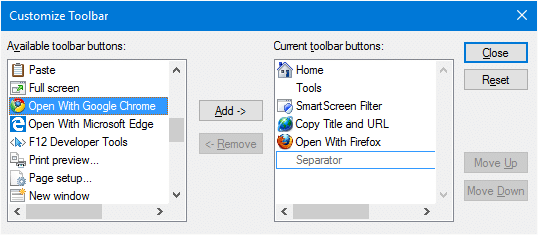
Add the required buttons and close the dialog.
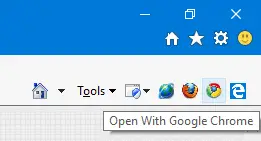
You now have three buttons in the Command Bar that open current webpage using Google Chrome, Mozilla Firefox and Microsoft Edge.
Also, the extensions show up when you click the Tools menu, and when you right-click on a webpage.
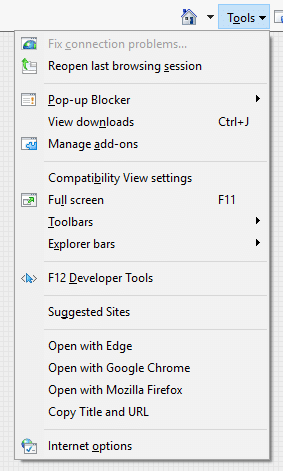
First time warning
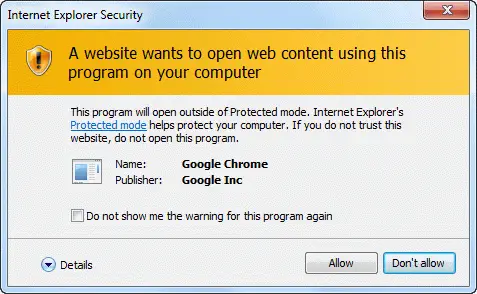
Clicking one of the added icons in the Command Bar would display a Internet Explorer Security window indicating that the program (Edge / Firefox / Chrome) would open outside of Protected mode. You can enable "Do not show me the warning for this program again" (and click "Allow") if you don’t want to see the dialog box from the next time.
That’s it!
Similar Add-On for Mozilla Firefox
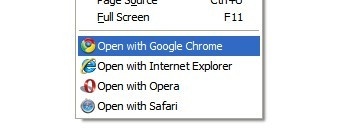
If you need a similar Add-On for Firefox, check out the Open With Add-on at mozilla.org, which adds additional menu options to open the current web page using another browser. This Add-On comes in handy if you need to test your web pages out in Internet Explorer, Chrome, Safari, Opera or any other web browser.
See also
How to Open .URL Files (Internet Shortcuts) Using Different Browsers from the Right-Click Menu
One small request: If you liked this post, please share this?
One "tiny" share from you would seriously help a lot with the growth of this blog. Some great suggestions:- Pin it!
- Share it to your favorite blog + Facebook, Reddit
- Tweet it!

Script updated to work for latest IE versions, including IE11 with Windows 10.
Working perfectly on Win 10 1803, great job, thanks a lot!
I have downloaded both the extensions (Google Chrome and Mozilla Firefox)
After applying the registry settings Options are added in right-click menu to open with Google Chrome and Firefox but its not working when I click on that option.
Can anyone help me understand what might be wrong here and help me resolve this?
I have tried this on Windows 10, Internet Explorer 11
@Junaid: It works perfectly here. Have you copied the corresponding .htm file(s) to
C:\Windows\Web?Thanks for your reply Ramesh.
Actually earlier when I unzip the downloaded chrome.zip, the files were extracted under C:\Windows\Web\chrome
So I have moved the required files under C:\Windows\Web and now its working fine.
Thank you it was very helpful
Great! Opening in Chrome works.
Is it possible to also configure your reg and htm files to open a page in k-meleon browser?
Thank you