 Is your Windows Sidebar (Windows Desktop Gadgets) crashing after adding a third-party gadget, with the error "Windows Desktop Gadgets has stopped working" or "Windows Sidebar has stopped working" (Windows Vista) at every start? You can stop the offending gadget from loading by editing the Windows Sidebar Gadgets settings file. Here are the instructions, which apply to Windows 7 and Windows Vista.
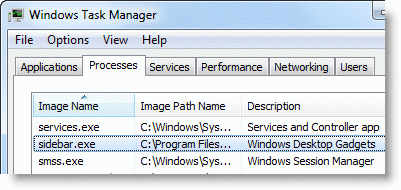
If Sidebar.exe process is running, you wouldn’t be able to write to its settings file. Launch Task Manager (taskmgr.exe), select the sidebar.exe process and terminate it if it’s running.
Click Start, type the following path in the Search box and hit ENTER.
(You can type it in the Run dialog as well.)
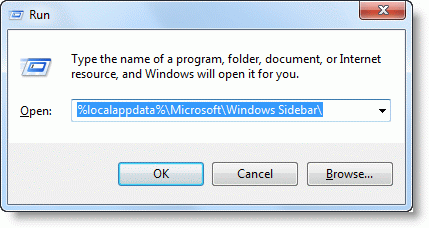
The above location is where the desktop gadgets store their configuration information, in a file named Settings.ini
First, make a copy of Settings.ini
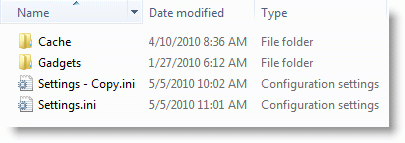
Double-click Settings.ini to open it in Notepad.
Configuration information for the last installed desktop gadget is usually located at the end of the INI file. Using the PrivateSetting_GadgetName line as the hint, locate the corresponding [Section #], select all lines underneath and delete it. Trim any blank lines that may have resulted from the deletion.
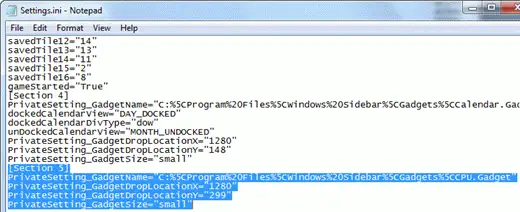
Then, move to the top of the INI file, and delete the Section# line that references the offending gadget. As you’ve removed the entries in [Section 5], also delete the following line:
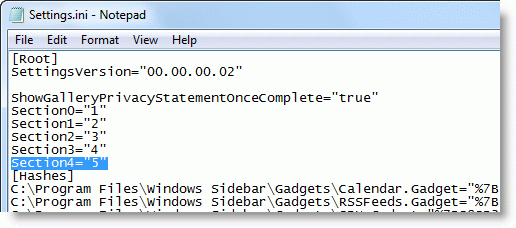
Trim any blank lines that may have resulted from the deletion, and save the Settings.ini file.
Right-click on the Desktop, and click Gadgets. This starts the Sidebar.exe process and shows the gadgets listed in the Settings.ini file.
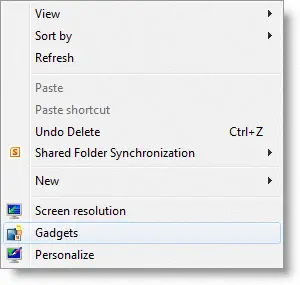
[Windows Vista Users] The above UI is unavailable in Windows Vista. If using Windows Vista, manually launch Sidebar.exe from Start, Search box or via the Run dialog. This starts the Windows Sidebar and loads the previously added gadgets, except the offending one.
Reset Windows Sidebar (Desktop Gadgets) Configuration to Defaults
If you don’t want to go through all the hassle, simply rename or delete the Settings.ini and restart Sidebar.exe. It creates a brand new Settings.ini file, that means the customizations for your Sidebar/gadgets will be lost and you need to add the gadgets manually and reconfigure again.
One small request: If you liked this post, please share this?
One "tiny" share from you would seriously help a lot with the growth of this blog. Some great suggestions:- Pin it!
- Share it to your favorite blog + Facebook, Reddit
- Tweet it!


THANK YOUUUU!!!~ arigatou!!! *bows down with respect
Thank you very much for the help. Your advice was laid out clearly, with step-by-step illustrations. THAT is the way IT advice should function.
TRY THIS :: go to : %LOCALAPPDATA%\Microsoft\Windows Sidebar and double click on setings.ini and DELETE ALL THAT TEXT , save and the gadgets will work 100% 🙂
Thank u so much. I did it, I got all my important notes back. It’s really usefull and easy :))
Wow!!! It really trouble shooting…!!!
Thanks a lot
It really works. Big thanks
Finally a working solution.. thanks!
Thankx … u’ve saved a lot of time !!!
Thank u SO much! i really appreciate it
It solved my problem
thank you sooooo much 🙂 works great 😀
this is the best guide in the whole google, thanks man!
i have try qith features off\on and Sidebar \ Settings it didn’t work. But this did 😉
thanks again cheers
Thank you,it works I can not believe it everything back my gadget is back WAWOOOOOOO like magic
thanks, after two months of sufferiing and trying EVERYTHING, this worked like a charm 🙂
thank you very much…the best guide ever 😀
thanks bro, it was so simple and easy for me. it worked well
thanks again
oh thanx so much …. i appriciate your information …blesses
Thanks..my gadgets appear again..
I have try many setting and failed, …but it works…
thank u very much…u’re the best 🙂
thanks!!!,,,ya it really helped.
cant imagine desktop without gadgets!!!
thanks for the solution.. now i can study for good =’)
thank you very much,you’re da best
That was solved my problem, thank you so much 🙂
Thanks a ton
it works!! thanks ^^
I’ve been searching for tons and tons of solution regarding this problem and you sir have saved me. You have my gratitude.
I have deleted previous installed gadget as you suggest but still cannot fix the issue.. Should I delete the copy of Setting.ini file or need to keep it as such in the folder. Awaiting your response
I have followed the instructions, but sidebar.exe still crashes! Does this mean anything?
Problem signature:
Problem Event Name: APPCRASH
Application Name: sidebar.exe
Application Version: 6.1.7601.17514
Application Timestamp: 4ce7a1c7
Fault Module Name: jscript9.dll
Fault Module Version: 9.0.8112.20544
Fault Module Timestamp: 4eb34dce
Exception Code: c0000005
Exception Offset: 000000000000a23b
OS Version: 6.1.7601.2.1.0.256.1
Locale ID: 4105
Additional Information 1: a2c0
Additional Information 2: a2c06fe3a46e3d2ff006b77803147f9a
Additional Information 3: a04c
Additional Information 4: a04c61e8c89541aca5d017ec4f8d9fb7
Wow, I was trying to find it from many place. But with only this i have fixed my problem. Thanks a lot…
Just type in d search box “windows sidebar” & u’ll c dat in d suggestions a folder ‘gadget’ will appear. Just double click on it & u’ll c a list of folders of installed gadgets. Just delete those folders which u think is d problem & then run d gadget on d desktop. kaboom!!! It simply works 🙂
I don’t seem to have a Settings.ini file? Just the 3 files above? Tried Sidebar.exe but no change? Still will not display gadgets. Thanks! L.Bingo
that solved my problem thank you thankssssssssssss
my desktop gadget not opening following problem display
Problem Event Name: BEX
Application Name: sidebar.exe
Application Version: 6.1.7600.16385
Application Timestamp: 4a5bc613
Fault Module Name: StackHash_c199
Fault Module Version: 0.0.0.0
Fault Module Timestamp: 00000000
Exception Offset: 02830070
Exception Code: c0000005
Exception Data: 00000008
OS Version: 6.1.7600.2.0.0.256.1
Locale ID: 1033
Additional Information 1: c199
Additional Information 2: c1996e8e9aa95be2765300e145170d5c
Additional Information 3: 535f
Additional Information 4: 535f43a898aa679f0971040167d24860
I was experiencing this problem and it appears that, for some weird reason, the clock and CPU gadgets don’t work properly.
I completely deleted the Gadgets folder and Settings.ini file in the %LocalAppData%\Microsoft\Windows Sidebar folder and launched gadgets.
I added the calendar gadget, no problem. I tried adding the Clock and it crashed as soon as I dropped it.
Repeat process, add CPU gadget, crash again. So now, I just have the Calendar gadget.
2010 … Years Ago——————————————————————————-
Chapter One
As Chapter One
MS: Gadgets are no longer available on our website because the Windows Sidebar platform in Windows 7 has serious vulnerabilities. Microsoft has retired the feature in newer releases of Windows. Gadgets could be exploited to harm your computer, access your computer’s files, show you objectionable content, or change their behavior at any time. An attacker could even use a gadget to take complete control of your PC. If you’re concerned about the safety of gadgets you’ve downloaded, find out more about gadgets and steps you can take to protect your PC.
Seven Years Later—————————————————————————–
Chapter Two
———————————————————————————-Present Day
MS: Gadgets aren’t available anymore. Instead, Windows 10 now comes with lots of apps that do many of the same things and much more. You can get more apps for everything from games to calendars. Some apps are better versions of the gadgets you love, and many of them are free.
MS just grabbed this piece of vulnerable s##t and redid it in to the Start Menu.
MS: Windows 10 is Safety!
Really…. Liars MS…. Windows 10 it is not Windows 10 – it is the same Windows 7 OS. Windows 7 has been successfully patched by Spytools and SpyApps… Just Check Group Policy Editor, Wow64(Folder), System32(Folder) and next…
https://support.microsoft.com/en-us/help/13787/gadgets-have-been-discontinued