 When you attempt to run the System File Checker (sfc.exe /scannow command) to restore missing or corrupted system files, the following error message may be seen:
Windows File Protection could not be initiate a scan of protected system files.
The specific code is 0x000006ba [The RPC Server is unavailable.]
This happens if you run Sfc.exe in Safe mode. Or the Windows File Protection (WFP) is disabled in the registry.
Editor’s Note: If you’ve used nLite to build custom Windows installation package, you may have enabled the Disable SFC (File Protection) checkbox, which disables WFP and the System File Checker.
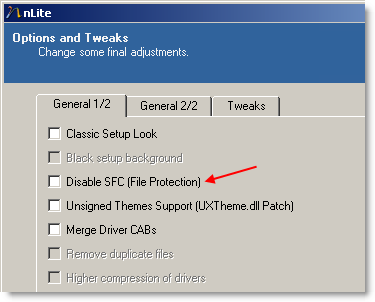
Enable the System File Checker
Use the following steps to re-enable WFP.
- Click Start, Run. Type Regedit.exe and press Enter.
- Navigate to the following branch:
HKEY_LOCAL_MACHINE\SOFTWARE\Microsoft\Windows NT\CurrentVersion\Winlogon
- Double-click SFCDisable and set its Value data to 0
- Exit the Registry Editor.
- Restart Windows.
One small request: If you liked this post, please share this?
One "tiny" share from you would seriously help a lot with the growth of this blog. Some great suggestions:- Pin it!
- Share it to your favorite blog + Facebook, Reddit
- Tweet it!


Thanks, this is the one that actually “fixed” my problem. My XP Pro was I think created using nLite. Wonder what else the idiot did?
I Wasn’t using nLite, but the registry value did fix my issue. Thanks, -md
Wow! When I went to perform this fix, as soon as I opened the last registry directory the screen went blank….
My system is so screwed.
That you for your help, but I think it’s time to let Linux take over.
My installation was created with nLite, but Windows protection was not set to disabled. I hear this is a common error when trying to run SFC in safemode, but I have as of yet to find a solution.
It was already 0, so this didn’t help. I’m trying in safe mode, since XP won’t let administrator log on in normal mode, and if I run sfc in another user with administrator rights, it is rejected too.
Be aware that this registry entry will also activate automatic monitoring and replacement of system files. This is a PITA, and is the reason for turning it off in nLite. Unfortunately I don’t think you can have SFC functionality unless it’s active.
Hope this explains why the guy wasn’t an idiot.
POINT OF INFORMATION FOR ALL CONCERNED:
[I know you’re not supposed to post to threads this old, but if my solution helps one person, it should be here, since *I* found this page on a search on this date…]
I discovered (the hard way) that you can’t run SFC in safe mode…..
I finally figured out that while in safe mode the RPC service is NOT running, irregardless of what ‘services.msc’ says. If you can boot into a normal login, you CAN run SFC in am command prompt. Just make sure you have the original Windows CD handy – must be same version (SP3, etc.). Enter the command, then have a bit of patience – it’ll jump back to C:\ and sit there for several seconds before running.
i can’t find SFCDisable in my computer…im using windows xp
Excellent! Worked for me.
►Thank You “The Time Rider” for this EXTREMELY important artifact.!! ♥
Fact remains: If trying to recover from a corrupted installation, wouldn’t you WANT to run SFC from safe mode?
►Note: I also tried running SFC at C:\Windows prompt after booting from XP CD (even tried at c:\windows\system32. It simply won’t run (“command not recognized”).
I checked and both SFC.exe and SFC.dll were Present in system32.
Such an odd restrictive choice by Microsoft.