 I’m writing this article specifically for Windows 7, because the FullRowSelect registry value that you used in Windows Vista, doesn’t work in Windows 7. (REF: Enable or Disable Full Row Select feature in Explorer in Windows Vista). After some of our readers reported that setting FullRowSelect to 0 doesn’t do anything in Windows 7, I decided to have a look at this issue. Playing with different bitmask values, I finally got what I wanted – to disable full row select feature in Windows Explorer (Details mode) in Windows 7, but with a minor side-effect which is explained in the later part of the article.
MSDN article on FOLDERFLAGS Enumerated Type tells that when the FWF_FULLROWSELECT 0x00200000 (Windows Vista and later) bit is set, when an item is selected, the item and all its sub-items are highlighted. However, in my Windows 7 system, the FWF_FULLROWSELECT wasn’t set, yet the full row select feature is still enabled. It appears that Windows 7 doesn’t honor 0x00200000. Perhaps Raymond Chen or someone from the MS Shell team can provide an expert insight on this?
Automate Using Script
Update: I just converted the registry edits to a Script file that does all the work. Works in Windows 7, 8, 8.1 and Windows 10.
Check out my recent post How to Disable Full Row Select and Auto Arrange in Folders in Windows 10?
To Disabling Full Row Select Manually
After testing with several values, I could finally disable the full row select feature by including 0x02000000 (FWF_EXTENDEDTILES) and applying the setting for Generic folders. Here are the detailed instructions (accompanied by a REG file) if you want to try it out:
1. Reset the saved folder views (Ref: Reset the Folder Views in Windows 7/Vista) and restart the shell as specified in the linked article.
2. Download w7-fullrowsel.zip, unzip and apply the disablefullrowselect.reg file.
3. Open My Computer and then close it.
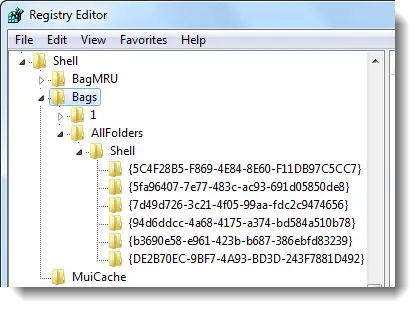
This is how the registry branch will look like, now:
4. Logoff and login back. (Alternately, you could terminate the shell cleanly and restart it. REF: Terminate and Restart Explorer.exe Process Cleanly in Windows 7 & Windows Vista).
This should disable full row select in Explorer.
More (Geeky) Information
The registry edit above creates GUID folders under the AllFolders\Shell branch (each GUID pertaining to a folder type), sets the FFlags DWORD value for the following folder types to 43000001. Also, it sets the FolderType value accordingly to prevent incorrect folder type sniffing by Windows. The latter step is important so that the special folders don’t lose their special buttons and columns.
| Folder Template | GUID |
| Generic | {5C4F28B5-F869-4E84-8E60-F11DB97C5CC7} |
| Documents | {7D49D726-3C21-4F05-99AA-FDC2C9474656} |
| Music | {94D6DDCC-4A68-4175-A374-BD584A510B78} |
| Pictures | {B3690E58-E961-423B-B687-386EBFD83239} |
| Videos | {5FA96407-7E77-483C-AC93-691D05850DE8} |
| Contacts | {DE2B70EC-9BF7-4A93-BD3D-243F7881D492} |
For other GUIDs, check out the following Folder Types registry key here, just in case you want to test the above hack for Libraries and other special folders.
Here is the location of the AllFolders registry key:
Screenshots
With full row select feature enabled (default)
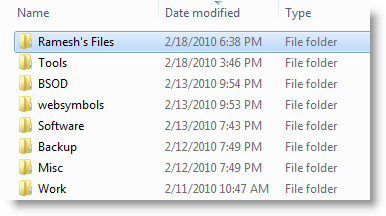
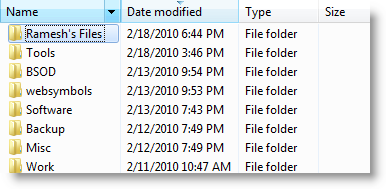
With full row select feature disabled.
Minor Side-Effect
The above hack also causes a little glitch which you can notice only if you enable the Preview pane in Explorer. When you double-click on a text file (or any text based file which has the Text Preview handler enabled), it simply goes into the rename mode. That is, if you want to open a text file, you must first select the file by single clicking on it, and then double-clicking the file to open it. Three clicks, totally. Again, this is observed only for .txt files and only if the Preview pane is enabled in Windows Explorer.
(Update: Feb 28 2010 – Additional note added below)
Other Interesting Observations of this Magical Registry Hack
Our vigilant reader Anon reported some interesting observations after running the above edit. This edit seems to force Windows 7 to use the standard list view control used in Windows Vista, instead of DirectUIHWND. Therefore, there are also other UI changes (as in the following screenshots) after running this edit.
#1: Blue-colored column header is back!

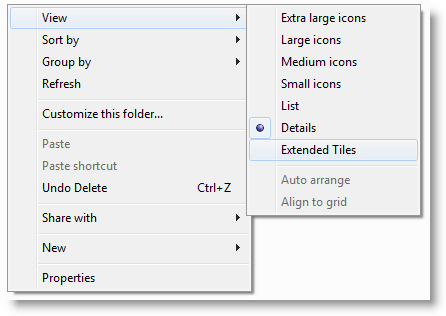
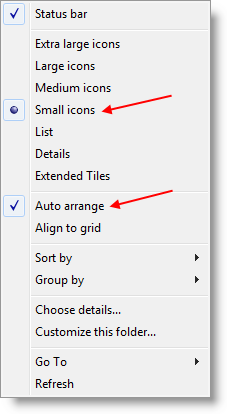
#2: Extended Tiles view option is added instead of Tiles (some may find this annoying)
#3: Selecting a file when in list view highlights the entire length (of the longest file name in that row)

#4: Auto arrange menu option is back. Atlast, you can disable Auto arrange option when in "icons" view. This wasn’t possible in Windows 7 earlier.
One small request: If you liked this post, please share this?
One "tiny" share from you would seriously help a lot with the growth of this blog. Some great suggestions:- Pin it!
- Share it to your favorite blog + Facebook, Reddit
- Tweet it!

Update: New Vbscript added to automate the tasks. See my most recent post: https://www.winhelponline.com/blog/disable-full-row-select-auto-arrange-folders-windows-10/