When emptying the contents of your Recycle Bin, you’ll be asked for confirmation as below. Here is a registry edit to turn off the prompt in Windows 7, 8 and Windows 10, using NirCmd. This registry edit replaces the Empty Recycle Bin command in the right-click menu and the ribbon button action with NirCmd, so that the Recycle Bin can be emptied silently.

Using NirCmd to Silently Empty the Recycle Bin
1. Download NirCmd from Nirsoft.
2. Unzip and move NirCmd.exe to the C:\Windows folder.
3. Download empty-bin-silent.zip and save to Desktop.
4. Extract the files to a folder, and run the file empty-bin-silent.reg.
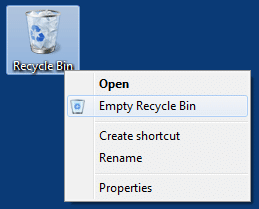
This replaces the Empty Recycle Bin command with NirCmd.exe emptybin command-line. Now, emptying the Recycle Bin from the right-click menu should not produce any prompts. There is also an undo REG file available inside the above zip archive. As mentioned above this edit works in Windows 10 as well.
Contents of the REG file
Windows Registry Editor Version 5.00

[HKEY_CURRENT_USER\Software\Classes\CLSID\{645FF040-5081-101B-9F08-00AA002F954E}\shell\empty\command]
"DelegateExecute"=""
@="nircmd.exe emptybin"
Windows 10 – Empty Recycle Bin Button in Explorer
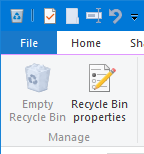
The above edit doesn’t work if you’re using the Empty Recycle Bin button in the ribbon. To silently invoke NirCmd when you click the ribbon button, use the following registry edit. Assuming you’ve already downloaded NirCmd and extracted NirCmd.exe to your Windows directory, follow these steps.
Replace the Empty Recycle Bin Ribbon Command in Registry
1. Start Regedit.exe and go to the following branch:
HKEY_LOCAL_MACHINE\SOFTWARE\Microsoft\Windows\CurrentVersion\Explorer\CommandStore\shell\Windows.RecycleBin.Empty\command
2. Export the branch to a REG file.
3. Take ownership of the registry branch, and assign yourself full access to it.
4. Double-click (default) and set its value data as follows:
nircmd.exe emptybin
5. Rename DelegateExecute to DelegateExecute.OLD
6. Exit the Registry Editor.
Now, every time you click the Empty Recycle Bin button in the ribbon, it will instantly clear the contents using NirCmd, without asking for any confirmation.
Using a Script (optional) : Automatically Close Recycle Bin After Emptying
In step 4 above, you can mention a custom Vbscript which runs additional tasks after clearing the Recycle Bin. For example, to close the Recycle Bin automatically after emptying the contents, you can write a script like this.
Set WshShell = CreateObject("Wscript.Shell")
WshShell.Run "nircmd.exe emptybin",, true
Wscript.Sleep 500
WshShell.SendKeys "^w"
Set WshShell = Nothing
The above script sends the Ctrl + w keystroke to close the Recycle Bin window, after emptying the contents. Save the script to your Windows directory and name it as emptybin.vbs. Then in Step 4 above, set the (default) value data as follows:
wscript.exe c:\windows\emptybin.vbs
That’s it.
One small request: If you liked this post, please share this?
One "tiny" share from you would seriously help a lot with the growth of this blog. Some great suggestions:- Pin it!
- Share it to your favorite blog + Facebook, Reddit
- Tweet it!
