Windows already includes the Eject command in the context menu for optical drives. If you want to add the Close Tray option in the context menu for optical drives, then this article is for you.
NirCmd is a small command-line tool that allows you to do some useful tasks without displaying any user interface. By running NirCmd with simple command-line option, you can write and delete values and keys in the Registry, write values into INI file, dial to your internet account or connect to a VPN network, restart windows or shut down the computer, create shortcut to a file, change the created/modified date of a file, change your display settings, turn off your monitor, open the door of your CD-ROM drive, and more…
Shortcuts to Eject / Close CD/DVD Drive
Download Nircmd.zip from Nirsoft.net, unzip and extract the files to a folder. Move the file nircmd.exe to your Windows directory. To create a desktop shortcut to eject the CD/DVD drive tray, use the following command:
nircmd.exe cdrom open drive:
Assuming that F: is the drive letter for your CD/DVD drive, you use the following command:
nircmd.exe cdrom open F:
As you guessed it right, the command for closing the drive tray is:
nircmd.exe cdrom close F:
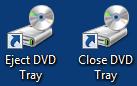
Fig 1: Desktop shortcuts to open and close CD drive.
Tip: You may customize the icon the shortcuts accordingly. Browse through shell32.dll using the Change Icon dialog, and pick the CD/DVD icon. (Icon index #11)
Add “Close Tray” option to the context menu
To add a Close Tray entry to the right-click menu of CD/DVD drives, use these steps:
- Download closetray.zip and save to Desktop
- Unzip the files and extract the contents to a folder
- Double-click closetray.reg to run it.
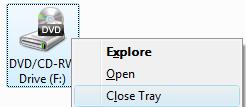
The Close Tray option will now appear for all optical drives connected to the system. Note that there is also a undo .reg file available in the zip just in case you want to remove Close Tray option from the right-click menu.
The above is just one of the many tasks that NirCMD can automate. Read the nircmd help file to know the other uses of this excellent tool!
One small request: If you liked this post, please share this?
One "tiny" share from you would seriously help a lot with the growth of this blog. Some great suggestions:- Pin it!
- Share it to your favorite blog + Facebook, Reddit
- Tweet it!

I added an open CD option so open and close are together. Now is there a way to remove the existing Eject option from the menu?
I just added only the Close, so there is Eject/Close. 🙂
same as pinball wizard “application not found”
@ceb: Have you copied the file nircmd.exe to your Windows directory?