To copy the contents of a text-based file, you open the file in an editor such as Notepad, use Select All and then copy the contents to the clipboard. How about accomplishing it using a command in the right-click menu?
Add “Copy to Clipboard” to the Context Menu
- Start the Registry Editor (
regedit.exe) - Go to the following branch:
HKEY_CLASSES_ROOT\SystemFileAssociations\text\shell
- Create a subkey named “
Clipboard“ - Double-click
(default)and set “Copy to Clipboard” as its data. - Under “Clipboard”, create another subkey named “
command“ - With the “
command” key selected, double-click(default)HKEY_CLASSES_ROOT\SystemFileAssociations\text\shell\Clipboard\command
- Set the
(default)value data to:cmd.exe /c type "%1" | clip.exe
- Exit the Registry Editor.
Registry File
To automate the above setting, use this .reg file. Using Notepad, you can create a .reg file with the following contents.
Windows Registry Editor Version 5.00

[HKEY_CLASSES_ROOT\SystemFileAssociations\text\shell\clipboard]
@="Copy to Clipboard"

[HKEY_CLASSES_ROOT\SystemFileAssociations\text\shell\clipboard\command]
@="cmd.exe /c type \"%1\" | clip.exe"
Double-click the registry file to apply the settings to the registry.
The “Copy to Clipboard“ option appears for most of the text-based files (i.e., file types whose PerceivedType registry value is set to “text“) listed below:
.asm, .asmx, .aspx, .c, .cdxml, .cpp, .css, .csv, .cxx, .def, .diz, .h, .hpp, .hta, .htm, .html, .hxx, .inc, .ini, .java, .nvr, .php3, .pl, .plg, .ps1xml, .pssc, .sed, .shtml, .sql, .text, .tsv, .txt, .xml, .xsl
Now, right-click on a text file and choose Copy to Clipboard.
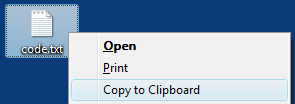
This copies the text file contents to the clipboard. To verify that, you may open Notepad or any other text editor and press Ctrl +V to paste the contents from the clipboard.
One small request: If you liked this post, please share this?
One "tiny" share from you would seriously help a lot with the growth of this blog. Some great suggestions:- Pin it!
- Share it to your favorite blog + Facebook, Reddit
- Tweet it!
