Windows Vista and Windows 7 include the Open file location context menu item for Shortcuts, which helps you quickly open the target folder of a shortcut. In Windows XP, it takes four mouse clicks to accomplish the task.
To open the target folder of a shortcut in Windows XP, you need to right-click on the shortcut file, click Properties and click the Find Target button to open the parent folder of the target file or folder. And an additional mouse click is needed to close the Shortcut Properties dialog.
You can add the Open file location feature in Windows XP (similar to what you have in Windows Vista) using two methods. Method 1 uses a registry file, and Method 2 uses a VBScript. No additional shell extensions are needed!
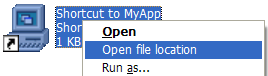
Note: The only drawback of Method 1 is that the Open file location command will be seen in the context menu of every file and folder, not only for shortcuts. If you need the Open file location command shown only for shortcuts (.lnk files), you may use my VBScript, which is discussed in Method 2 below.
Method 1
Using Notepad, create a .reg file (e.g., findtarget.reg) with the following contents.
Windows Registry Editor Version 5.00

[HKEY_CLASSES_ROOT\Directory\shell\Open File Location]
@="&Open File Location"

[HKEY_CLASSES_ROOT\Directory\shell\Open File Location\command]
@="\"explorer.exe\" /select,\"%1\""

[HKEY_CLASSES_ROOT\*\shell]

[HKEY_CLASSES_ROOT\*\shell\Open File Location]
@="&Open File Location"

[HKEY_CLASSES_ROOT\*\shell\Open File Location\command]
@="\"explorer.exe\" /select,\"%1\""
Right-click on the file and choose Merge.
The Open file location command is now added to the context menu for all files.
Undo file
To remove the option, create a file named undo.reg based on the following contents. Double-click to run the file.
Windows Registry Editor Version 5.00

[-HKEY_CLASSES_ROOT\Directory\shell\Open File Location]

[-HKEY_CLASSES_ROOT\*\shell\Open File Location]
Method 2
Here is a VBScript that I wrote which adds the Open file location command to the context menu of shortcuts (.lnk files)
Download the above script (opentargetdir.vbs) save it to your Windows folder.
Double-click the script, and click OK when you see the following prompt, click OK.
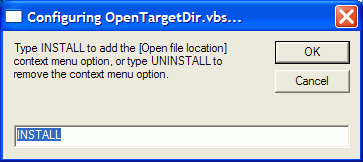
The Open file location command is now added to the context menu for shortcuts.
Uninstallation
Run the script. Type UNINSTALL and press Enter to remove the Open file location command from the context menu. Then delete the file opentargetdir.vbs manually from your Windows directory.
One small request: If you liked this post, please share this?
One "tiny" share from you would seriously help a lot with the growth of this blog. Some great suggestions:- Pin it!
- Share it to your favorite blog + Facebook, Reddit
- Tweet it!

Comments are closed.