Archive for November, 2009

How to Update Microsoft Security Essentials Definitions Offline

Microsoft Security Essentials uses Microsoft Update to check for, and download definition updates every 24 hours. If you have a number of computers in your home or office without (or having limited) internet access, you may have to install the definition updates offline. To download the Microsoft Security Essentials virus and spyware definition update file, click the appropriate link below: (more…)

New Command-Line Parameters for Defrag.exe in Windows 7

Several new switches or parameters are added to the defragmentation console tool (defrag.exe) in Windows 7. The switches are /E, /H, /M, /T, /U & /X. Here is the entire list of parameters supported by defrag.exe (v6.1) in Windows 7:

Switch Description
/A Perform analysis on the specified volumes.
/C Perform the operation on all volumes.
/E Perform the operation on all volumes except those specified.
/H Run the operation at normal priority (default is low).
/M Run the operation on each volume in parallel in the background.
/T Track an operation already in progress on the specified volume.
/U Print the progress of the operation on the screen.
/V Print verbose output containing the fragmentation statistics.
/X Perform free space consolidation on the specified volumes.

Likewise, the following switches are dropped in Windows 7.  Although the following switches are not listed when running "defrag.exe /?", Defrag.exe in Windows 7 still accepts these switches. It’s not clear if they’re left for backward compatibility. Perhaps we should wait for official note from Microsoft.

Switch Description
/R Performs partial defragmentation (default). Attempts to
consolidate only fragments smaller than 64 megabytes (MB).
/W Performs full defragmentation. Attempts to consolidate all file
fragments, regardless of their size.
/F Forces defragmentation of the volume when free space is low.

Right-Click Context Menu Turns Ugly Classic After Installing a Program in Windows 7 or Vista

Yet another context menu saga. After installing Notepad++ (a free Notepad alternative, version 5.5.1 as of this writing) in a Windows 7 computer, the context menu turned ugly with a classic look.

After removing "Edit with Notepad++" from the right-click menu, by deleting the following registry branch:

HKEY_CLASSES_ROOT \ * \ shellex \ ContextMenuHandlers \ Notepad++

It now renders correctly.

This is only a cosmetic issue, and has been already reported by an user in Notepad++ forums.

Adding Notepad++ as a Static Menu

After deleting the context menu handler from the registry, I added Notepad++ as a static menu in this key:

HKEY_CLASSES_ROOT \ * \ shell \ Notepad++

And added an icon to the context menu entry, as well.

Registry Fix

To automate the above, download npp-menu.zip. Unzip and run the attached REG file.

Additional Information

Earlier, it was noted that that a Norton Antivirus definition update caused this problem. You can read more about that in AskVG’s article Fix Old Classic Context Menu Problem, and to obtain the Hotfix from Symantec, visit Context menu options do not appear properly after you install updates for Norton 2009.

What if you experience this problem, but don’t have any of these applications?

If the problem occurred after installing or updating a particular product, notify the product support team so that they may fix the problem in next update. Until they fix the problem, you can remove or disable the corresponding context menu handler shell extension for the product, that is, only if you can’t really stand the ugly / classic look in context menu. Nirsoft’s ShellExView does this job neatly. If you need a detailed guide, check out Method 2 in article Right-click weirdness caused by context menu handlers.

“This Computer’s Video Card Can’t Play Themes” Message in WLPG Screensaver Settings Dialog

When you open the Windows Live Photo Gallery Screensaver settings dialog, theme controls may be missing and the message "This computer’s video card can’t play themes" is displayed. You might be knowing that the themes in Windows Photo Gallery slideshow as well as in Windows Live Photo Gallery screensaver won’t be enabled if the Graphics card score (Windows Experience Index) is less than 3.0. (more…)

Office 2007 File Types DOCX, PPTX, XLSX Downloading as ZIP

When you try downloading one of the Office 2007 file types such as .DOCX, .PPTX, .XLSX, the file may download as a .Zip (Compressed Folder). This happens if the Office 2007 file format MIME types are not registered in the Web server you’re downloading the file from.

There is nothing much the user can do, apart from saving / renaming the file with the correct extension and then opening it using Office 2007.

If you had already downloaded the file (as .zip), simply rename (change) the extension accordingly. To do that, you’ll have to clear the Hide extensions for known file types check box in Folder Options. (REF Show or hide file name extensions)

Note to Webmasters

If you’re a Webmaster and want to register Office 2007 Open XML File Formats in your server, visit these links for detailed information:

Office Resource Kit Blog : Register Office 2007 file format MIME types on servers (Windows / IIS)

Serving Office 2007 documents from a Linux PLESK web site (non-Windows)

Microsoft Security Essentials (MSE) Update Utility

Just came across this interesting tool from the AddictiveTips Blog.

MSE Update Utility is a simple app that updates Microsoft Security Essentials when Windows Update is disabled. Windows Update service is responsible for frequently updating MSE. But once it is disabled via Group Policy Editor, MSE won’t update anymore.

You can download the MSE Update Utility from AddictiveTips.com.

[Related Tip] Updating Microsoft Security Essentials Using Command-Line

On Resume, Password Protect vs on Resume, Display Welcome Screen Setting in Windows XP

When you open the Display Settings Control Panel applet and click the Screensaver tab, one of the following options are shown:

  • On resume, display Welcome screen
  • On resume, password protect

The second option is seen in systems which are connected to domain (which disables the Welcome screen.) If you enable this option, you’ll see the "Unlock Computer" classic logon prompt when resuming from screensaver mode. Whereas the former displays the Welcome screen when resuming from screensaver mode.

What if the "On resume, password protect" option is shown in a standalone system where the Welcome screen is enabled? What causes the "On resume, password protect" option to be shown in standalone systems and systems in a Workgroup?

This was asked by many Windows XP users over these years in various forums where I participate, but no entire explanation for this observation has been found anywhere. Hence this article was written.

The "On resume, password protect" is displayed if at least one the following conditions is true:

  1. Fast User Switching is disabled. (REF Enable Fast User Switching in Windows XP)
  2. There is only one user account in the system (not taking the "Guest" account into consideration)
  3. There are more than one user account, but only one is shown in the Welcome Screen and all others hidden.
  4. Terminal Services is not running. This in turn disables Fast User Switching. (To start Terminal Services, launch Services.msc, double-click Terminal Services, set its start type to Manual. Restart Windows.)

Fix Services MMC Extended View Is Blank in Windows XP

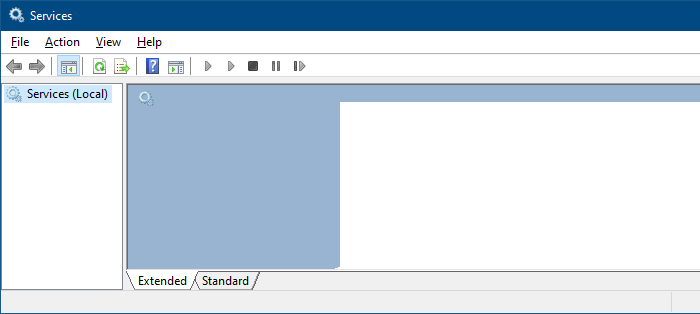
The Extended view of Services Management Console (services.msc) displays the service description and also has links to Start or Stop services. In some systems, the Extended view may appear blank, as in figure below:

This has to do with broken JScript.dll registration. To fix this problem, login as Administrator or equivalent, and then run the following command from Start, Run dialog:

regsvr32.exe  jscript.dll

Press {ENTER}

You should see the output message "DllRegisterServer in jscript.dll succeeded."

This fixes the Extended view. Close and re-open Services MMC.

WordPress Automatic Upgrade Error “Could Not Create Temporary File”

This is probably the first time I’m trying to upgrade WordPress using the automatic upgrade option available in the WordPress Admin Dashboard. And doing so showed this error message:

Downloading update from http://wordpress.org/wordpress-2.8.6.zip.
Download failed.: Could not create Temporary file
Installation Failed

Searching the Web lead me to the following thread at WordPress Forums:

WordPress › Support » Download failed.: Could not create Temporary file

What did actually work was setting the permissions (CHMOD) for wp-content folder to 777, using the FTP client (FileZilla) I use. Once WordPress was upgraded successfully, I changed the permissions back to 755.

This issue seems to occur only in Apache servers where Safe_Mode is On. You can read about that at Download failed – Could not create Temporary file | shantopagla.

How to Restore .BKF Files Using NTBackup in Windows 7 and Windows Vista

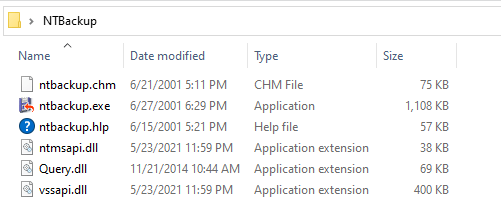
There are so many users who back up their data using the NTBackup Tool in Windows XP, then clean install/upgrade to Windows 7 or Windows Vista and later realize that Windows 7/Vista do not include the NTBackup Tool to restore the image. Also, Microsoft haven’t released the NT Backup Restore Utility for Windows 7 yet (should be out soon), as they released for Windows Vista. If you have critical data contained in a NTBackup image (.BKF) and want to restore it in Windows 7, then this article is for you. (more…)