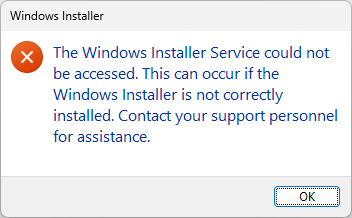
When you try to install a program that uses Windows Installer on a Windows computer, you may receive the following error.
The Windows Installer Service could not be accessed. This can occur if the Windows Installer is not correctly installed. Contact your support personnel for assistance.
When you attempt to start the Windows Installer service by running the net start msiserver command from Admin Command Prompt, one of the following errors may appear:
System error 1058 has occurred.

The service cannot be started, either because it is disabled or because it has no enabled devices associated with it.
The service name is invalid.

More help is available by typing NET HELPMSG 2185.
The above errors may occur even though Windows is already in Normal mode. Instructions in this article apply to all versions of Windows, including Windows 11.
Resolution
Start the Windows Installer service
- Launch Command Prompt as Trusted Installer.
- In the Trusted Installer Command Prompt, type
Services.mscand press Enter. - In the Services console, double-click
Windows Installer - Set the Startup type of Windows Installer to Manual
- Click
Startto start the service. Note down the error message, if any. - Click OK.
If the above steps do not help or if the Windows Installer service is missing in the Services applet, follow these steps:
Fix the Windows Installer Service Registry Keys
- Download msiserver.zip (for Windows 11, Windows 10, and Windows 7.)
- Unzip and extract the appropriate registry file to the Desktop.
- Right-click on the registry file and choose Merge.
- Click Yes when asked for confirmation.
- Restart Windows.
Error 2 when starting the Windows Installer service?
Some users may get the following error when starting the Windows Installer service.
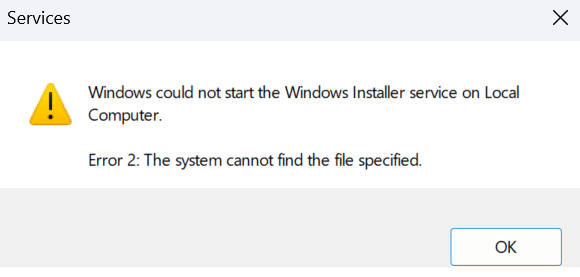
Windows couldn't start the Windows Installer service on Local Computer.

Error 2: The system cannot find the file specified.
To resolve the error, follow the steps below:
Make sure the system has internet connectivity. From admin Command Prompt, run:
dism /online /cleanup-image /restorehealth
Restart Windows and run the following commands:
sfc /scannow

sfc /scanfile=c:\windows\system32\msiexec.exe
I hope that helps. If the issue is still unresolved, please comment with details about what happens when you start the service.
One small request: If you liked this post, please share this?
One "tiny" share from you would seriously help a lot with the growth of this blog. Some great suggestions:- Pin it!
- Share it to your favorite blog + Facebook, Reddit
- Tweet it!

Grazie 1000, Dio ti benedica
Saved my life. Thank you so much.
Thank you very much. It zip file was the solution for missing windows installer. Windows 10, 32 bit.
You are a hero! I already tried a crazy lot of sites with no results.
As a thank. I have a joke for you.
“How much does an hipster weigh?
1 instaGRAM”
Greetings –
I’m running Windows10 with ESU. I’m receiving several MS updates e.g., MS Home Office, Edge etc. However, when Windows Updater attempts to download and install KB50778885, it reaches 100% , but then fails, showing a (0x80073701) error code. I’ve tried numerous fixes, but have not found the solution. I’ve noted that my Services list does not include MSI Server and I don’t know if this is an issue. Will you’re Windows Installer Service Fix at (https://www.winhelponline.com/blog/windows-installer-service-not-accessed-windows/) replace my missing MSI? – Thank you.