By default, when you drag a folder and drop it in Taskbar, the folder is added to the File Explorer Jump list, and not as a separate item. To Pin a folder as a separate item in the Taskbar, use these steps.
Right-click on the folder you want to Pin to taskbar, click Send To and click Desktop (create shortcut)
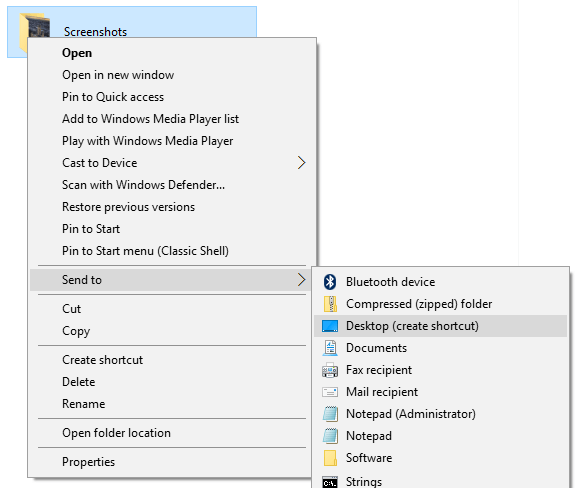
This creates the shortcut to that folder in the Desktop. Right-click on the newly created desktop shortcut and choose Properties.
Prefix the Target field with “explorer”. For example, if the folder path is
C:\Users\Ramesh\Pictures\Screenshots
Change that to:
explorer C:\Users\Ramesh\Pictures\Screenshots

You can change the shortcut icon by clicking the Change Icon…, and select an icon from the Shell32.dll or ImageRes.dll (both located in C:\Windows\System32 folder.)

Click OK.
Right-click on the Desktop shortcut and click Pin to Taskbar. The desktop shortcut can now be deleted.
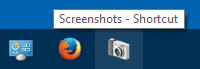
Note: Although this adds the folder as a separate item in Taskbar, thumbnail preview won’t work for the item. Instead the thumbnail preview for it is seen when you hover your mouse over the File Explorer icon.
Create a Custom Toolbar in Taskbar
Another option is to create a custom toolbar in the taskbar, and add shortcuts in there.
1. Create a folder in your preferred location that’s permanent. Add shortcuts to various folders inside that folder, and customize the icons for each folder shortcut.
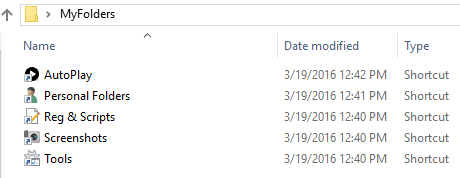
2. Right-click Taskbar, click Toolbars, and click New Toolbar…
3. Select the folder you created in Step 1. This adds the folder as a menu in the Taskbar.
4. Right-click Taskbar and uncheck Lock the Taskbar
5. Drag the separator shown near the custom toolbar item, and expand it to the left.
6. Right-click the custom toolbar, and uncheck Show Text
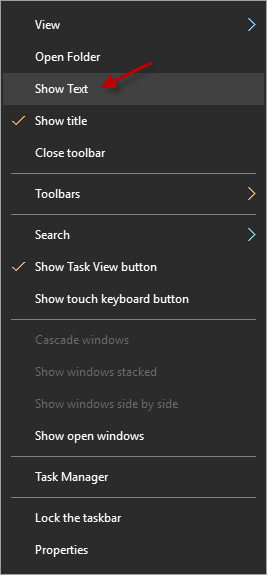
Optionally, right-click on the custom toolbar, click View and click Large icons.
7. Right-click Taskbar and click Lock the taskbar. You’ve now added a custom toolbar that contains shortcuts to various folders.

That’s it!
One small request: If you liked this post, please share this?
One "tiny" share from you would seriously help a lot with the growth of this blog. Some great suggestions:- Pin it!
- Share it to your favorite blog + Facebook, Reddit
- Tweet it!
