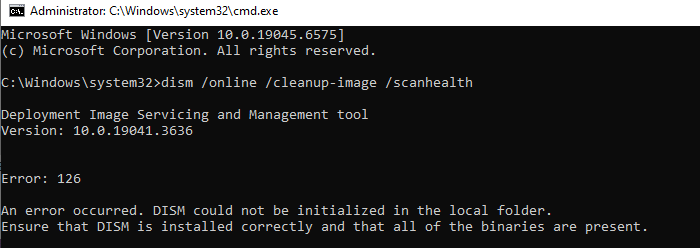
When you run any DISM command, error 126 may appear. The following is the full error message verbatim.
Error: 126

An error occurred. DISM could not be initialized in the local folder.
Ensure that DISM is installed correctly and that all of the binaries are present.
The DISM log file may contain the following entries:
Error    DISM   PID=1072 TID=8268 Failed to create the local image session. - CDISMManager::GetLocalProviderStore(hr:0x8007007e)
Error    DISM   PID=1072 TID=8268 Failed to get the local Provider Store. - CDISMManager::get_Logger(hr:0x8007007e)
Info     DISM   PID=8564 TID=8548 Scratch directory set to 'C:\Users\autot\AppData\Local\Temp\'. - CDISMManager::put_ScratchDir
Info     DISM   PID=8564 TID=8548 DismCore.dll version: 10.0.26100.6899 - CDISMManager::FinalConstruct
Info     DISM   Initialized Panther logging at C:\Windows\Logs\DISM\dism.log
Info     DISM   PID=8564 TID=8548 Successfully loaded the ImageSession at "C:\Windows\System32" - CDISMManager::LoadLocalImageSession
Error    DISM   PID=8564 TID=8548 Failed to create the local image session. - CDISMManager::GetLocalProviderStore(hr:0x8007007e)
Error    DISM   PID=8564 TID=8548 Failed to get the local Provider Store. - CDISMManager::get_Logger(hr:0x8007007e)
Cause
Error code 126 (hex: 0x8007007E) means:
0x8007007E (0x7E) - ERROR_MOD_NOT_FOUND - The specified module could not be found.
The above error can occur if the DISM-related DLLs are missing or if they are located in a different folder.
These three files should not be present under the C:\Windows\System32 folder.
C:\Windows\System32\DismCore.dll
C:\Windows\System32\DismCorePS.dll
C:\Windows\System32\DismProv.dll
Instead, they should be under the C:\Windows\System32\DISM folder.
Resolution
Step 1
Open the C:\Windows\System32 folder.
Delete or rename the following files if they exist.
C:\Windows\System32\DismCore.dll
C:\Windows\System32\DismCorePS.dll
C:\Windows\System32\DismProv.dll
Step 2
Make sure that these DLLs are present under the C:\Windows\System32\DISM folder.
For Windows 10:
AssocProvider.dll
CbsProvider.dll
DismCore.dll
DismCorePS.dll
DismHost.exe
DismProv.dll
DmiProvider.dll
FfuProvider.dll
FolderProvider.dll
GenericProvider.dll
IBSProvider.dll
ImagingProvider.dll
IntlProvider.dll
LogProvider.dll
MsiProvider.dll
OfflineSetupProvider.dll
OSProvider.dll
ProvProvider.dll
SetupPlatformProvider.dll
SmiProvider.dll
SysprepProvider.dll
TransmogProvider.dll
UnattendProvider.dll
VhdProvider.dll
WimProvider.dll
For Windows 11:
AssocProvider.dll
CbmrProvider.dll
CbsProvider.dll
DismCore.dll
DismCorePS.dll
DismHost.exe
DismProv.dll
DmiProvider.dll
EdgeProvider.dll
FfuProvider.dll
FolderProvider.dll
GenericProvider.dll
IBSProvider.dll
ImagingProvider.dll
IntlProvider.dll
LogProvider.dll
MsiProvider.dll
MsuProvider.dll
OSProvider.dll
OfflineSetupProvider.dll
ProvProvider.dll
SetupPlatformProvider.dll
SmiProvider.dll
SysprepProvider.dll
TransmogProvider.dll
UnattendProvider.dll
VhdProvider.dll
WimProvider.dll
If some of them are missing, run the System File Checker (SFC.exe) to restore them.
Note: The following files don’t exist in Windows 10 (22H2).
CbmrProvider.dll
EdgeProvider.dll
MsuProvider.dll
Once done, DISM.exe should load the DLLs correctly from the C:\Windows\System32\DISM folder.
One small request: If you liked this post, please share this?
One "tiny" share from you would seriously help a lot with the growth of this blog. Some great suggestions:- Pin it!
- Share it to your favorite blog + Facebook, Reddit
- Tweet it!
